Entra ID Page
On the Entra ID page, you can access all the Entra tenants that you have configured through the Entra ID Page.
Click Entra ID in the left pane to open the Entra ID page.
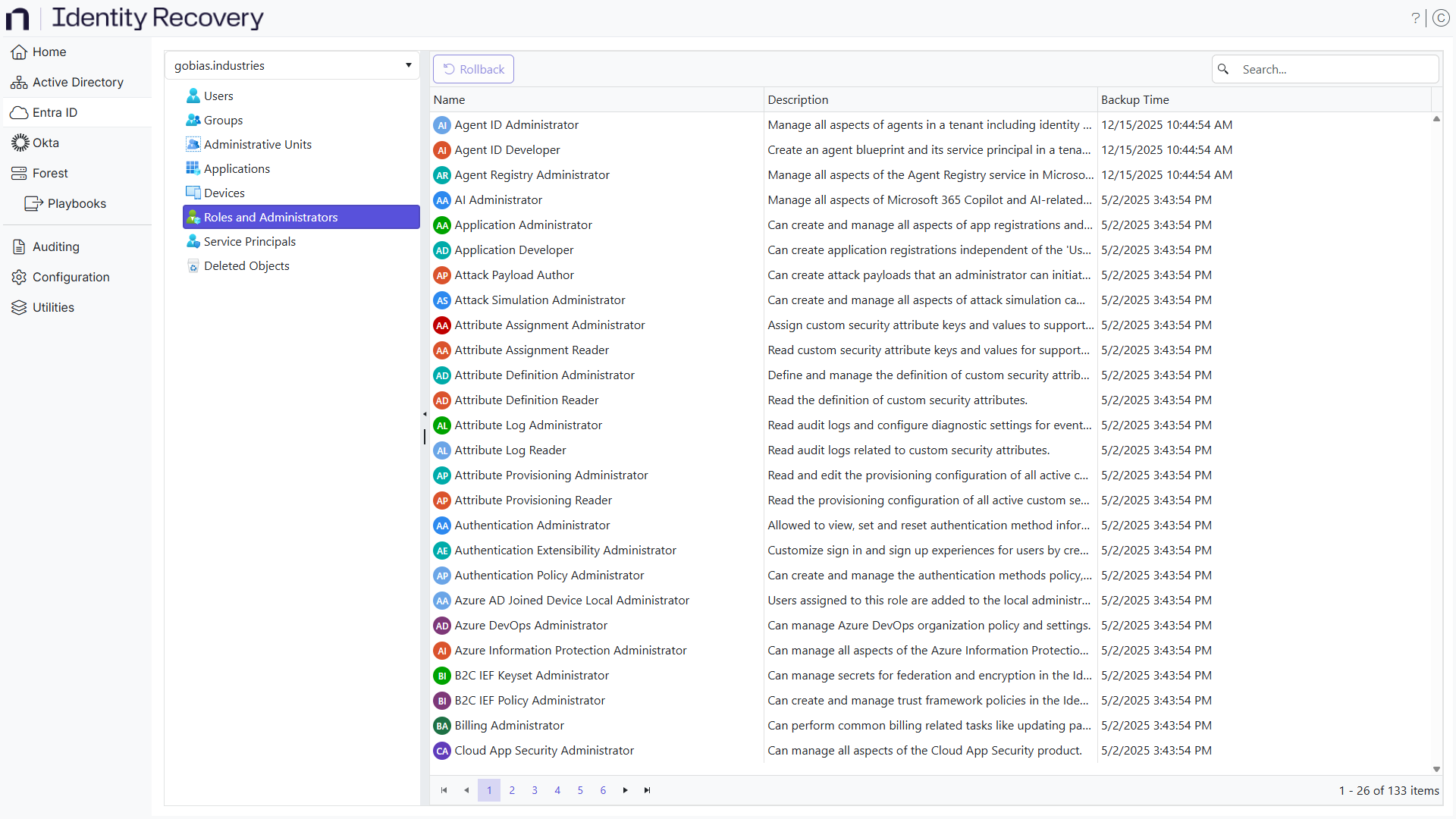
Select a tenant from the drop-down menu and expand it to view the domain tree and container structure, which is exactly the same as you get in Active Directory Users and Computers. Objects in the domain are also available in the same hierarchical structure.
The page displays the following information:
- Name – The display name of the object
- Description – A description of the object
- Backup Time – The date and time of the last the backup
You can perform the rollback and recover operations for objects.
Search for an Object
There are several ways to find an object:
- Column Filters – Click a column header to organize the table alphabetically by the column header. An arrow appears by the column name. Use it to arrange the entries by ascending or descending order.
- Search box – Enter a text string in the search box to filter the table for results that contain the text.
Rollback an Object
Select and expand a tenant in the left pane and locate the object you want to rollback. Right-click this object and select Rollback on the menu. See the Rollback Objects topic for additional information.
Recover Deleted Objects
On expanding a tenant in the left pane, you will notice a Recycle Bin. This is a virtual container specific to Identity Recovery. Use the Recycle Bin to recover deleted objects in Entra. See the Recover Objects topic for additional information.