Rollback Objects
You can revert an Entra ID object to its previous state.
Follow the steps to roll back an Entra ID object, including user accounts, groups, and organizational units.
Step 1 – Click Entra ID in the left pane to open the Entra ID Page.
Step 2 – Select and expand a tenant in the left pane and locate the object you want to rollback.
Step 3 – Do one of the following:
- Select the object to rollback and click the Rollback button.
- Right-click the object and select Rollback on the shortcut menu.
The Object Rollback wizard opens.
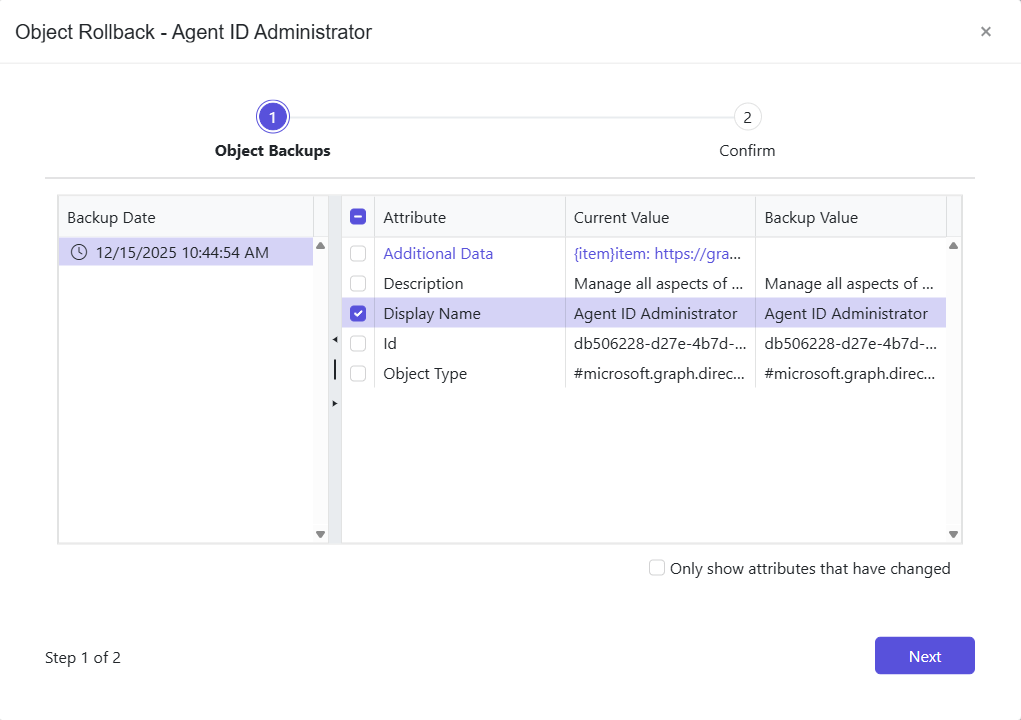
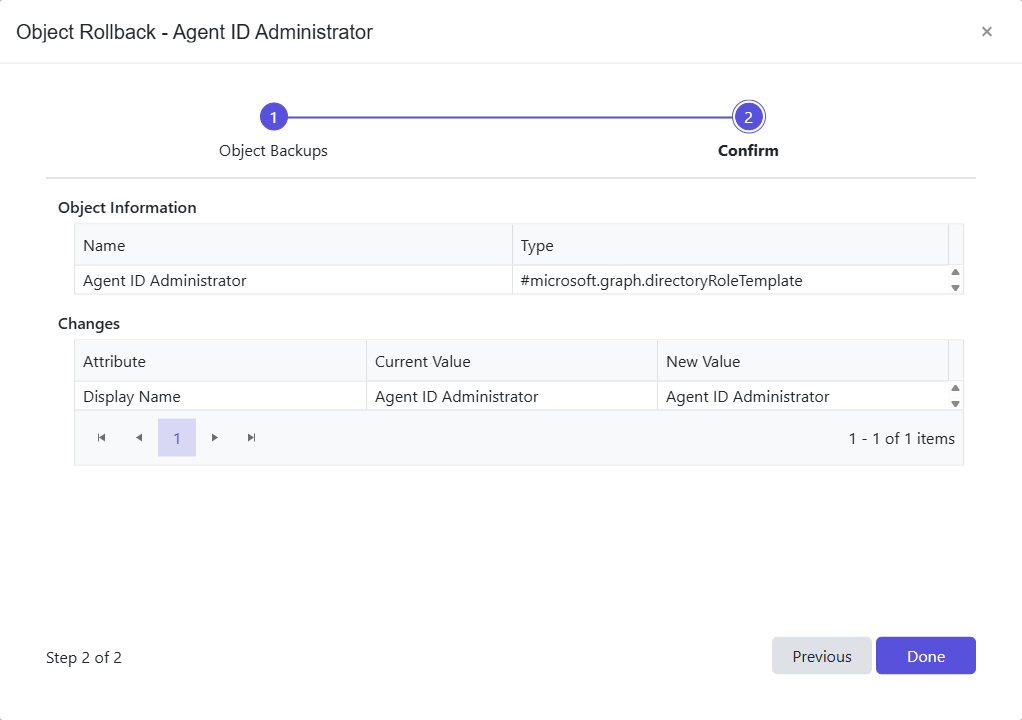
Step 4 – The Confirm page displays a summary of the settings you provided on the pages of the wizard. Use the Back button to return to a previous page and change any setting. Click Done to finish the wizard.
Step 5 – A completed message is displayed when the rollback is successful. Click OK.
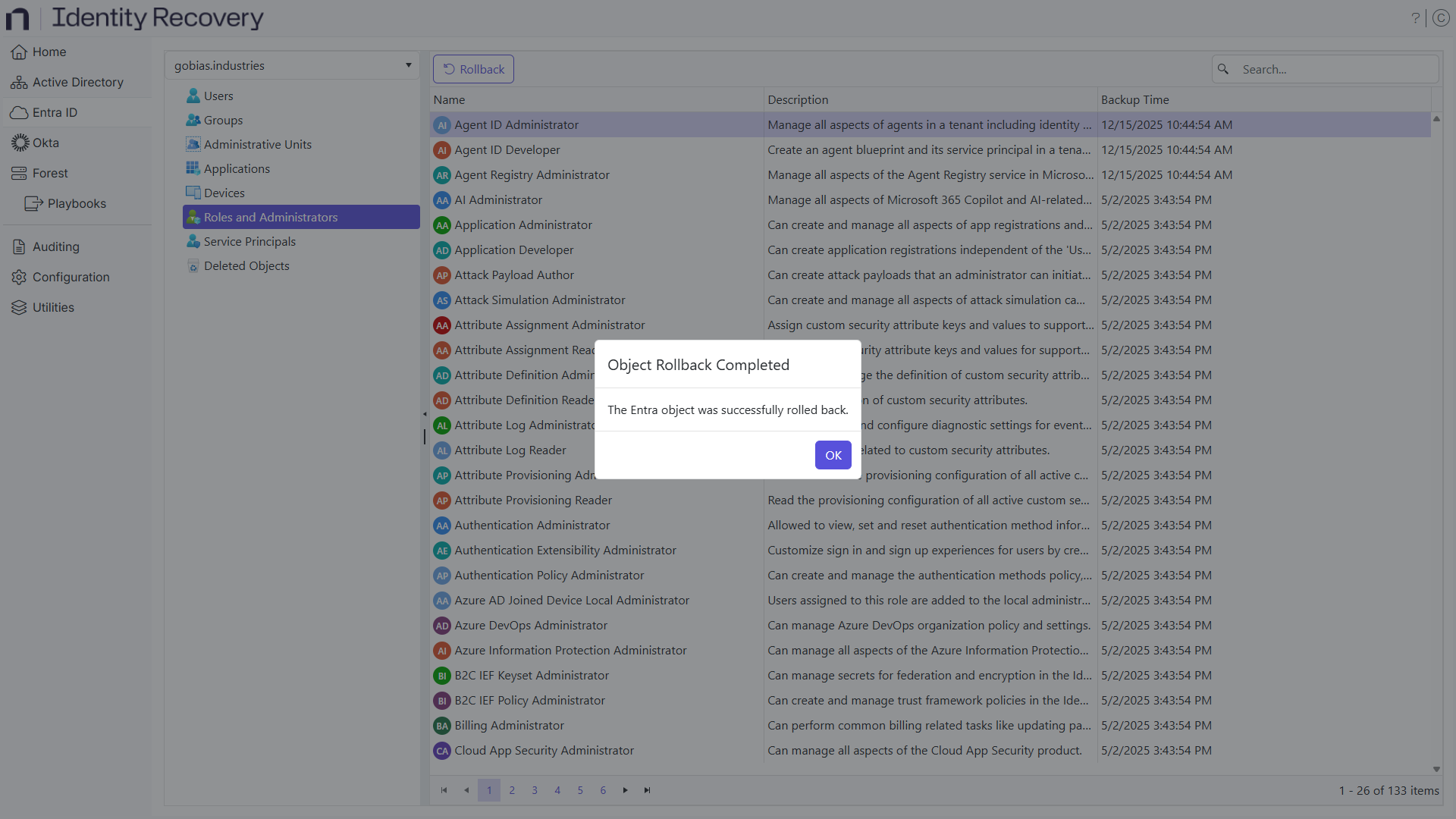
The object has been rolled back.