App Tokens Page
The App Tokens page lets you generate and manage the app tokens needed to send data to Threat Manager. Threat Manager and the Activity Monitor use an app token to push Active Directory activity data into the Threat Manager database. Access Analyzer uses an app token to push a list of files containing sensitive data into the Threat Manager database.
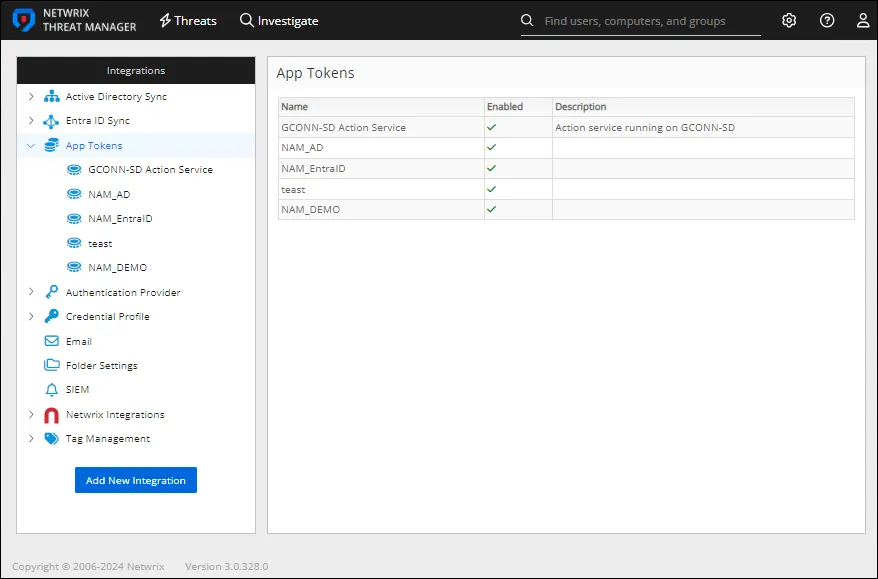
Generate an app token for each product integration. The App Tokens table displays the following information for each generated app token:
- Name – Name of the app token
- Description – Description for the app token
- Enabled – If set to ON, allows access to the generated app token. If set to OFF, disallows access for the generated app token.
Generate an App Token
To generate an app token:
Step 1 – On the Integrations page, click Add New Integration.

Step 2 – In the Type dropdown menu, select App Token.
Step 3 – Enter a Name for the token in the Name field, and a Description for the token in the Description field.
Identify the data source for this app in either the Name or Description fields.
Step 4 – Click Add to generate the app token.
The app token is added to the App Tokens list in the Integrations box.
View and Copy the App Token
To view the details for an app token, click the app token name in the Integrations box. The top of the page displays the app token name and the description. To modify these, click the name or description and enter the information you want.
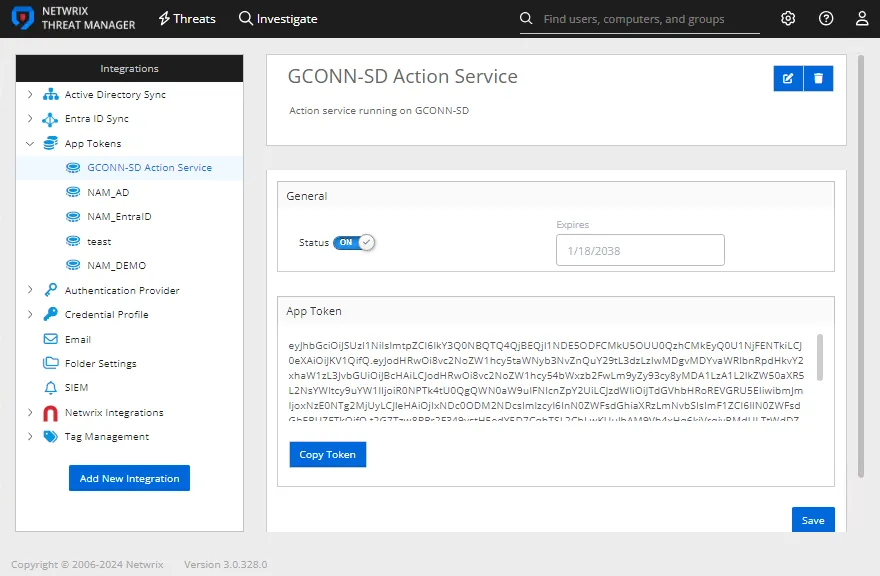
Ensure that the app token is enabled for sending data to Threat Manager. In the General box, verify that the status is set to ON.
Follow the instructions to copy the app token.
Step 1 – In the App Token box, click Copy Token.The app token is copied to the clipboard.
Step 2 – Paste the app token to the location you want.
Step 3 – Click Save to save any changes to the page.
Repeat this process to copy any desired app tokens.