Netwrix Threat Manager Honeytoken Threats Use Case
Obtain the LDAP Monitoring Configuration String
Step 1 – From the Threat Manager homepage, navigate to the Configuration menu and select Policies.
Step 2 – On the Policies page, expand the Honeytokens list and select the related Honeytoken policy from the Policies list. Or, select the policy from the Policies table in the Overview box.
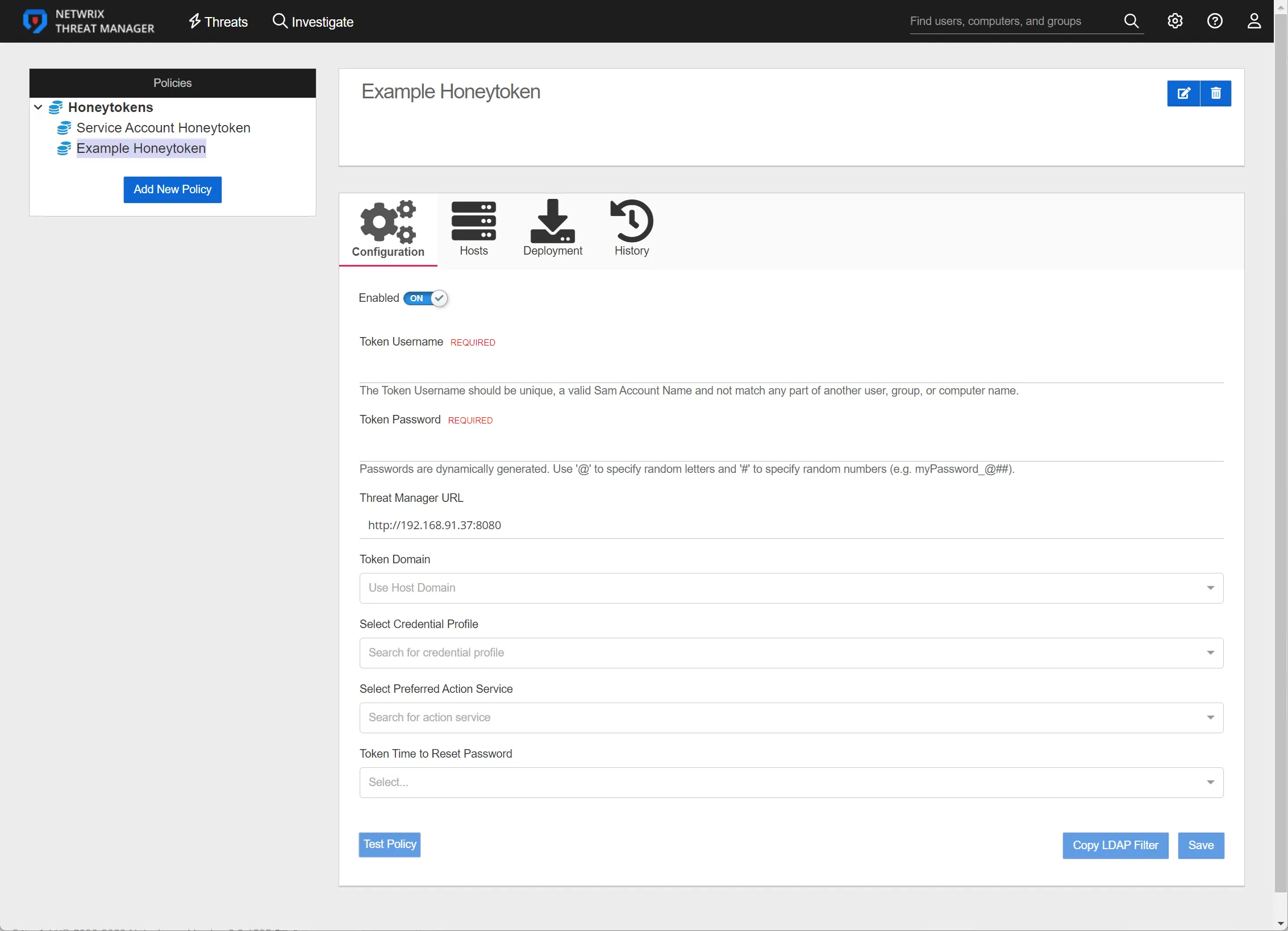
Step 3 – On the Configuration tab of the policy, fill in the requested information and click Copy LDAP Filter. The Copy LDAP Filter button will automatically copy the exact string that is required for Activity Monitor or Threat Prevention to the clipboard to configure the LDAP events for this Honeytoken.

A notification will pop up and the filter will be saved to the clipboard.
Configure LDAP Monitoring
Step 4 – In the Threat Prevention Administration Console, go to Templates > Netwrix Threat Manager > Netwrix Threat Manager for AD LDAP.
Step 5 – Click the Event Type tab.
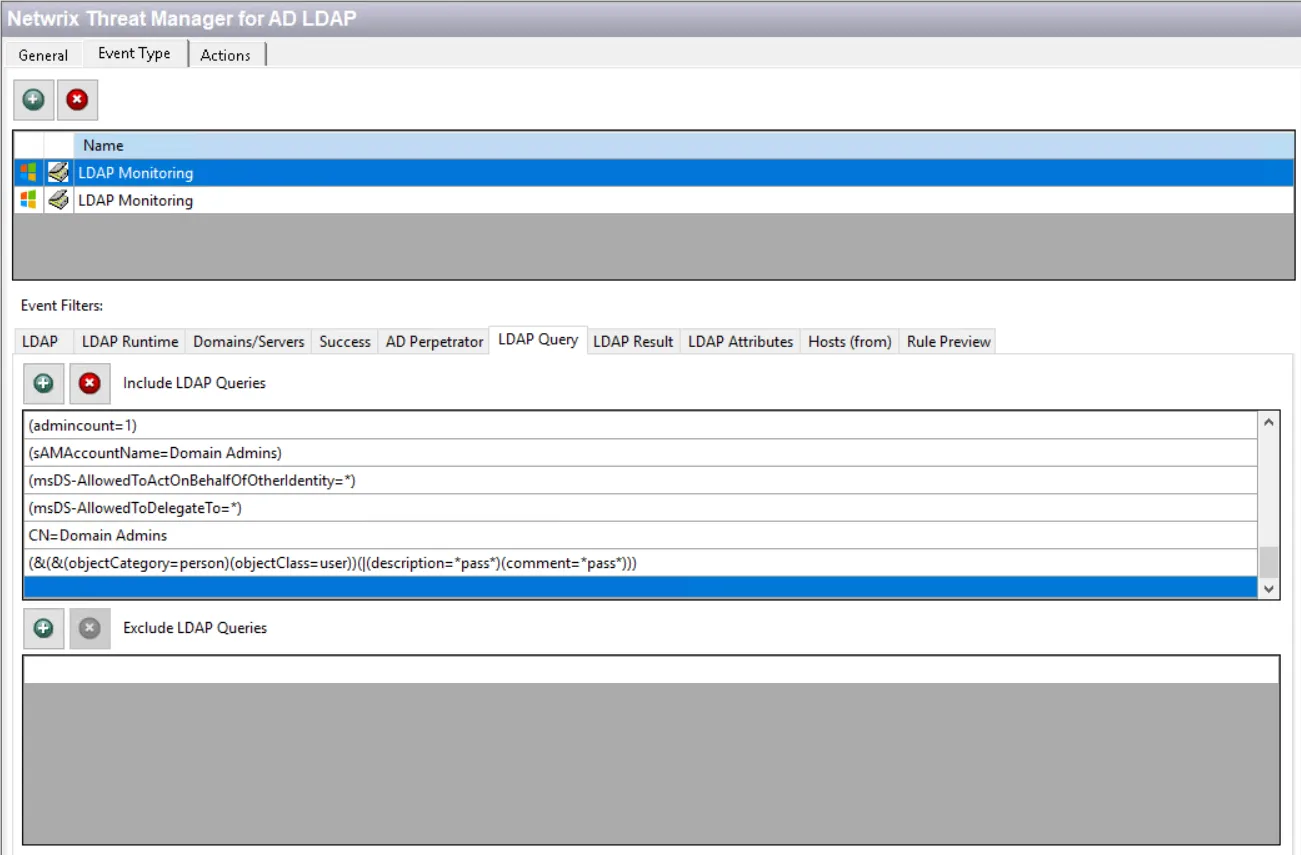
Step 6 – Under Event Filters select LDAP Query. If the Include LDAP Queries list is empty, select the other LDAP Monitoring event type in the list above.
Step 7 – Scroll to the bottom of the Include LDAP Queries list.
Step 8 – Select the line below the last existing query filter and paste the string copied from Threat Manager.
Remember, the Honeytoken tab of the Netwrix Threat Manager Configuration Window must be configured to successfully send LDAP monitoring data to Threat Manager.