Password Enforcement Event Type
The Password Enforcement event type prevents changing a password if the supplied password string does not meet the requirements specified in the policy rules. An event is generated for blocked password change attempts. This event type also has a ‘monitor’ mode that allows all password changes and generates an event for changes that do not meet the rules.
The event filters for the Password Enforcement event type are:
- Domains/Servers
- AD Account
- AD Perpetrator
- Hosts (from)
- Password Rules
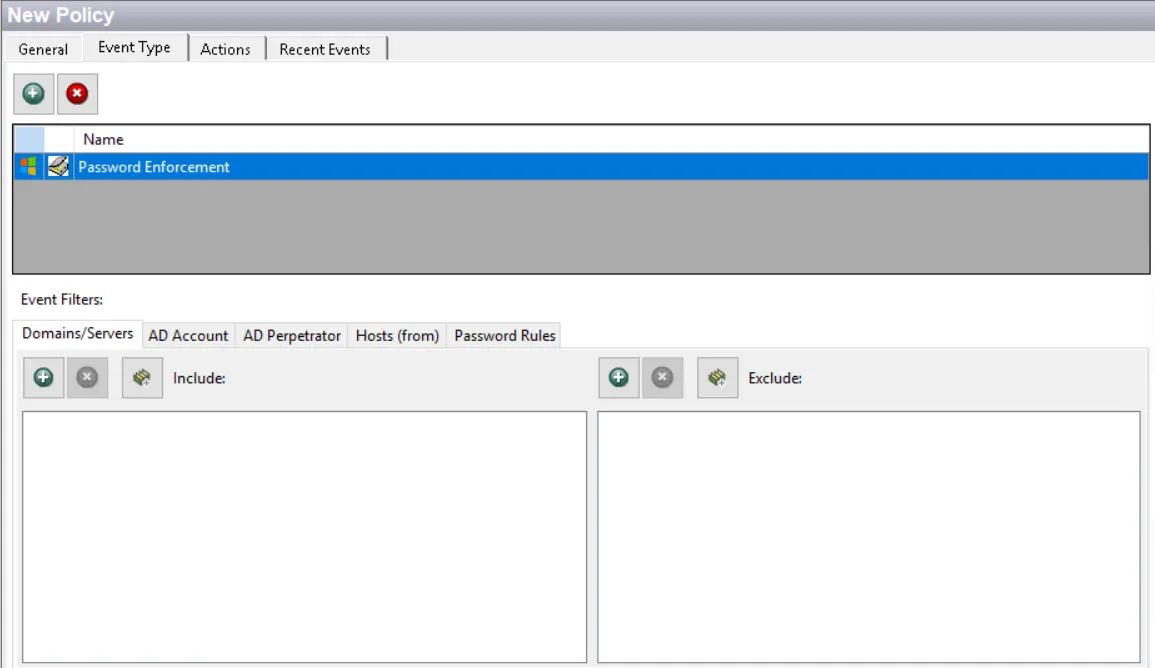
Each filter tab acts like an "AND" statement for the filter. Any filter tab left blank is treated like an "ALL" for that filter set.
Lockdown/blocking policies with blank filters result in everything being locked down or blocked.
Blocking mode requires the Password Enforcement license that comes with the for Enterprise Password Enforcer solution. See the License Manager Window topic for additional information.
The Password Enforcement event type locks down or monitors password creation/modification so that known, compromised passwords are not accepted.
- First Windows checks against an organization’s password policies.
- Passwords which pass the Windows check are then further validated by this policy. Threat Preventioncontains a dictionary of known compromised passwords and the ability to define additional rules for the content of the password. If the password matches any in the dictionary or matches a configured rule, the user is given the same Windows error message they would have received if the password had not been approved by the Windows check.
There is an option on the Password Rules filter to capture the value of a password rejected by Threat Prevention . If captured, the values appear in the Attributes section of the Recent Events and the Investigate Interface data grids.
There are always two accounts associated with this type of event:
- AD Account – Security principal for which the password is being changed
- Perpetrator – Security principal making the password change on the AD account
You can add the Password Enforcement event type multiple times to a policy or create multiple policies to define different sets of password rules, and different sets of Active Directory accounts and/or Active Directory Perpetrators.
Example
The goal is to create a password enforcement policy for the organization’s users. However, senior executives require a different or stronger set of password rules. To achieve this goal, you can create a single policy with the Password Enforcement event type added twice.
Configure one Password Enforcement event type with the desired password rules for all users:
- Identify the senior executives on the AD Account filter using the Allow option
- The users selected are not held to the password rules configured
Configure the other Password Enforcement event type with the desired password rules for the senior executives:
- Identify the senior executives on the AD Account filter using the Block option
- The users selected are held to these password rules
A client-side module is available in the Threat Prevention installer to provide feedback to end users for why their password does not meet the complexity requirements of the Password Enforcement policy. This feature is inactive by default but can be installed on the domain controller to be implemented across the environment. See the EPE User Feedback Module topic for additional information.
Domains/Servers Filter
Use the Domains/Servers filter to set the scope of the policy to specific domains and/or servers or to exclude specific domains and/or servers.

Use the buttons in the Include and Exclude areas to edit the lists.
- The Add (+) buttons open the Select Domains and Servers Window.
- The Collection button opens the List of Collections Window to the appropriate Collection category.
- The Remove (x) button deletes the selected item(s) from that box.
To enable a Dynamic Policy, use the Collection button to select the desired Dynamic Collection. See the Dynamic Collections topic for additional information.
AD Account Filter
Use the AD Account filter to select Active Directory accounts, groups, and organizational units (containers) to have passwords validated by the policy.

Select the Block or Allow option button and then edit the list.
- Allow – The list will not have new passwords validated by this policy
- Block – The list will have new passwords validated by this policy
Selecting Block with no accounts, groups, or containers specified applies the filter rule to all accounts, groups, and organizational units in the environment.
Use the buttons in the Accounts, Account Collections, Containers, and Groups areas to edit the lists. The following windows are displayed when you click the Add (+) button:
- Accounts – The Accounts Add (+) button opens the Select Active Directory Perpetrators Window.
- Account Collections – The Collection button opens the List of Collections Window to the appropriate Collection category.
- Containers – The Containers Add (+) button opens the Select Active Directory Contexts Window. All user objects in the selected organizational unit(s) are subject to the applied rule.
- Groups – The Groups Add (+) button opens the Select AD Groups Window.
The Remove (x) button deletes the selected item(s) from that box.
To enable a Dynamic Policy, use the Collection button to select the desired Dynamic Collection. See the Dynamic Collections topic for additional information.
Sub Tree

When contexts are added, a Sub-Tree checkbox displays. Check it to apply the filter to the parent and all child contexts. Uncheck it to apply the filter to the listed context only.
Block if user's group(s) is not resolved checkbox
When applying EPE rules based on group membership, it may happen that at runtime, Threat Prevention cannot determine the groups the user making a password change is a member of. It is here that the Block if user's group(s) is not resolved checkbox determines the action to take.
- For example, if you select the Block option button and check the Block if user's group(s) is not resolved checkbox, then if Threat Prevention cannot determine the group membership of a given user, it will enforce the password policy as if they were a member of one of the listed groups.
AD Perpetrator Filter
Use the AD Perpetrator filter for lockdown to set the scope of the policy to lockdown specific security principals committing changes or to exclude specific security principals committing changes from being locked down.

Select the Block or Allow option button and then edit the list.
For the Password Enforcement Event Type, selecting Allow means that this policy will not validate the new passwords for the accounts listed here. Selecting Block means that this policy will validate the new passwords for the accounts listed here.
Use the buttons in the Perpetrators and Collections of Perpetrators areas to edit the lists.
- Perpetrators area – The Add (+) button opens the Select Active Directory Perpetrators Window.
- Collections of Perpetrators area - The Collection button opens the List of Collections Window to the appropriate Collection category.
- The Remove (x) button deletes the selected item(s) from that box.
To enable a Dynamic Policy, use the Collection button to select the desired Dynamic Collection. See the Dynamic Collections topic for additional information.
Hosts (from) Filter
Use the Hosts (from) filter for lockdown to set the scope of the policy to only lockdown specific hosts as originators of an event.

Select the Block or Allow option button and then edit the list.
- For the Password Enforcement Event Type, selecting Allow means that this policy will not validate the new passwords for the accounts listed here. Selecting Block means that this policy will validate the new passwords for the accounts listed here.
- For the Authentication Lockdown Event Type, this filter blocks or only allows authentication from the identified host(s).
Use the buttons in the Include Hosts area to edit the list.
- The Hosts Add (+) button opens the Select Computer Window.
- The Remove (x) button deletes the selected item(s) from that box.
Password Rules Filter
Use the Password Rules filter to set the scope of the policy to check user entered password values against custom rules. These rules apply to the account, configured in the AD Account filter, whose password is being changed.
These password rules are only applied to passwords that pass the Windows password policies. Password values that fail to meet the Windows complexity checks are rejected by Windows before Threat Prevention Enterprise Password Enforcer can evaluate them.
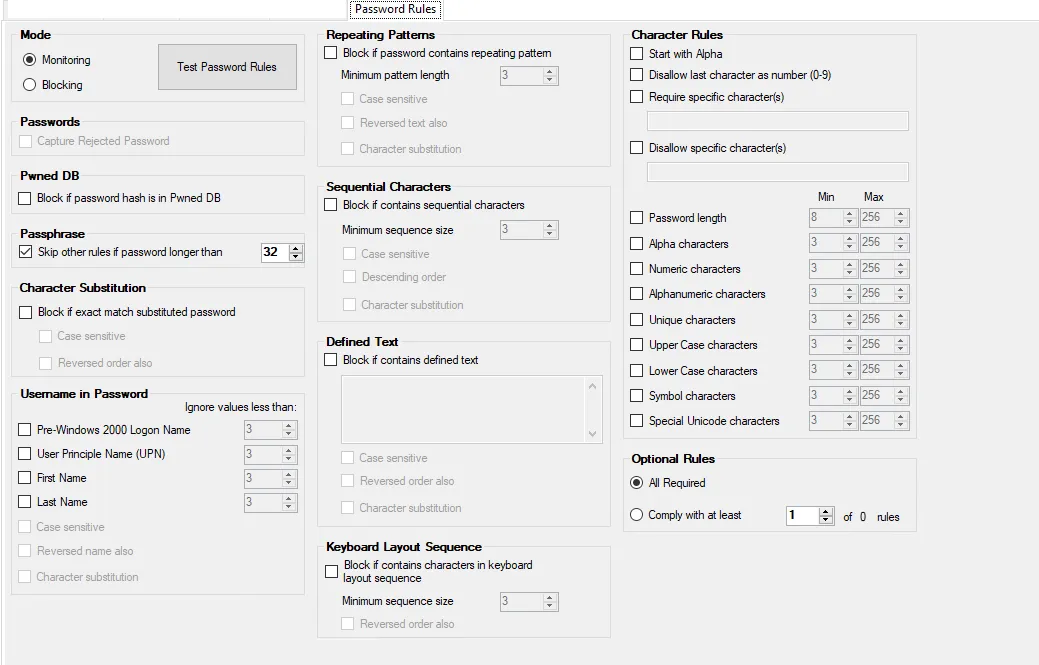
You can enforce all or specific rules that you enable on this filter.
- To enforce a paraphrase as password, enable the Paraphrase setting. None of the rules defined on the Password Rules filter will apply except the paraphrase rule, provided that the password string is longer than the minimum required characters.
- To enforce all rules defined on the filter, select All Required under the Optional Rules setting.
- To enforce a specific number of rules, select Comply with at least under the Optional Rules setting and specify a number (say 3). The candidate password will be accepted if it satisfies at least 3 out of all the rules defined.
- If you enable both the Paraphrase setting and the Optional Rules setting, then the Paraphrase setting takes precedence.
If you want to enforce some rules and set others as optional, then you must add the "Password Enforcement" event type twice to the same policy and apply the rules accordingly. Example You want to apply the "Username in Password" and "Pwned DB" rules always but you also want 4 of 8 of the 13 possible "Character Rules" enforced. Here is how you handle this.
- Add the "Password Enforcement" event type to the policy. On the Password Rule filter, enable the "Pwned DB" and "Username in Password" settings, and ensure that "Optional Rules" is set to "All Required".
- Add the "Password Enforcement" event type again to the same policy. On the Password Rule filter, enable the 8 desired "Character Rules". Then for "Optional Rules", select the "Comply with at least" option button and enter 4 in the box.
The different sections on the Password Rules filter are discussed below.
Mode Section
Select the Monitoring or Blocking button to monitor or block the event when a password fails any of the checked criteria of the Password Rules filter.
- Monitoring – Only reports the password that failed the criteria check
- Blocking – Blocks the failed password from being used
Use the Test Password Rules button to open the Test Passwords Window, where you can test your set of rules.
Passwords Section
These settings authenticate passwords against a default dictionary.dat file of known weak and/or
compromised passwords. Additional passwords can be manually added or uploaded via a TXT file.
In order for the password to be rejected, the pending user password must match exactly to a listed password in the Password Dictionary list. See the Password Dictionary Window and the Substitutions Editor Window topics for additional information.
Remember, the Password Dictionary Window is always used to validate the password, so there is no 'check box' for it on the Password Rules filter. Hence, matched passwords will always be blocked. You must have at least one line in the dictionary but you can remove all others if you do not want the default entries to be used.
- Capture Rejected Password – Collects the password value which triggered the event. You can view the rejected password values in the Attributes section of the data grids on the Recent Events tab and the Investigate interface.
Pwned DB Section
When a password is changed, this setting authenticates pending user password hashes against the Have I Been Pwned? database, which contains compromised password hashes from world-wide data breaches.
- Block if password hash in Pwned DB – If the pending password matches a password hash from the Pwned database, the user is blocked from using the password
Remember, the Pwned database must be initially deployed to the Enterprise Manager. Once it is stored, Agent(s) can be configured to obtain and use a local copy of this database. See the EPE Settings Window topic for additional information.
Paraphrase section
This setting passes a candidate password if it is a paraphrase with more than X characters (where X is a number you can specify). Any other rules enabled on the Password Rules filter are ignored.
- Skip other rules if password longer than – If the password string is longer than the threshold value you provide in the adjacent box, it will be accepted without checking any other rules enabled on this filter. By default, this threshold value is set to 32 characters. If the password length is less than or equal to the threshold value, then all other rules will also apply.
Remember, when evaluating a candidate password, the Paraphrase setting is checked first (if enabled). All other rules on this filter are only evaluated if the password length is lesser than or equal to the minimum number of required characters.
Character Substitution Section
These settings prevent the use of character substitutions in passwords. They ignore or monitor/block certain types of characters substitutions from being included in a password string. Additional scoping can be enabled:
-
Block if exact match substituted password – Blocks a password if it contains a substituted character in a password string listed in the Words List Dictionary. See the Words List Dictionary Window topic for additional information.
tipRemember, the substitutions themselves are kept in the Character Substitution list.
- Case sensitive – Differentiates between lowercase and capital text
- Reversed text also – Password patterns typed in backwards is blocked
Username in Password Section
These settings ignore or monitor/block certain types of usernames from being included in a password string. If the corresponding string value is less than the number chosen in the “Ignore values less than” box, then the values in that string are not prevented from use in the password.
Check the box(es) to enable the feature(s) and set the respective Ignore values less than value to the minimum string length.
- Pre-Windows 2000 Logon Name
- User Principle Name (UPN)
- First Name
- Last Name
For Example: If the first name field is set to three but an employee named Ed uses Ed392 as a password, it is ignored because “Ed” is less than three characters long.
When a username format is chosen, additional scoping options are available:
- Case sensitive – Differentiates between lowercase and capital text
- Reversed name also – First name, last name, Pre-Windows 2000 Logon Name and User Principle Name (UPN) typed in backwards are blocked
- Character Substitution – Blocks a password if it contains a substituted character in a password string listed in the Substitution Editor window. See the Substitutions Editor Window topic for additional information.
Repeating Patterns Section
These settings prevent individual repeating character patterns. Any passwords that contain repeating patterns equal or exceeding the chosen minimum pattern length are blocked. Additional scoping can be enabled:
-
Block if password contains repeating pattern – Blocks a password if it contains individual repeating sequences
-
Minimum pattern length – Type or use the arrows to choose the minimum pattern length. The default is set to a pattern of three characters.
For Example: If the minimum pattern length is three, then “ArcArc” is blocked, “Arc” is allowed
- Case sensitive – Differentiates between lowercase and capital text
- Reversed text also – Password patterns typed in backwards is blocked
- Character Substitution – Blocks a password if it contains a substituted character in a password string listed in the Substitution Editor window. See the Substitutions Editor Window topic for additional information.
Sequential Characters Section
These settings prevent passwords with numbers or characters that follow each other in sequence. Any sequence that equals or exceeds the number chosen in the Minimum sequence size textbox is blocked. Additional scoping can be enabled:
-
Block if contains sequential characters – Blocks a password if it contains numbers or letter strings that follow the order of numerals or the letters of the alphabet
-
Minimum sequence size – Type or use the arrows to choose the minimum sequence length. The default is set to a pattern three sequential characters.
For Example: If the minimum sequence size is three, then “ABC” and “123” are blocked, “ABD” and “124” are allowed.
- Case sensitive – Differentiates between lowercase and capital text
- Descending order – Standard order is blocked if reversed, e.g. “321” and “CBA” are blocked
- Character Substitution – Blocks a password if it contains a substituted character in a password string listed in the Substitution Editor window. See the Substitutions Editor Window topic for additional information.
Defined Text Section
These settings block passwords that contain the string(s) specified in the text box. For multiple strings, add one entry per line.
This filter blocks passwords that contain the text box content anywhere within the password length. The list in the Password Dictionary Window blocks the entire password as entered or uploaded.
Additional scoping can be enabled:
-
Block if contains defined text – Manually enter the desired text for a sub string search
For Example: If “day” is entered, then “M0nday47” is blocked, “M0n47” is allowed
- Case sensitive – Differentiates between lowercase and capital text
- Reverse order also – Blocks the reversed order of characters typed in the text box, e.g. “74yadn0M”
- Character Substitution – Blocks a password if it contains a substituted character in a password string listed in the Substitution Editor window. See the Substitutions Editor Window topic for additional information.
Keyboard Layout Sequence Section
These settings prevent passwords that align with the order of keys on a keyboard. Any sequence that equals or exceeds the number chosen in the Minimum sequence size textbox is blocked. Additional scoping can be enabled:
- Block if contains characters in keyboard layout sequence – Blocks passwords that contain a string of characters that align with the order on a keyboard
- Minimum sequence size – Type or use the arrows to choose the number of characters the filter will count up to. The default is three.
For Example: “QWERTY” is blocked, “ADGJL” is allowed
- Reverse order also – Standard order is reversed and blocked in keeping with the minimum sequence size.
Character Rules Section
These settings work independently of one another. This filter looks for specific rules or characteristics within a password to be blocked or allowed. Additional scoping can be enabled:
-
Start with Alpha – Blocks passwords starting with an alpha character
-
Disallow last character as number (0-9) – Blocks passwords ending in a number character
-
Require specific character(s) – Enter one or more desired character(s) in the text box. The logic applies an OR statement to multiple characters. Passwords not including at least one of these specified characters will be blocked.
-
For Example: If “!@” is typed into the textbox,
- “Pass!word” is allowed
- “P@ssword” is allowed
- “Passw@!rd” is allowed
-
-
Disallow specific character(s) – Enter one or more desired character(s) in the text box. The logic applies an OR statement to multiple characters. Passwords including at least one of these specified characters will be blocked.
-
For Example: If “% or @” is typed into the textbox:
- “Pas@sw0rd” is blocked
- “7Password%” is blocked
- “Pa$$word9” is allowed
-
The following options can be set to a minimum and/or maximum threshold. If the password fails to meet the range requirements, it is blocked.
- Password length – Type or use the arrows to choose the minimum characters required in a password. The default is set to eight characters.
- Alpha characters
- Numeric characters
- Alphanumeric characters
- Unique characters
- Upper Case characters
- Lower Case characters
- Symbol characters
- Special Unicode characters
Optional Rules Section
These settings enable you to enforce all or X number of rules that a candidate password must pass.
- All Required – Accepts a password if it satisfies all the rules enabled on this filter
- Comply with at least X rules – Accepts a password if it complies with X number of rules (where X is a number you can specify in the adjacent box). For example, if you have enabled 9 rules on this filter and specify 5 in the box, then a password must comply with at least 5 of the 9 rules in order to be accepted.