Prevent Weak Passwords Use Case
Any Threat Prevention license can use the Password Enforcement Event type to prevent the creation of weak passwords in your environment.
The Threat Prevention Enterprise Password Enforcement solution includes an EPE User Feedback module. See the Enterprise Password Enforcer topic for additional information.
Follow the steps to configure a policy to block the creation of weak passwords.
It is a best practice to create and enable a monitoring policy prior to creating and enabling a blocking policy. See the Monitor Weak Passwords Use Case topic for additional information.
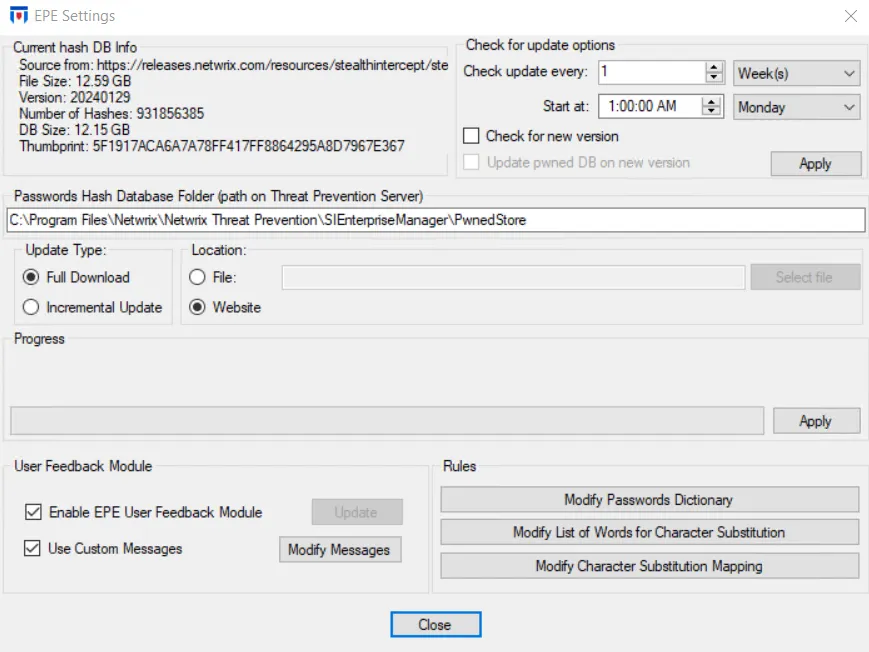
Step 1 – (Must be completed by an administrator) Configure the global EPE settings for your environment.
- Click Configuration > EPE Settings on the menu to open the EPE Settings window.
- Download the latest copy of the HaveIBeenPwned dictionary file. See the Download and Configure the Have I Been Pwnd Hash List topic for additional information.
- Determine whether you want to deploy the dictionary to each domain controller or keep it locally on the Enterprise Manager server. See the Considerations When Deploying the HIBP Database topic for additional information.
- Modify the global password rules to customize the password dictionary, word list dictionary and character substitution map. See the Rules topic for additional information.
Step 2 – Create a new policy with the Password Enforcement Event Type.

- Right-click on the Policies > Auditing folder and select New > Policy.
- On the General tab, provide a unique descriptive name, e.g. Prevent Weak Passwords, and description, e.g. This policy blocks the creation of weak passwords according to the global EPE settings.
- On the Event Type tab, click the Add (+) button and select Password Enforcement on the Event Selection Window.
Step 3 – Configure the event filters.
-
Password Rules tab:
- Mode – Set to Blocking
- Pwned DB – Check the Block if password hash is in Pwned DB box
- Character Substitution – Check the Block if exact match substituted password box
- Username in Password – Check all options in this category and modify values as desired
- Repeating Patterns – Check the Block if password contains repeating pattern box and set length value as desired
- Sequential Characters – Check the Block if contains sequential characters box and set size value as desired
- Keyboard Layout Sequence – Check the Block if contains characters in keyboard layout sequence box and set size value as desired
- Configure additional settings as desired
-
Optionally scope the policy further by applying Domain/Servers, AD Account, AD Perpetrator, and/or Hosts (from) filters.
Step 4 – Return to the General tab and enable the policy by clicking the Disabled toggle button.
Step 5 – Click Save.
The policy is now preventing the creation of weak passwords in your environment. There are three methods for viewing prevented weak password events:
- Recent Events tab of the blocking policy
- Investigate node of the Administration Console
- Investigations interface of the Netwrix Threat Manager Reporting Module
View Events in Recent Events Tab
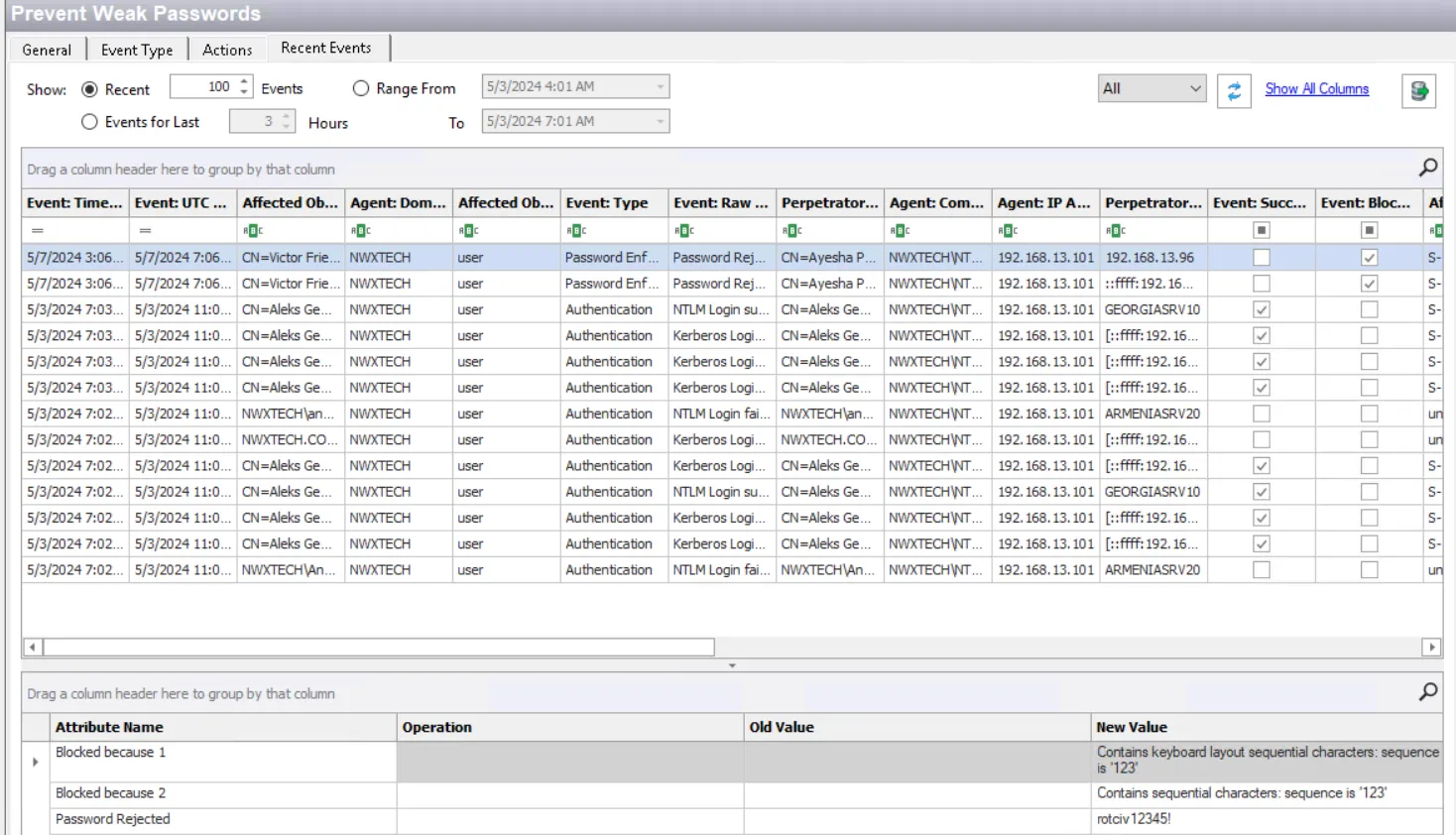
On the Recent Events tab of the blocking policy, set the Show options as desired and click the Refresh button to view blocked events. See the Recent Events Tab topic for additional information.
View Events in Investigate Interface
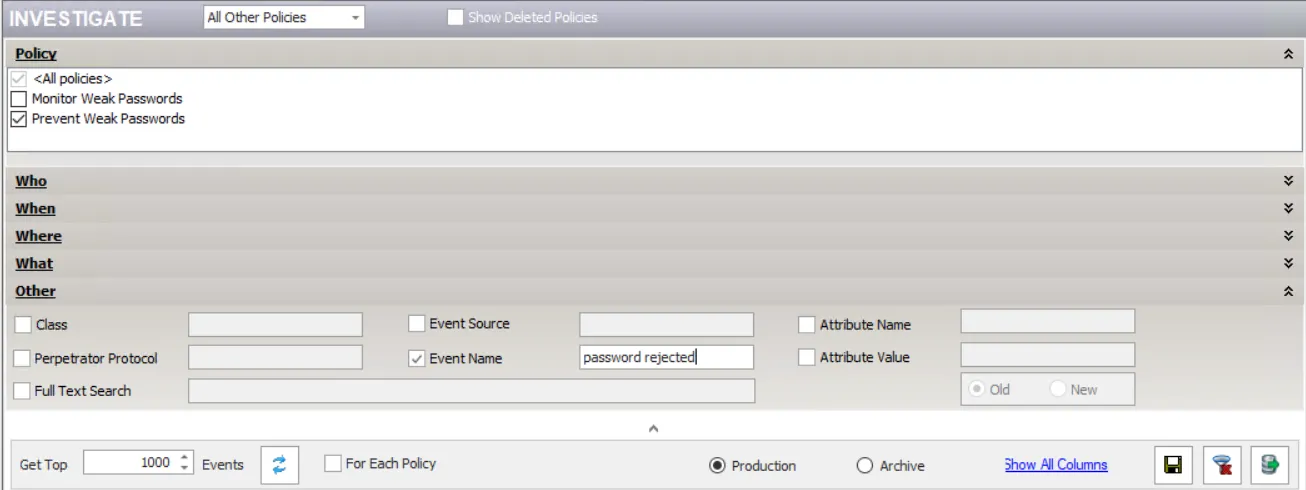
On the Investigate window of the Administration Console, use the following filter options to view blocked weak password events:
- Policy filter – Select only the policy that is blocking weak passwords
- Other filter – Select the Event Name option and enter "password rejected" in the text box.
Click the Refresh button to view blocked events. See the Investigate Interface topic for additional information.
View Events in Investigations Interface
On the Investigations interface of the Netwrix Threat Manager Reporting Module, create a new investigation with the following filter:
- Attribute = Policy
- Operator = Equals
- Filter = [name of blocking policy]
See the Investigations Interface topic for additional information.