Select File System Objects Window
The Select File System Objects window provides a list of available file system paths. Paths to selected objects are added to the filter from where you clicked the Add (+) button to open this window.
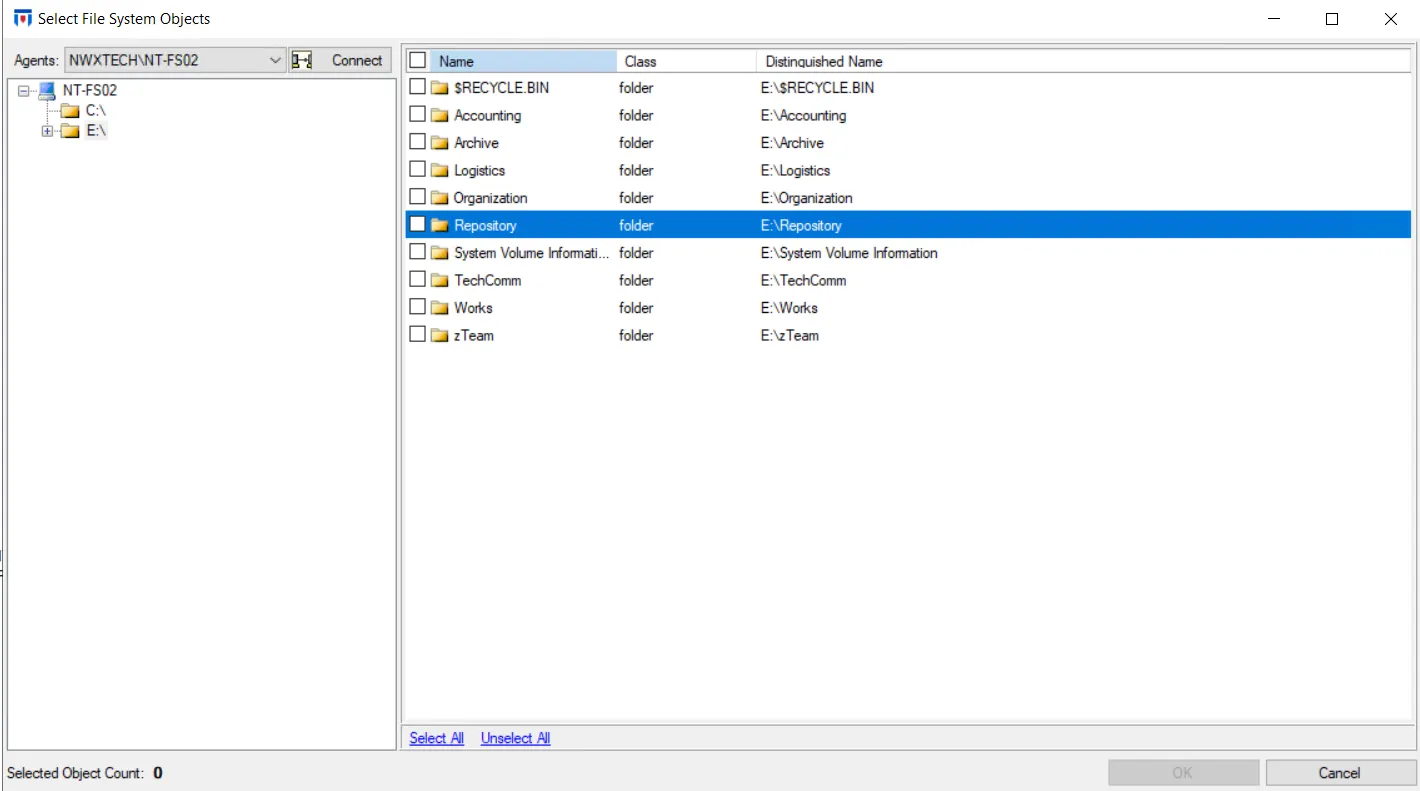
- Select an Agent from the dropdown menu and click Connect.
- Navigate through the domain tree and check the items you want in the Results pane on the right.
- Then click OK to close the window.
See the Selection Windows topic for additional information.
The selection is displayed in the appropriate box of the File System filter, File System Paths filter, or the File System Enterprise Auditor filter.
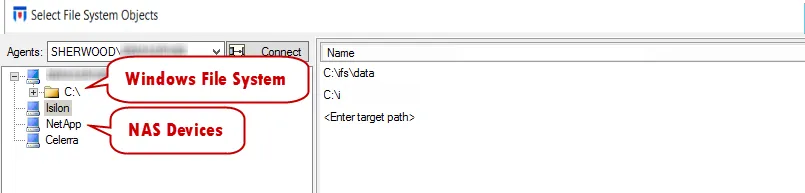
For NAS monitoring, the selected Agent needs to be deployed to a Windows server acting as a proxy server for NAS activity. If the correct Agent is selected, the IP addresses of the NAS devices are displayed in the Navigation pane. Enter the paths, one per row in the Results pane. Click OK and the NAS paths are added to the list of paths to be monitored.
The paths entered can be file or folder names.
- For example, type c:\HR\NewHireProcess.doc for a NAS device with 192.168.16.188 as IP address, and it appears in the paths list as c:\HR\NewHireProcess.doc (\192.168.16.188).