Agent Connection Lost After Upgrading
Symptom
After upgrading or patching to a new build, the Netwrix Threat Prevention Agent is listed as Lost Connection in the Threat Prevention Console.
Cause
Within the Threat Prevention Console, the host may be listed without domain details. This can occur if the host was replaced with a new server that was named to match the original.
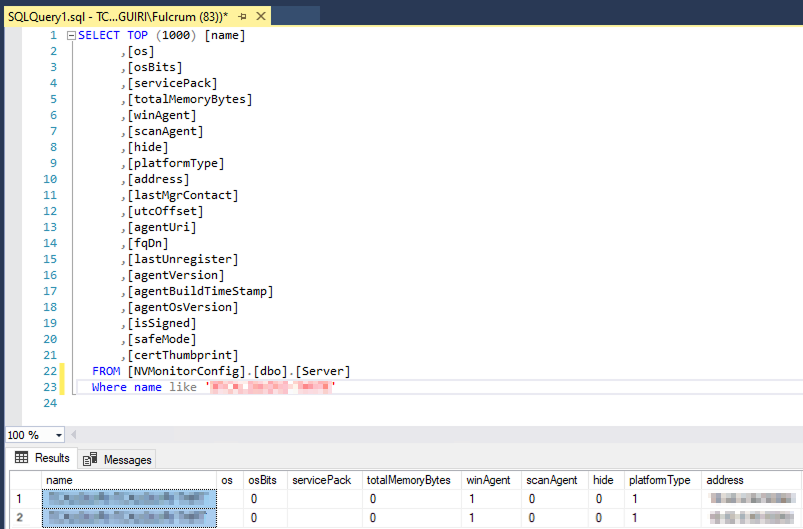
In the NVMonitorConfig database, the host may appear multiple times within the Server table, both with and without the domain prefix.
NOTE: You can confirm this in SQL Server Management Studio by running the following query:
Resolution
-
Stop the Netwrix Threat Prevention Enterprise Manager (EM) service from the Windows Services screen.
-
In SQL Server Management Studio, run the following command to remove duplicate or incorrect host entries:
DELETE FROM [NVMonitorConfig].[dbo].[Server] WHERE name LIKE '%<Host Name>%' -
Rename the
CertsInfofolder in the agent's install path. It is recommended to collect this folder when stopping the EM service.NOTE: The default path may vary depending on the Threat Prevention version:
- New default path:
C:\Program Files\Netwrix\Netwrix Threat Prevention\SIWindowsAgent\CertsInfo - Old default path:
C:\Program Files\STEALTHbits\StealthINTERCEPT\SIWindowsAgent\CertsInfo
- New default path:
-
Manually uninstall the agent from the affected host.
-
Push the installer back out from the Threat Prevention Console.
The agent should now be listed as Active.