ADCS Monitoring Event Type
The ADCS Monitoring event type can be configured to generate an event when an Active Directory Certificate Services receive Certificate Requests.
The event filters for the ADCS Monitoring event type are:
- Domains/Servers
- ADCS Attributes
- Success
- AD Perpetrator
- Hosts (from)
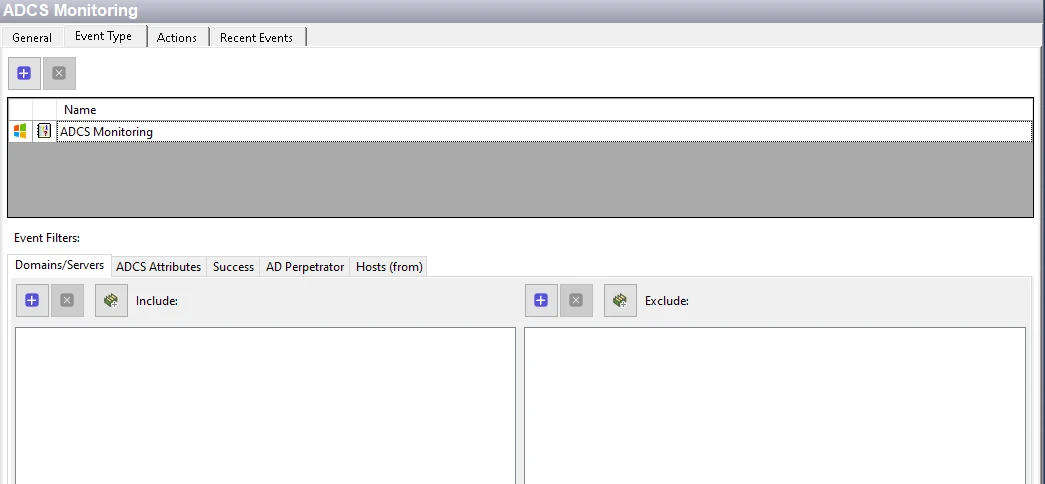
Each filter tab acts like an "AND" statement for the filter. Any filter tab left blank is treated like an "ALL" for that filter set.
Domains/Servers Filter
Use the Domains/Servers filter to set the scope of the policy to specific domains and/or servers or to exclude specific domains and/or servers.

Use the buttons in the Include and Exclude areas to edit the lists.
- The Add (+) buttons open the Select Domains and Servers Window.
- The Collection button opens the List of Collections Window to the appropriate Collection category.
- The Remove (x) button deletes the selected items from that box.
To enable a Dynamic Policy, use the Collection button to select the Dynamic Collection. See the Dynamic Collections topic for additional information.
ADCS Attributes Filter
Use the ADCS Attributes filter to set the scope of the policy to only monitor specific certificate attributes or to exclude specific attributes from being monitored.
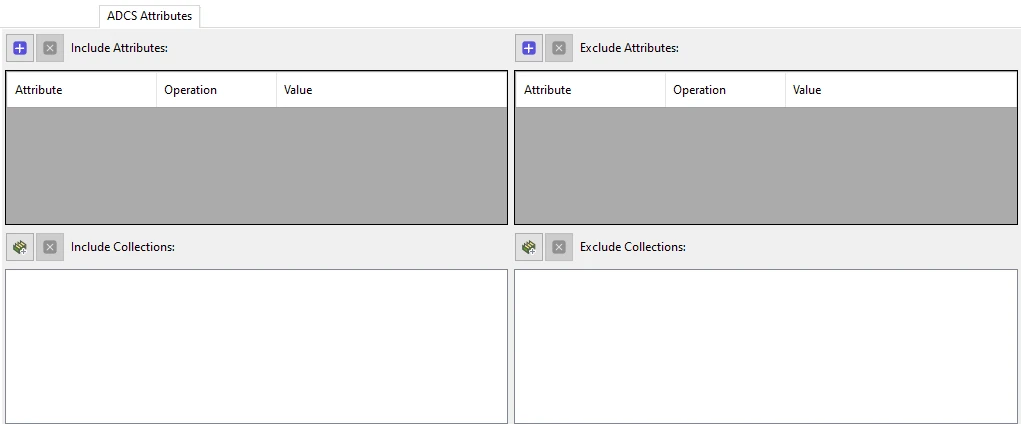
Use the buttons in the Include Attributes, Include Collections, Exclude Attributes, and Exclude Collections areas to edit the lists.
- The Attributes Add (+) button opens the ADCS Attribute List Window.
- The Collection button opens the List of Collections Window to the appropriate Collection category.
- The Remove (x) button deletes the selected items from that box.
Attribute, Operator, and Value
When an attribute is selected, it is added to the filter and a dropdown menu is displayed in the Operation column with Any Value selected. You can further scope the attributes to enable the policy to only capture events based on the new value. Use the Operation and Value columns of the Include Attributes and Exclude Attributes boxes to achieve this.
The Operation dropdown menu has the following options:
- Any Value – No scoping applied for this attribute
- Equal – Attribute values that are identical to the Value field
- Not Equal – Attribute values that don't match the Value field
- Contains – Attribute value includes the user supplied string (numbers are treated as strings) in the Value field
- Not Contain – Attribute values don't include the user supplied string (numbers are treated as strings) in the Value field
Select an Operation and Enter a value in the textbox.
When you select another attribute, a new row is added, where you can specify an operator and a value for that attribute. Each row is treated as an “OR” statement. If any event matches any of the attribute filters, then the event data includes all attributes in the list.
You can't specify more than one value for an attribute and you can't select the same attribute twice. To use the same attribute again, you have to add the same event type again to the policy, select that event type and then select a previously used attribute to include in the Add Attributes filter.
Success Filter
The Success filter is where the policy is set to only monitor successful events, failed events, or both.

Select the radio button for the monitoring filter you want:
- Success – Only monitors successful events
- Failure – Only monitors failed events
- Both Success and Failure – Monitors all events that are within the scope of the respective filters for the event type
AD Perpetrator Filter
Use the AD Perpetrator filter for monitoring to set the scope of the policy to only monitor specific security principals performing certificate requests or to exclude specific security principals from being monitored.
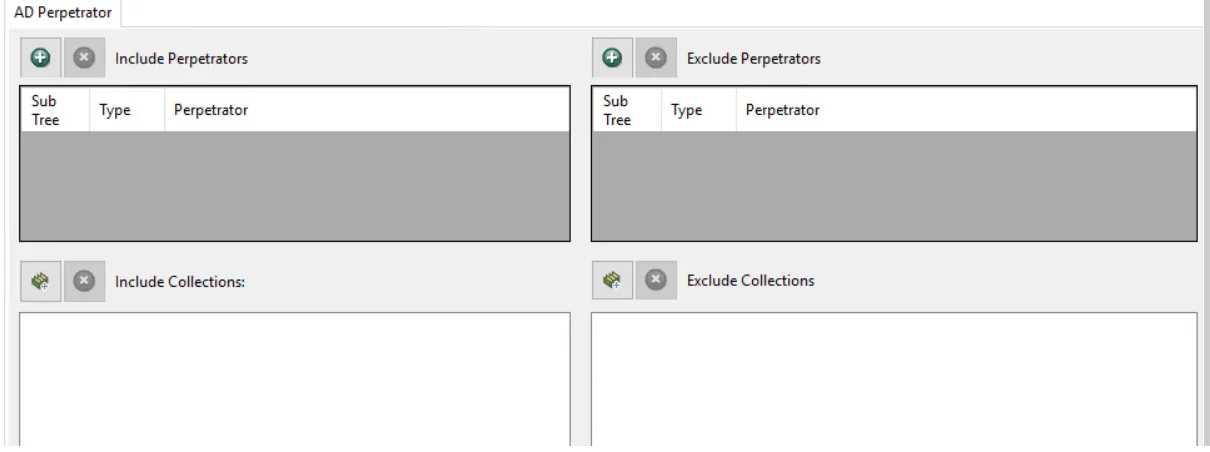
Use the buttons in the Include Perpetrators, Include Collections, Exclude Perpetrators, and Exclude Collections areas to edit the lists.
- The Perpetrators Add (+) button opens the Select Active Directory Perpetrators Window.
- The Collection button opens the List of Collections Window to the appropriate Collection category.
- The Remove (x) button deletes the selected items from that box.
To enable a Dynamic Policy, use the Collection button to select the Dynamic Collection. See the Dynamic Collections topic for additional information.
Sub Tree

When contexts are added, a Sub-Tree checkbox displays. Check it to apply the filter to the parent and all child contexts. Uncheck it to apply the filter to the listed context only.
Hosts (from) Filter
Use the Hosts (from) filter for monitoring to set the scope of the policy to only monitor specific hosts as originators of an event or to exclude specific hosts from being monitored.

Use the buttons in the Include Hosts, Include Collections, Exclude Hosts, and Exclude Collections areas to edit the lists.
- The Hosts Add (+) button opens the Select Computer Window.
- The Collection button opens the List of Collections Window to the appropriate Collection category.
- The Remove (x) button deletes the selected items from that box.
To enable a Dynamic Policy, use the Collection button to select the Dynamic Collection. See the Dynamic Collections topic for additional information.