LDAP Bind Monitoring Event Type
The LDAP Bind Monitoring event type monitors all connections established with LDAP, including the users who connected with LDAP. While the LDAP Monitoring Event Type creates events when actual LDAP queries are executed, LDAP Bind Monitoring creates events when a connection is established with LDAP.
The event filters for the LDAP Bind Monitoring event type are:
- Bind Protocol
- Domains/Servers
- Success
- AD Perpetrator
- IP Addresses (from)
- Hosts (from)

Each filter tab acts like an "AND" statement for the filter. Any filter tab left blank is treated like an "ALL" for that filter set.
This event type can only be used in a policy by itself or with another LDAP event type. This means that:
- If you select this event type, all other event types will be grayed out except the LDAP event types
- If you select an event type other than LDAP, this event type will be grayed out
Bind Protocol Filter
The Bind Protocol filter determines if events should be captured for an LDAP bind operation based on the security protocol used by the bind operation.

Select All to report on any LDAP bind that used any protocol.
You can also limit Threat Prevention to capture LDAP bind events only when one of the selected protocols are used.
- SSL
- StartTLS
- Signed
- Signed and Sealed
- None – To capture events for an LDAP bind operation that didn't use any of the secure protocols
Domains/Servers Filter
Use the Domains/Servers filter to set the scope of the policy to specific domains and/or servers or to exclude specific domains and/or servers.

Use the buttons in the Include and Exclude areas to edit the lists.
- The Add (+) buttons open the Select Domains and Servers Window.
- The Collection button opens the List of Collections Window to the appropriate Collection category.
- The Remove (x) button deletes the selected items from that box.
To enable a Dynamic Policy, use the Collection button to select the Dynamic Collection you want. See the Dynamic Collections topic for additional information.
Success Filter
The Success filter is where the policy is set to only monitor successful events, failed events, or both.

Select the monitoring filter you want:
- Success – Only monitors successful events
- Failure – Only monitors failed events
- Both Success and Failure – Monitors all events that are within the scope of the respective filters for the event type
AD Perpetrator Filter
Use the AD Perpetrator filter for monitoring to set the scope of the policy to only monitor specific security principals committing changes or to exclude specific security principals committing changes from being monitored.
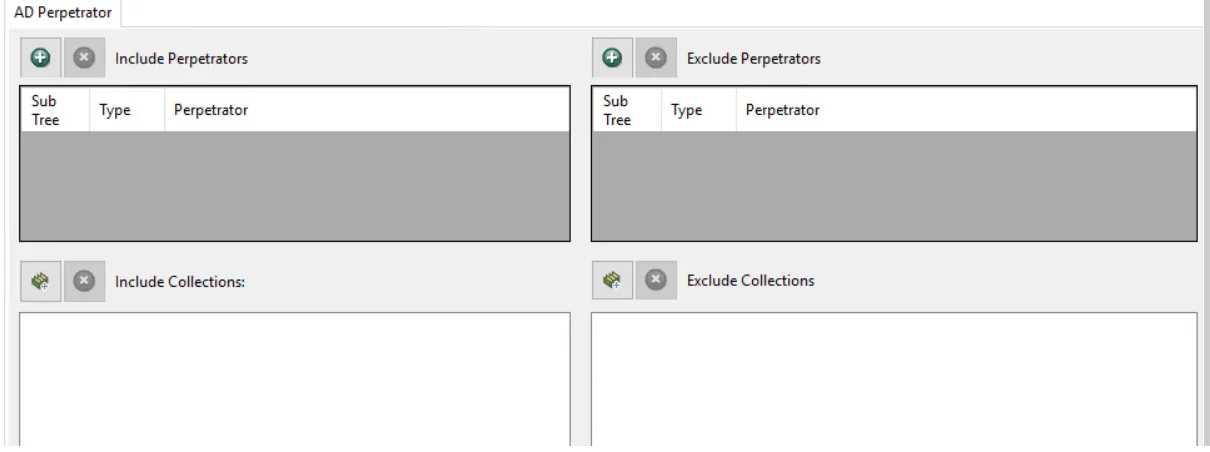
Use the buttons in the Include Perpetrators, Include Collections, Exclude Perpetrators, and Exclude Collections areas to edit the lists.
- The Perpetrators Add (+) button opens the Select Active Directory Perpetrators Window.
- The Collection button opens the List of Collections Window to the appropriate Collection category.
- The Remove (x) button deletes the selected items from that box.
To enable a Dynamic Policy, use the Collection button to select the Dynamic Collection you want. See the Dynamic Collections topic for additional information.
Sub Tree

When contexts are added, a Sub-Tree checkbox displays. Check it to apply the filter to the parent and all child contexts. Uncheck it to apply the filter to the listed context only.
IP Addresses (from) Filter
Use the IP Addresses (from) filter to set the scope of the policy to specific IP addresses as originators of an event or to exclude specific IP addresses.

Use the buttons in the Include IP Addresses, Include Collections, Exclude IP Addresses, and Exclude Collections areas to edit the lists.
- The IP Addresses Add (+) button opens the Add IP Address Window.
- The Collection button opens the List of Collections Window to the appropriate Collection category.
- The Remove (x) button deletes the selected items from that box.
To enable a Dynamic Policy, use the Collection button to select the Dynamic Collection you want. See the Dynamic Collections topic for additional information.
Hosts (from) Filter
Use the Hosts (from) filter for monitoring to set the scope of the policy to only monitor specific hosts as originators of an event or to exclude specific hosts from being monitored.

Use the buttons in the Include Hosts, Include Collections, Exclude Hosts, and Exclude Collections areas to edit the lists.
- The Hosts Add (+) button opens the Select Computer Window.
- The Collection button opens the List of Collections Window to the appropriate Collection category.
- The Remove (x) button deletes the selected items from that box.
To enable a Dynamic Policy, use the Collection button to select the Dynamic Collection you want. See the Dynamic Collections topic for additional information.