Process Guardian – Monitor Event Type
Based on policy rules, the Process Guardian – Monitor event type generates an event when a process not in the ‘white list’ attempts to access the target process. Access options include Write, Read, Create Thread, Suspend/Resume, Terminate, and Create Process.
The event filters for the Process Guardian – Monitor event type are:
- AD Perpetrator
- Domains/Servers
- Target Processes
- Requesting Processes
- Open Process Flags
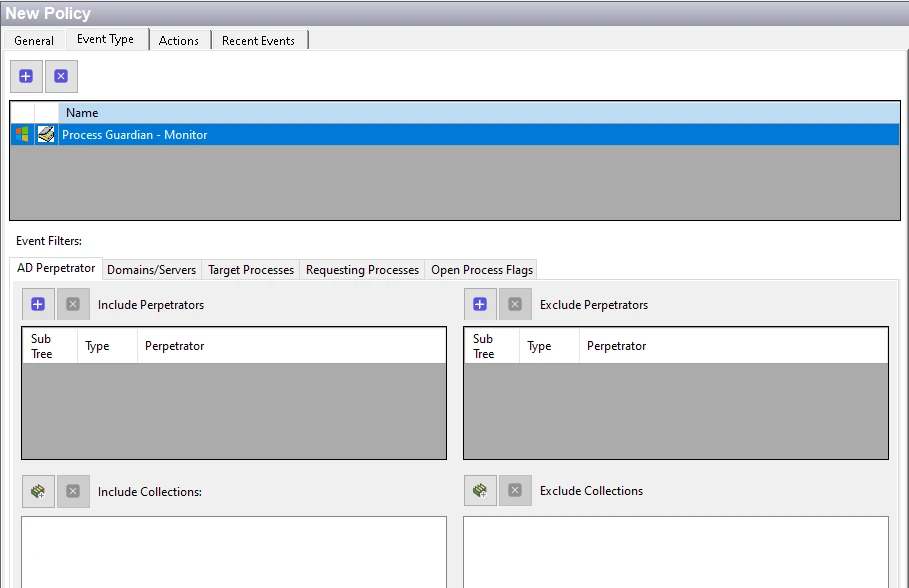
Each filter tab acts like an "AND" statement for the filter. Any filter tab left blank is treated like an "ALL" for that filter set.
AD Perpetrator Filter
Use the AD Perpetrator filter for monitoring to set the scope of the policy to only monitor specific security principals committing changes or to exclude specific security principals committing changes from being monitored.
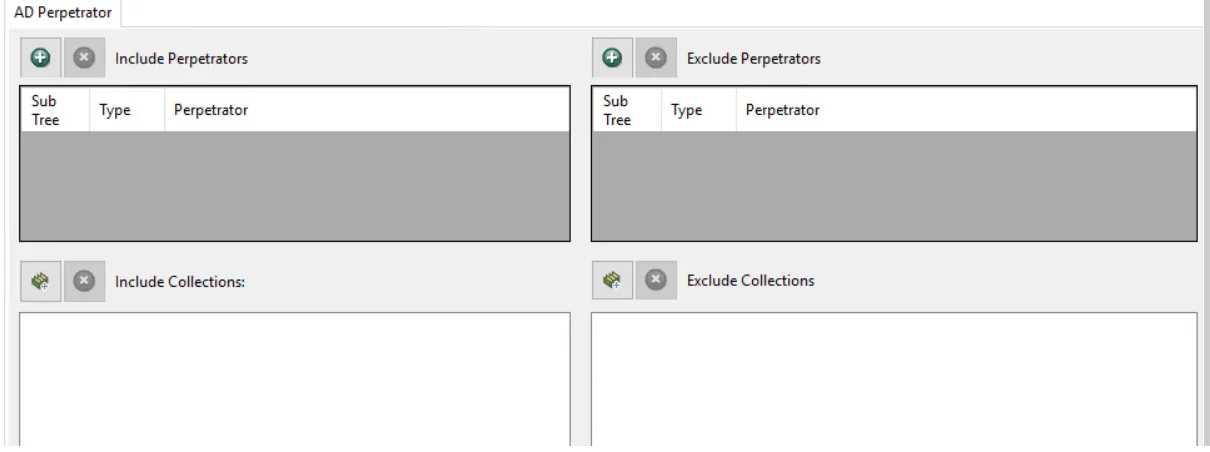
Use the buttons in the Include Perpetrators, Include Collections, Exclude Perpetrators, and Exclude Collections areas to edit the lists.
- The Perpetrators Add (+) button opens the Select Active Directory Perpetrators Window.
- The Collection button opens the List of Collections Window to the appropriate Collection category.
- The Remove (x) button deletes the selected items from that box.
To enable a Dynamic Policy, use the Collection button to select the Dynamic Collection you want. See the Dynamic Collections topic for additional information.
Sub Tree

When contexts are added, a Sub-Tree checkbox displays. Check it to apply the filter to the parent and all child contexts. Uncheck it to apply the filter to the listed context only.
Domains/Servers Filter
Use the Domains/Servers filter to set the scope of the policy to specific domains and/or servers or to exclude specific domains and/or servers.

Use the buttons in the Include and Exclude areas to edit the lists.
- The Add (+) buttons open the Select Domains and Servers Window.
- The Collection button opens the List of Collections Window to the appropriate Collection category.
- The Remove (x) button deletes the selected items from that box.
To enable a Dynamic Policy, use the Collection button to select the Dynamic Collection you want. See the Dynamic Collections topic for additional information.
Target Processes Filter
Use the Target Processes filter to set the scope of the policy to monitor Lsass process or any other process.

- Select Lsass for moitoring Lsass process access.
- Select Custom Process for moitoring any other process access.
For the Custom Process option, enter the process name in the textbox. Use the buttons in the process list area to edit the list.
- The Process Add (+) button adds a textbox to the list to add an additional process.
- The Remove (x) button deletes the selected items from that box.
Requesting Processes Filter
Use the Requesting Processes filter to set the scope of the policy to only monitor specific processes or exclude specific processes from being monitored.

Enter the process in the textbox for the Include Process or Exclude Process option. Use the buttons in the respective areas to edit the lists.
- The Process Add (+) button adds a textbox to the list to add an additional process.
- The Remove (x) button deletes the selected items from that box.
In a production environment, only exclude processes using the Exclude Process area. While there is an option to include processes, it isn't recommended in a policy that is monitoring a production environment. Adding a process in the Include Process area limits the policy to only monitoring that process. The policy wouldn't monitor unknown malicious processes. In a sandbox environment, the Include Process option can be useful for testing/capturing the LSASS activity for specific processes to see what access they are requesting.
Open Process Flags Filter
Use the Open Process Flags filter to set the scope of the policy for requested handles that would maliciously impact the target process.
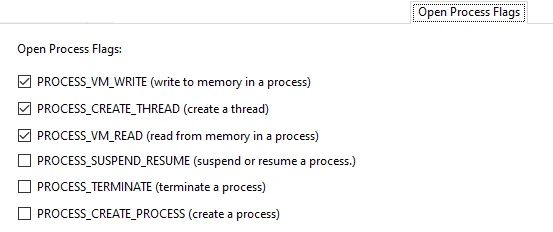
Check the box to select the process flags to be monitored. This will trigger an event if the request for an target process handle contains one or more of the selected process flags.
- PROCESS_VM_WRITE – Select this checkbox to write to memory in a process
- PROCESS_CREATE_THREAD – Select this checkbox to create a thread
- PROCESS_VM_READ – Select this checkbox to report if the calling process, such as an application,
wants to read process memory
- A typical use case for this is the creation of an LSASS dump file, since read rights are required to create a dump file of the process.
- Uncheck this checkbox to not generate an event if the calling process, such as an application, requests LSASS memory read access.
- PROCESS_SUSPEND_RESUME – Select this checkbox to suspend or resume a process
- PROCESS_TERMINATE – Select this checkbox to terminate a process
- PROCESS_CREATE_PROCESS – Select this checkbox to create a process, for example by cloning an existing one.