Log Level Configuration Window
The Log Level Configuration window displays the current log levels for the Agents, Enterprise Manager, and Administration Console. You can also use it to set new log levels.
Since Threat Prevention supports multiple instances of the Administration Console, each instance has its own settings for log levels. Changing the settings affects only the respective console instance. The Enterprise Manager and Agent log settings are global - the most recent changes made from any console instance apply.
To set log levels:
Step 1 – Click Agents in the left pane to launch the Agents interface. Then click Update Logging Levels on the top bar to launch the Log Level Configuration window.
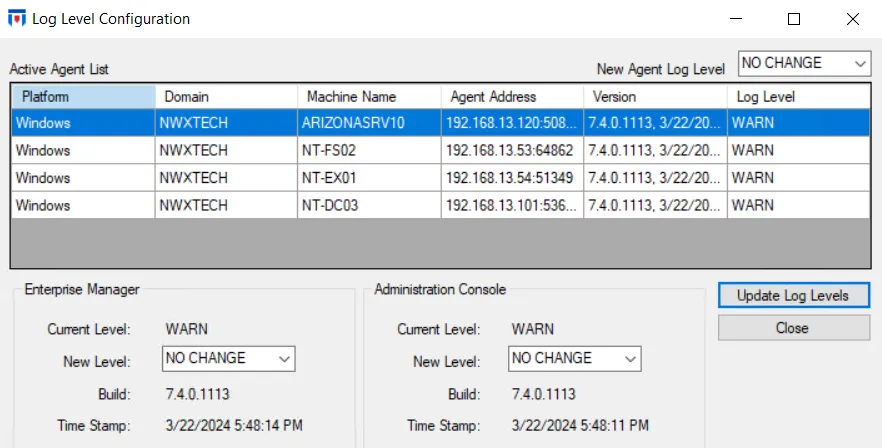
Step 2 – To update the logging level for an Agent:
-
The Active Agent List data grid lists the active Agents with the following information:
- Platform – Operating system platform for the machine where the Agent is deployed, for example, Windows
- Domain – Targeted Active Directory domain
- Machine Name – Server where the Agent is deployed
- Agent Address – IP address of the server where the Agent is deployed
- Version – Agent build version
- Log Level – The current log level set for the Agent
-
Select an Agent in the data grid and choose a new log level from the New Agent Log Level dropdown menu. Then click Update Log Levels to assign the log level to the Agent. Available file log levels are:
- Debug – Records everything that happens, most verbose level of logging
- Info – Records information about individual APIs called, in addition to warnings and errors
- Warn – Records all warnings that occur, in addition to errors
- Error – Records all errors that occur
- Fatal – Records only when catastrophic system failures/crashes occur
No matter which log level you select, Threat Prevention archives a log file when it reaches its size limit and keeps up to ten archived files per log. When it creates the eleventh archive, it deletes the oldest one. See the Log Files and Logging Configuration topic for additional information on where the logs are written and how archived files are named.
noteThreat Prevention writes a log level set from the Administration Console or through PowerShell back to the configuration file of the component it applies to, so the setting survives a service restart.
Step 3 – To update the logging level for Enterprise Manager and the Administration Console:
- Current Level – The current log level set for the Enterprise Manager / Administration Console
- New Level – Use the dropdown menu to select a new log level.Then click Update Log Levels to assign the new log level to the Enterprise Manager / Administration Console.
- Build – The build of the Enterprise Manager / Administration Console. The builds may differ in rare scenarios.
- Time Stamp – The date and time when the Enterprise Manager / Administration Console build was last updated
Step 4 – Click Close to close the window.
Access Agent Log Files
Get Agent Log collects the Agent log files into a single ZIP archive and downloads it. The archive holds the complete contents of two folders on the Agent server:
logs, which holds the Agent host logsADMonitor_logs, which holds the AD Monitor logs. This folder exists only where AD Monitor runs, which is on a domain controller.
The archive includes every file in both folders — active and archived alike — so a single download gives Netwrix Support the full history rather than the most recent entries alone. See the Log Files and Logging Configuration and AD Monitor Logging Configuration topics for a description of the individual log files.
In versions before 8.1, Get Agent Log downloaded the active Agent log file on its own. You had to collect AD Monitor logs from the domain controller by hand.
To collect the Agent log files:
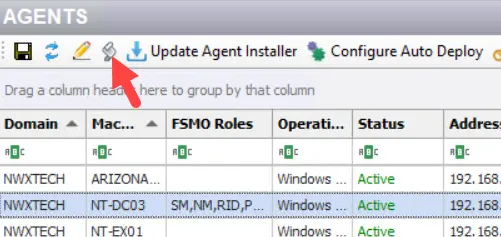
Step 1 – Click Agents in the left pane to launch the Agents interface. Select a server/Agent and click Get Agent Log .
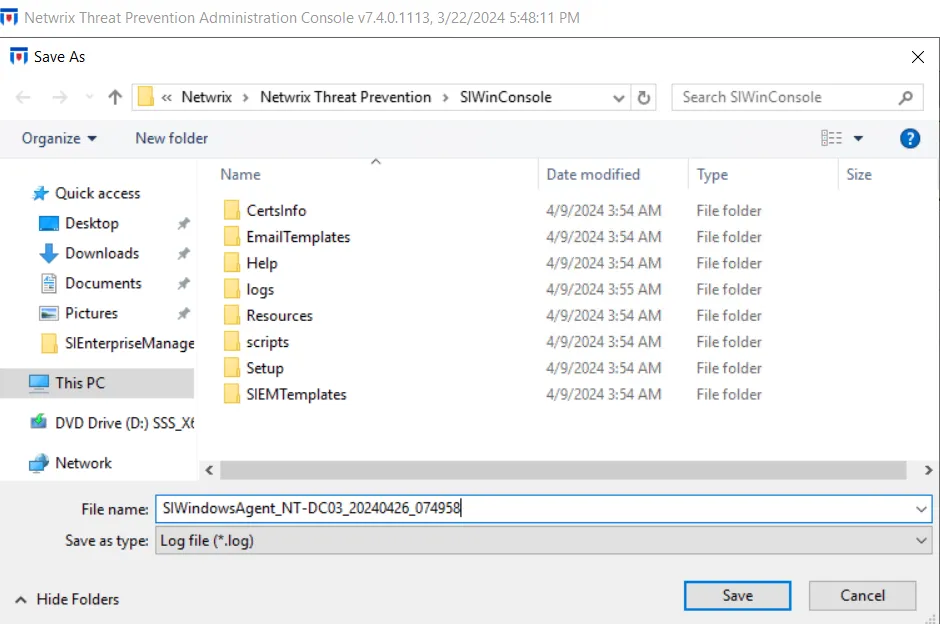
Step 2 – The Save As window opens. Select the location for the archive and click Save.
You can now review the Agent log files, or attach the archive to a support case, without connecting to the machine where the Agent is deployed.
Collect the archive after you reproduce a problem, not before. The archive is a snapshot of the log folders at the moment you download it.
Access the Enterprise Manager & Administration Console Log Files
Threat Prevention stores the Enterprise Manager log files on the Threat Prevention server, and stores the Administration Console log files on the machine where the respective console is installed.
The default log file locations are:
Enterprise Manager Log Files
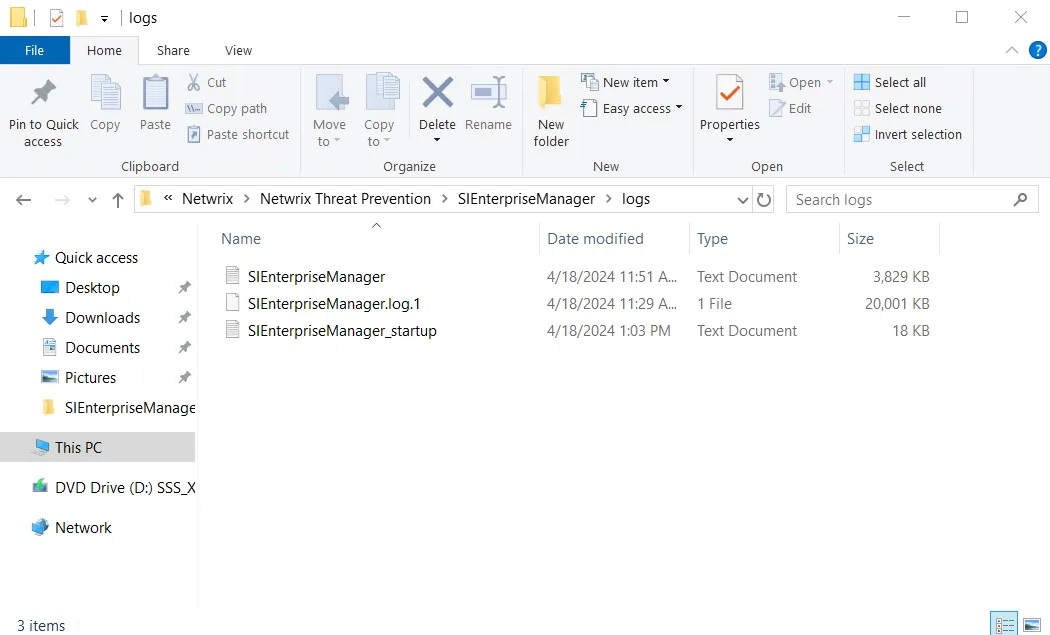
The default location is:
*…\Netwrix\Netwrix Threat Prevention\SIEnterpriseManager\logs*
Administration Console Log Files
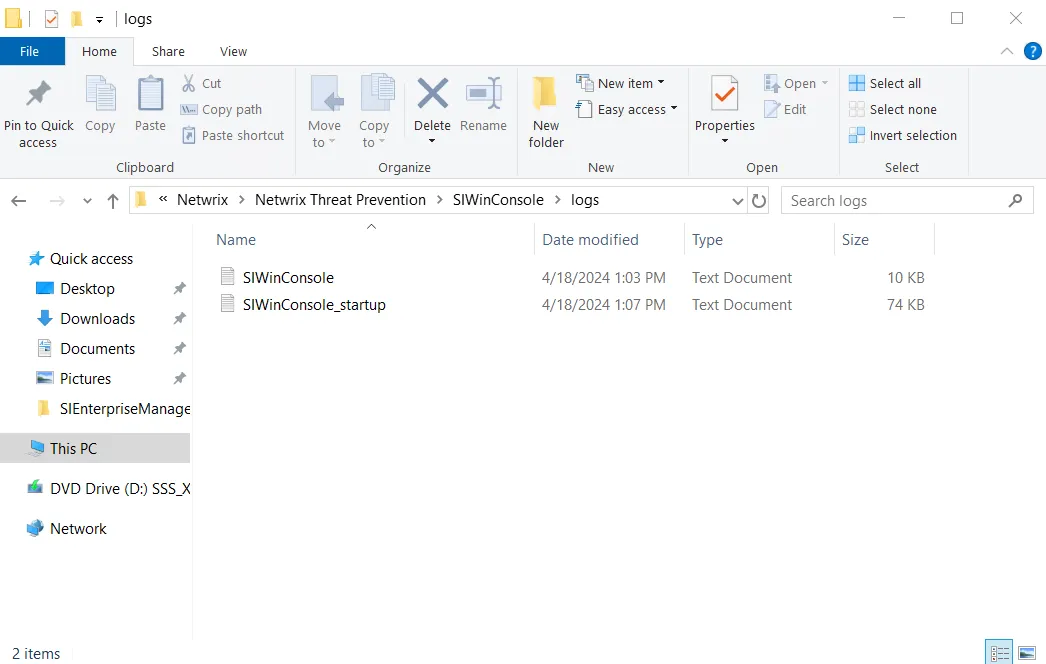
The default location is:
*…\Netwrix\Netwrix Threat Prevention\SIWinConsole\logs*
Log files for a remote instance of the Administration Console are available at the same location on the respective machine.
The log levels in this window don't apply to AD Monitor, the component that runs inside the LSASS process on a domain controller. AD Monitor keeps its own configuration file and its own log files. See the AD Monitor Logging Configuration topic for additional information.