Set Options Window
The Deploy Agents wizard's Set Options window is the second in a sequence of four windows to deploy the Agent on a computer.
On the Set Options window, you can manage Agent settings, such as credentials, Enterprise Manager information, modules, DNS host name resolution, and safe mode.
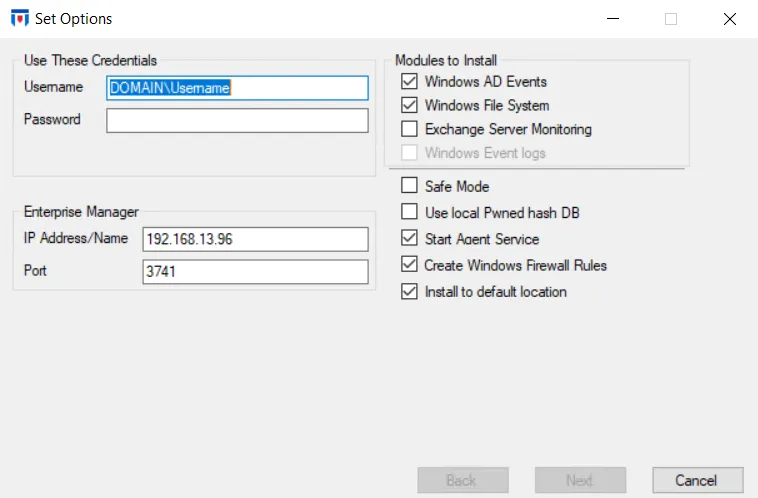
The Set Options window provides the following options:
-
Use These Credentials – Credentials for deploying the Agent on the selected computers
- Username – Must be in the DOMAIN\Username format
- Password – Username password
-
Enterprise Manager – IP address/name and port of the Enterprise Manager
-
Modules to Install – Select the check boxes for the modules to install on the selected computers:
- Windows AD Events – Installs the Threat Prevention for Active Directory Solution and Threat Prevention for LDAP Solution
- Windows File System – Installs the Threat Prevention for File System Solution
- Exchange Server Monitoring – Installs the Threat Prevention for Exchange Solution
- Windows Event Logs – Deprecated functionality for v7.0+ Agents
-
Agent Service
-
Safe Mode – The Agent checks LSASS versions on start up. Any changes in LSASS since the previous start prevents the AD Events monitoring module from loading. See the Agent Safe Mode topic for additional information.
-
Use local Pwned hash DB – After installation, the Enterprise Manager sends a local copy of the Pwned hash database to the Agent. The Enterprise Manager also sends any database updates to the Agents as long as the Agent service is enabled.
-
Start Agent Service – Starts the Threat Prevention Agent service on host after installation
noteIf you don't start the Agent Service at the time of deployment, you must start the Agent manually, or it starts automatically after a server reboot. Until the Agent starts, it doesn't monitor or block any activity.
-
-
Create Windows Firewall Rules – Creates firewall rules on the selected computers for Agent communication
-
Install to default location – Installs the Agent on the machine to the default location or a specified location.

If you check this option, Threat Prevention installs the Agent to the default location: ...\Netwrix\Netwrix Threat Prevention\SIWindowsAgent
If you clear this option, specify the installation location you want, for example, d:\myagent.
The installation location applies to all computers where you deploy the Agent in this session (as specified on the Select Computers Window of the Deploy Agents wizard). After you configure these settings, the Agent is ready for deployment on the selected machines. See the Prerequisites Check Window topic for the next step.
DNS Host Name Resolution
By default, deployment enables “Enable DNS Host Name Resolution” for the Agent. Depending on the event type, the Agent may see some but not all of the following information:
- NetBIOS name
- Fully Qualified Domain Name
- IP Address
The Agent stores this information as XML tags and values in the SIWindowsAgent.exe.confg file, in the folder where the Agent is installed. When the Agent Service starts, it reads this file.
When the Enable DNS Host Name Resolution option is enabled, the Agent looks up the missing data. Raw events may have one or more of following: SID, domain name, NetBiosName, machine name, and IP address. When any one of these data points is available, Threat Prevention uses Windows DNS, if enabled, to collect the missing data points for the raw event from LSASS. This provides more uniform data, but may have a performance impact on the machine where the Agent is deployed, especially if that machine doesn't handle name resolution locally.
Set Options Window for Update Agent Settings
On the Agents interface, when you open the Set Options window through the Update Agent Settings option on the Right-Click Menu, the window appears as follows:
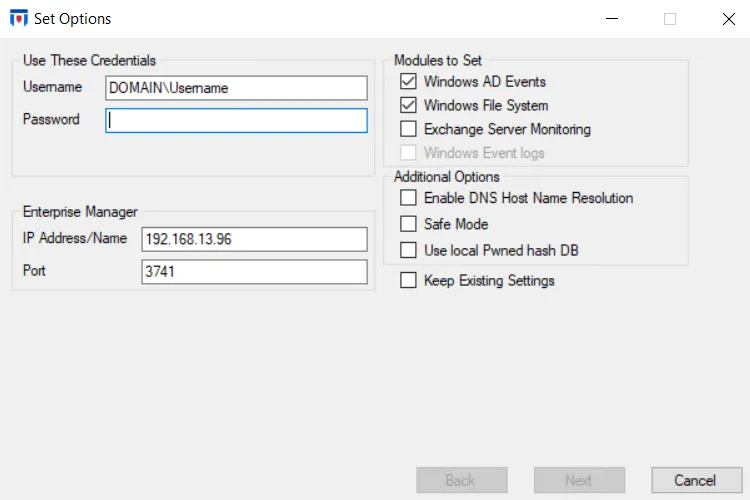
This window displays the default selections in the Modules to Set and Additional Options areas; they don't represent the actual current state of the Agent.
To view the current state and configured options for an Agent, hover over the Version String column on the Agents Interface data grid for the tool tip. The AD Agent column indicates the Agent’s mode.
This Set Options window is the same as the standard Set Options window, with the following exceptions:
-
Enable DNS Host Name Resolution – See the DNS Host Name Resolution topic for information. Even when this option is enabled for the Agent, the window displays it as unchecked. You must either check this setting or check the Keep Existing Settings checkbox to keep it enabled for the Agent.
-
Keep Existing Settings – When you check this option, the Modules to Set and Additional Options areas are grayed out and you can't change them, indicating that the Agent retains its current settings.
This setting has no impact on the Use These Credentials and Enterprise Manager areas.
Ensure you select the settings you want for the Agent on this window, such as the Enable DNS Host Name Resolution and Safe Mode options, even when they are enabled for the Agent. Leaving them unchecked will disable those settings when the wizard completes.