Enable Database Maintenance
You can enable database maintenance for all or specific event types, analytics, and/or policies, and for any combination of event type data, analytic data, and policy data.
The Event Type maintenance settings take precedence over Policy maintenance settings where the selected policy employs that event type.
To enable database maintenance:
Step 1 – Click Configuration > Database > Maintenance on the menu. The Database Maintenance window opens.
Step 1 – Select the tab you want (Event Type, Analytics, or Policy) and check the Enabled box at the top of the tab.
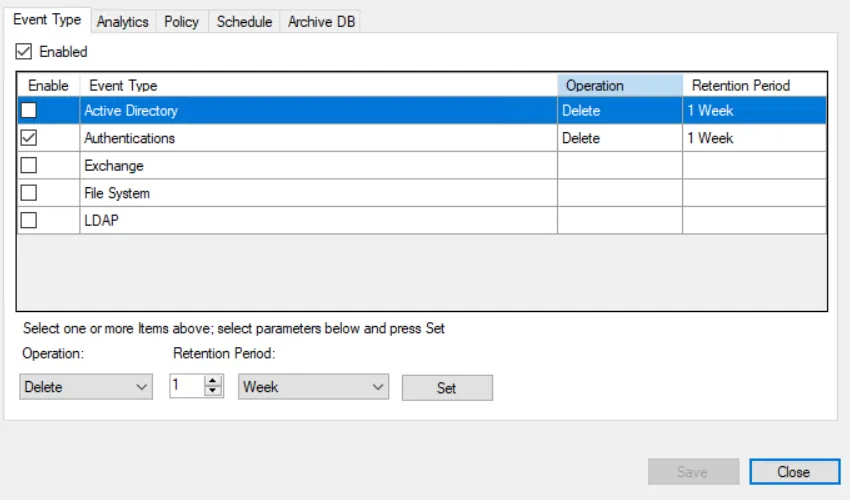
Step 2 – Select a maintenance task (Event Type, Analytic, or Policy). To set the same operation and retention period for multiple tasks, use the ctrl-left click command.
Step 3 – Select either Move or Delete from the Operation dropdown menu.
- The Move operation requires you to configure the Archive DB tab. See the Archive Data topic for additional information.
Step 4 – Set the Retention Period value and unit (Day, Week, or Month). This value indicates the age of the data to keep when the database maintenance job runs. Threat Prevention deletes or moves/archives older data according to the selected Operation.
Step 5 – Click Set.
Step 6 – Check the Enable box to include the tasks in the next database maintenance job. The job only includes event types, analytics, and/or policies with the Enabled checkbox selected.
Step 7 – Click Save.
The Operation and Retention Period columns of the table display the configured maintenance options.
Disabling a previously enabled database maintenance task doesn't remove the configured settings; it only prevents that task from running in the next database maintenance job.