Event Filtering Configuration Window
Use the Event Filtering Configuration window to exclude specific Active Directory and Authentication events from monitoring. You can set a latency threshold to generate alerts for AD events.
This window is only available to Threat Prevention administrators.
To enable event filtering:
Step 1 – Click Configuration > Event Filtering on the menu to open the Event Filtering Configuration window.
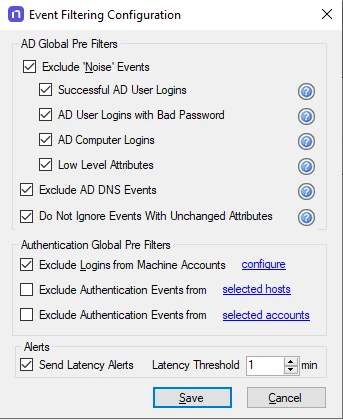
Step 2 – The filter options are grouped by AD Global Pre Filters, Authentication Global Pre Filters, and Alerts. Check the checkboxes to activate the filters and click Save.
To disable a filter for diagnostic purposes, uncheck its checkbox and click Save.
Click the Help icon (?) for an option in the AD Global Pre Filters area to view the type of “noise” events the option filters.
You must configure all Authentication Global Pre Filters options before you can enable them.
Enable all the AD Global Pre Filters options as well as the Exclude Logins from Machine Accounts option in the Authentication Global Pre Filters section.
When you activate a filter, the Agent filters out the event data according to the configurations in the filters.json file in the Enterprise Manager installation directory.
Exclude ‘Noise’ Events Option
The Exclude ‘Noise’ Events option is enabled by default to filter out login and internal low level attributes that qualify as ‘noise’ events and bloat the database. You can scope this option to include any combination of the following ‘noise’ events:
- Successful AD User Logins – Excludes events with the following attributes where ‘objectClass’
doesn't equal computer:
- logonCount
- lastLogon
- badPwdCount
- lastLogonTimestamp
- AD User Logins with Bad Password – Excludes events with the following set of attributes where
‘objectClass’ doesn't equal computer:
- badPwdCount
- badPasswordTime
- AD Computer Logins – Excludes events with the following set of attributes where ‘objectClass’
equals computer:
- logonCount
- lastLogon
- badPwdCount
- lastLogonTimestamp
- badPasswordTime
- badPwdCount
- Low Level Attributes – Excludes the following attributes from event:
- ImPwdHistory
- dBCSPwd
- ntPwdHistory
Exclude AD DNS Events Option
The Exclude AD DNS Events option is enabled by default to filter out DNS events. These events can bloat the database. Threat Prevention excludes only the events that meet both of the following conditions:
- objectClass = ‘dnsNode’ or ‘dnsZone’
- Contains the ‘dnsRecord’ or ‘dNSTombstoned’ attribute
When the Exclude AD DNS Events checkbox is unchecked, the Recent Events tab of the Active Directory policy displays DNS record events in a human-readable format. To search these results, set Affected Object: Class to equal dnsNode so the dnsRecord attribute displays.
Don't Ignore Events With Unchanged Attributes
The Don't Ignore Events With Unchanged Attributes option is disabled by default to filter out events where an attribute’s old value is equal to its new value.
Exclude Logins from Machine Accounts Option
The Exclude Logins from Machine Accounts option is enabled by default to filter out machine logins. These events can bloat the database. Click the configure link to open the Edit Collection window.
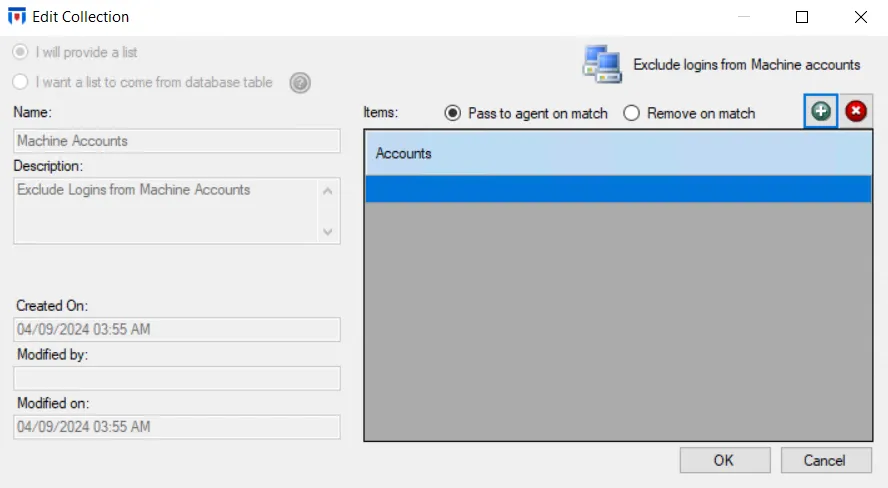
The Exclude Logins from Machine Accounts collection is only accessible through the Event Filtering Configuration window. Either use the Add (+) button to open the Select Active Directory Perpetrators Window to browse for machine accounts or enter the account name in the textbox.
This filter only considers perpetrators with accounts ending in “$”. You can use wild cards (*) for partial matches to account names.
The Agent either includes or excludes all machine accounts in the textbox from event data monitoring. Machine accounts not in the list get the unselected property.
Select one of the following radio buttons to apply to the list of account names:
- Pass to agent on match – The Agent includes these accounts for event data monitoring. The Agent excludes and ignores machine accounts not in the list.
- Remove on match – The Agent excludes and ignores these accounts. Threat Prevention includes machine accounts not in the list and sends them to the Agent for event data monitoring.
Repeat the process until you have entered all machine accounts to include in or exclude from Authentication event data. Then click OK.
Usage Tip
Windows Server 2012 introduced gMSA (Group Managed Service Accounts). gMSA accounts include “$” in their names, so by default Threat Prevention filters out authentication traffic generated by these accounts because they ‘look’ like machine accounts which before Server 2012 were the only account names ending in “$”. In Threat Prevention, you can add a list of filter strings to the “Exclude Logins from Machine Accounts” global filter to capture activity by gMSA type accounts, as this activity is typically of interest whereas true ‘machine accounts’ aren't. Supplying either an explicit list of gMSA account names or, if you have adopted a naming convention, a set of wild card strings such as “gMSA*” or “svc*”, lets you capture authentication activity from such accounts while ignoring the noisy ‘machine accounts’.
Exclude Authentication Events from Selected Hosts Option
The Exclude Authentication Events from Selected Hosts option is disabled by default because you must configure it before you can enable it. Click the selected hosts link to open the Edit Collection window.
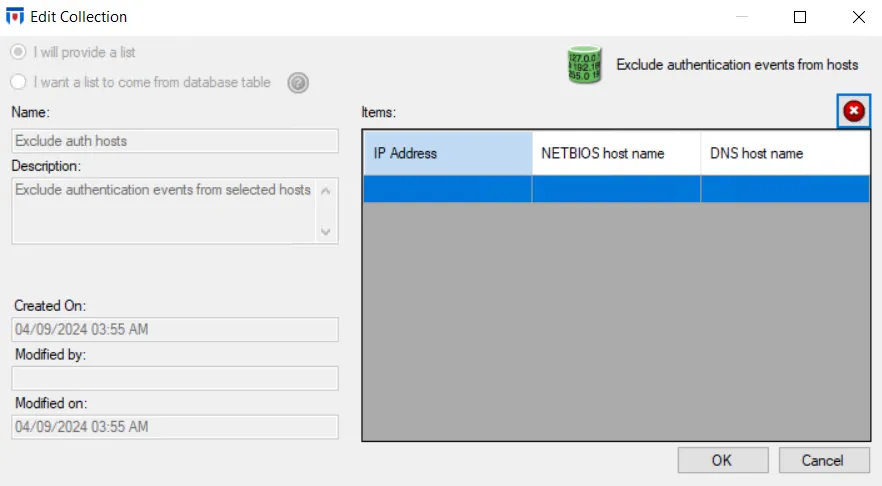
The Exclude Authentication Events from Hosts collection is only accessible through the Event Filtering Configuration window. You must know all three methods of identification for a host (IP address, NETBIOS host name, or DNS host name) to effectively exclude authentication from the host. Identify the host to exclude in the textbox under the IP Address column and press Enter or select the next row in the grid. Threat Prevention attempts to discover the NETBIOS host name and the DNS host name associated with the supplied IP address. If Threat Prevention doesn't resolve the host identification or resolves it inaccurately, enter the information manually.
Repeat the process until you have entered all hosts for which Threat Prevention shouldn't collect authentication event data. Then click OK. The Edit Collection window closes, and you can enable the Exclude Authentication Events from selected hosts option.
Exclude Authentication Events from Selected Accounts Option
The Exclude Authentication Events from Selected Accounts option is disabled by default because you must configure it before you can enable it. Click the selected accounts link to open the Edit Collection window.
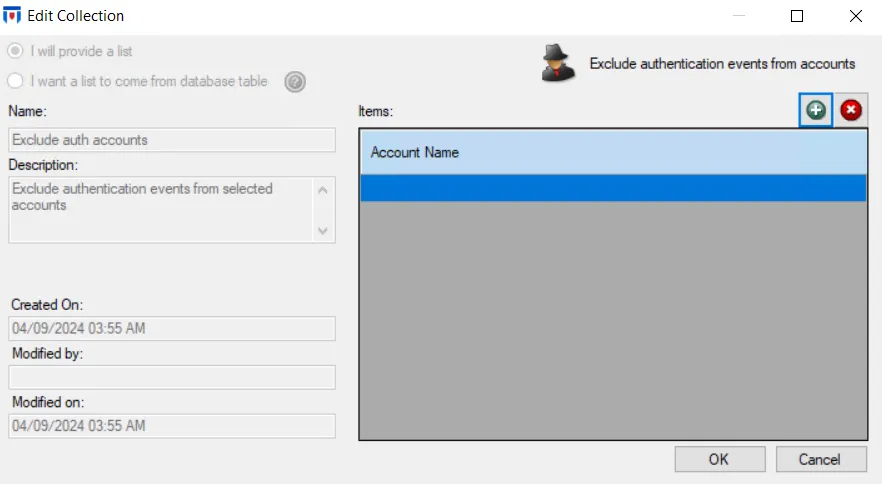
The Exclude Authentication Events from Selected Accounts collection is only accessible through the Event Filtering Configuration window. Use the Add (+) button to open the Select Active Directory Perpetrators Window to browse for the accounts you want. You can also type account names [domain name\account] in the textbox. You can use wild cards (*) as part of either the domain name or account. Threat Prevention treats an asterisk (*) appearing anywhere other than as the first character or the last character as a literal character rather than a wild card. For example: *\Service1 would exclude all Service1 accounts whether it is a domain or local account, and Example\Service* would exclude all accounts that start with “Service” for the Example domain.
Repeat the process until you have entered all accounts to exclude from Authentication event data. Then click OK. The Edit Collection window closes, and you can enable the Exclude Authentication Events from selected accounts option.
AD Events Latency Threshold Option
The Send Latency Alerts option is disabled by default. It generates alerts if the time delay between when the Agent detects an AD event and when the Enterprise Manager receives it exceeds the specified latency threshold. This option helps you troubleshoot slow connections in the environment. These events can bloat the database, especially if you set the latency threshold too low.
Select the Send Latency Alerts checkbox to enable this option. Use the arrows, or type into the textbox, to set the latency threshold in minutes for the time when the Agent detects the event and the Enterprise Manager receives it. When events exceed the timeframe, alerts display in the Alerts Interface. To generate Email or SIEM alerts, select the Agent Latency checkbox in the Operations tab of the System Alerting Window.