File Monitor Settings Window
The File Monitor Settings window provides global settings for managing log retention, the ability to disable office file filtering, inherited permissions for parent object changes, and AD accounts and file system activity processes for Threat Prevention file monitoring and blocking policies.
To configure file system monitoring:
Step 1 – Click Configuration > File Monitor Settings on the menu; the File Monitor Settings window opens. This window is only available to Threat Prevention administrators.
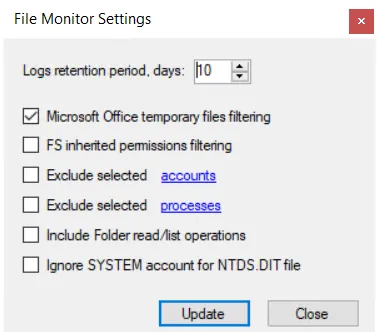
Step 2 – Enable or disable the following options:
- Logs retention period, days – Log retention period for activity logs (TSV files) created by the Threat Prevention Agent for Windows servers or by the Activity Monitor Agent for NAS devices and then read by the Threat Prevention Agent. This doesn't affect File System Access Analyzer event types. The Threat Prevention Agent reads logs in real time and retains the original logs for a set number of days before Threat Prevention automatically deletes them. This setting configures the log retention period for all enabled policies using the File System Changes and/or File System Lockdown event types. By default, it is 10 days.
- Microsoft Office temporary files filtering – Global setting that is checked by default. If checked, Threat Prevention doesn't monitor the temporary files associated with Microsoft Office operations, such as copy and paste. When unchecked, Threat Prevention monitors all temporary files associated with Microsoft Office operations.
- FS inherited permissions filtering – Reports separate events for the parent object and each child object. When checked, it reports an event only for the parent object.
- Exclude selected accounts – When checked, Threat Prevention excludes the user-supplied list of AD user and group names, as well as well-known SIDs for built-in users/groups, from file system monitoring and blocking policies at the global level. See the Select Local Processes to Exclude topic to specify accounts.
- Exclude selected processes – When checked, Threat Prevention excludes the user-supplied list of processes from the file system monitoring and blocking policies at the global level. See the Select Local Processes to Exclude topic to specify processes.
- Include Folder read / list operations – When checked, Threat Prevention includes all list/read folder operations in the reporting for file system monitoring and blocking at the global level.
- Ignore SYSTEM account for NTDS.DIT file – When checked, a File System monitoring policy doesn't report access to the .dit file by the SYSTEM account, and a File System blocking policy doesn't block it. Backup programs often use the SYSTEM account to access the .dit file and you may not want to report on or block such activity.
Step 3 – Click Update to save your changes.
Select Accounts to Exclude from Collections
A collection is a list of SIDs for built-in users/groups that Threat Prevention excludes from all File System activity. You can add more accounts to this collection.
To populate the collection with accounts to exclude from File System monitoring:
Step 1 – Click Configuration > File Monitor Settings on the menu to launch the File Monitor Settings window.
Step 2 – Check the Exclude selected accounts checkbox and then click accounts. The Edit Collection window opens.
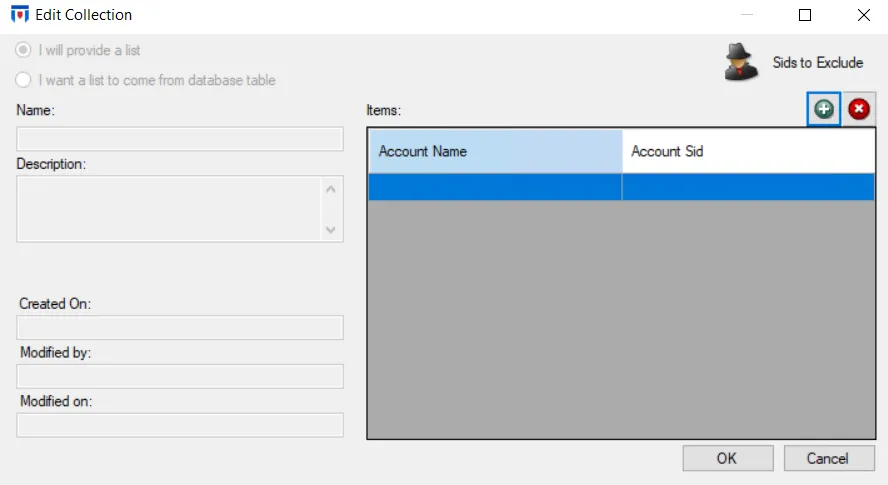
Step 3 – Use the Add (+) button to open the Select Active Directory Perpetrators Window to browse for and select AD accounts.
Step 4 – Click OK to save your changes.
Step 5 – Click Update on the File Monitor Settings window.
Threat Prevention globally excludes any accounts you add to the list from File System activity.
If the Exclude selected processes option is checked, Threat Prevention ignores the File System activity generated by the processes you add.
Select Local Processes to Exclude
To select local processes for exclusion from File System activity:
Step 1 – Click Configuration > File Monitor Settings on the menu to launch the File Monitor Settings window.
Step 2 – Check the Exclude selected processes checkbox and then click processes. The Edit Collection window opens.

Step 3 – Use the Items textbox to enter process names. You must enter a process name exactly as is; for example, as it appears on the Details tab of Windows Task Manager.
Step 4 – Click OK to save your changes.
Step 5 – Click Update on the File Monitor Settings window.
Threat Prevention doesn't report the File System activity of any processes you add to the list.