Add Users
To add a user and assign access rights:
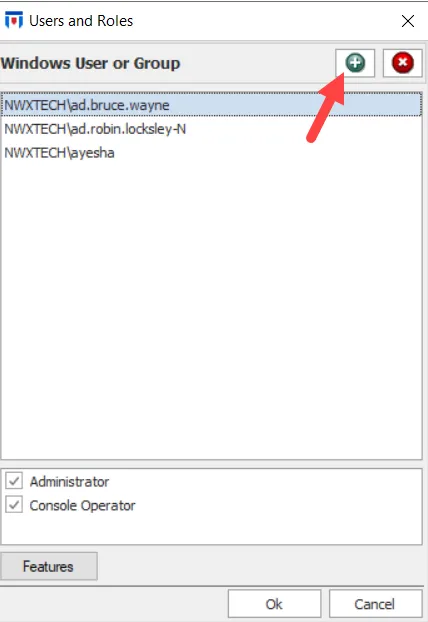
Step 1 – Click Configuration > Users on the menu to open the Users and Roles window.
Step 2 – Click the Add (+) button in the upper-right corner; the Select Users or Groups window opens.
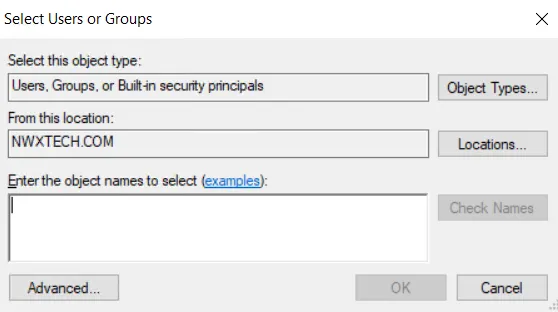
Step 3 – Enter the name of the user you want in the Enter the object names to select box and click Check Name. On the next window, select the required Active Directory user and click OK. Click OK on the Select Users or Groups window to close it. Threat Prevention adds the user to the Windows User or Group list.
Step 4 – The bottom of the Users and Roles window displays the Administrator and Console Operator user roles. Select the checkbox for a role to assign it to the user. Checking Administrator automatically checks the Console Operator role.
The Report User role was a legacy role for the IIS-based SI Reporting Console and doesn't apply to the Netwrix Threat Manager Reporting Module console. See the User Access Page topic for information on granting report access.
Step 5 – (Optional) Create as many users as required before clicking OK.
Step 6 – Click OK to save changes on the Users and Roles window.
Users now have the appropriate access rights.