Users and Roles Window
On the Users and Roles window, you can grant role based access to users on the Administration Console. See the User Access Page topic for information on granting access to the Netwrix Threat Manager Reporting Module console.
Click Configuration > Users on the menu to open the Users and Roles window.
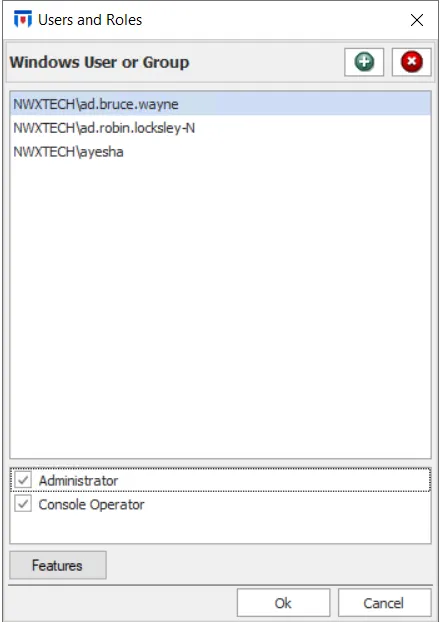
This window is only available to Threat Prevention administrators.
Threat Prevention automatically assigns the administrator role to the user account that ran the installation. This is the only active user until you add more. This ensures that no unauthorized accounts can open the Administration Console.
Roles
You can apply two roles to a Threat Prevention user:
- Administrator – Full access to the Administration Console, though you can restrict access. See the Administrator Permissions topic for additional information.
- Console Operator – Can create and run policies, and view event data.
The Report User role was a legacy feature for the IIS-based Reporting Console and is no longer applicable. See the Reporting Module topic for information on the new reporting console.
Administration Console Rights
| Administrator | Console Operator | |
|---|---|---|
| Log into the Administration Console | Yes | Yes |
| Create Policies and Policy Templates | Yes | Yes |
| View, Edit, or Delete Unprotected Policies | Yes | Yes |
| View, Edit, or Delete Protected Policies | According to Folder Permissions | According to Folder Permissions |
| Protect Policies at the Folder | Yes | Yes |
| Change Protected Folder Permissions | Yes* | No |
| Set or Modify Administration Console Configuration Settings | Yes | No |
| Deploy and Manage Agent | Yes | No |
| Add or Remove Users | Yes | No |
| Modify User Access Rights | Yes | No |
| LDAP Operations Center | Yes | No |
*If an administrator changes permissions on protected policies they don't own, Threat Prevention generates a system alert.
See the Policies Interface topic for information on protected and unprotected policies.
A user must have the following minimum permissions on the SQL Server databases, both the NVMonitorConfig and NVMonitorData databases, according to the assigned role:
-
Administrator Role
- Read/Write data
- If using the Database Maintenance Window – You need SQL Admin (sa) rights
-
Console Operator Role
- Read/Write data
Administrator Permissions
The Features button is enabled for users with the Administrator role. It provides options to limit Administrator permissions to manage features, stop the Agent, or uninstall the Agent.
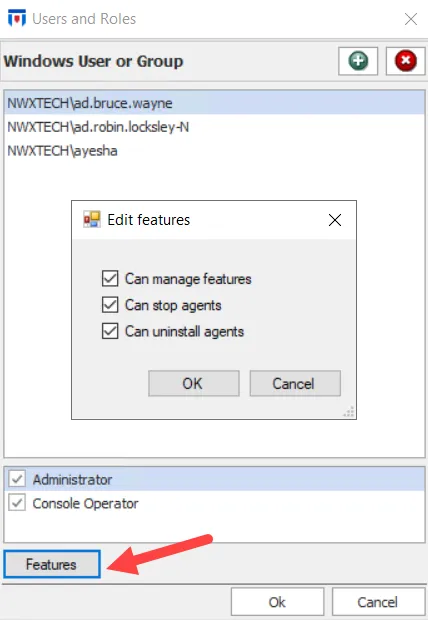
To edit the features for the selected user, use the following steps. All listed features are enabled by default.
Step 1 – Click the Features button. The Edit features window opens.
Step 2 – Check and uncheck features as needed.
Step 3 – Click OK.
The user has no rights to the deselected features.