Active Directory Changes Event Type
You can configure the Active Directory Changes event type to generate an event when someone changes an Active Directory object or attribute (add, delete, modify, move, rename).
The event filters for the Active Directory Changes event type are:
- AD Event
- Domains/Servers
- AD Context
- AD Classes
- AD Attributes
- AD Objects
- AD Perpetrator
- IP Addresses (from)
- Hosts (from)
- Success
- Advanced Filter
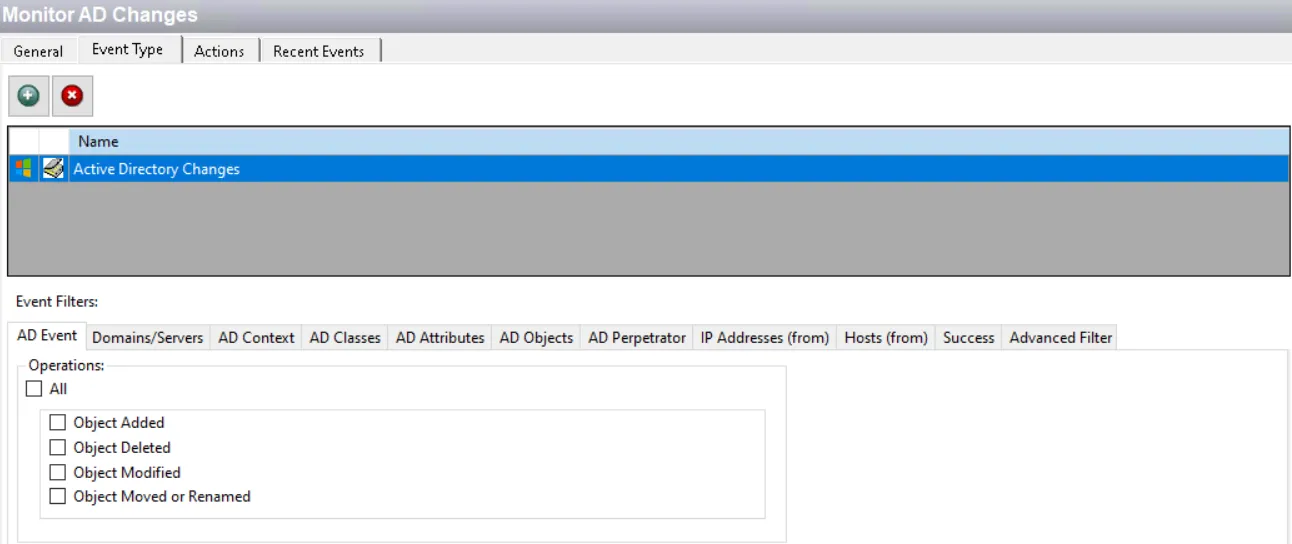
Each filter tab acts like an "AND" statement for the filter. Threat Prevention treats any filter tab left blank like an "ALL" for that filter set.
AD Event Filter
Use the AD Event filter to select the Active Directory events the policy monitors or locks down.

Check the All box to monitor or lockdown all operations, or select specific operations:
- Object Added – The policy monitors for objects being added to Active Directory
- Object Deleted – The policy monitors for objects being deleted from Active Directory
- Object Modified – The policy monitors for Active Directory objects being modified
- Object Moved or Renamed – The policy monitors for Active Directory objects being moved or renamed
If you apply this filter to a Lockdown Event Type, the policy both monitors and locks down the objects based on the selection.
Domains/Servers Filter
Use the Domains/Servers filter to set the scope of the policy to specific domains and/or servers or to exclude specific domains and/or servers.

Use the buttons in the Include and Exclude areas to edit the lists.
- The Add (+) buttons open the Select Domains and Servers Window.
- The Collection button opens the List of Collections Window to the appropriate Collection category.
- The Remove (x) button deletes the selected items from that box.
To enable a Dynamic Policy, use the Collection button to select the applicable Dynamic Collection. See the Dynamic Collections topic for additional information.
AD Context Filter
Use the AD Context filter to set the scope of the policy to only monitor specific contexts (e.g. containers and organizational units) in Active Directory or to exclude specific contexts from being monitored.
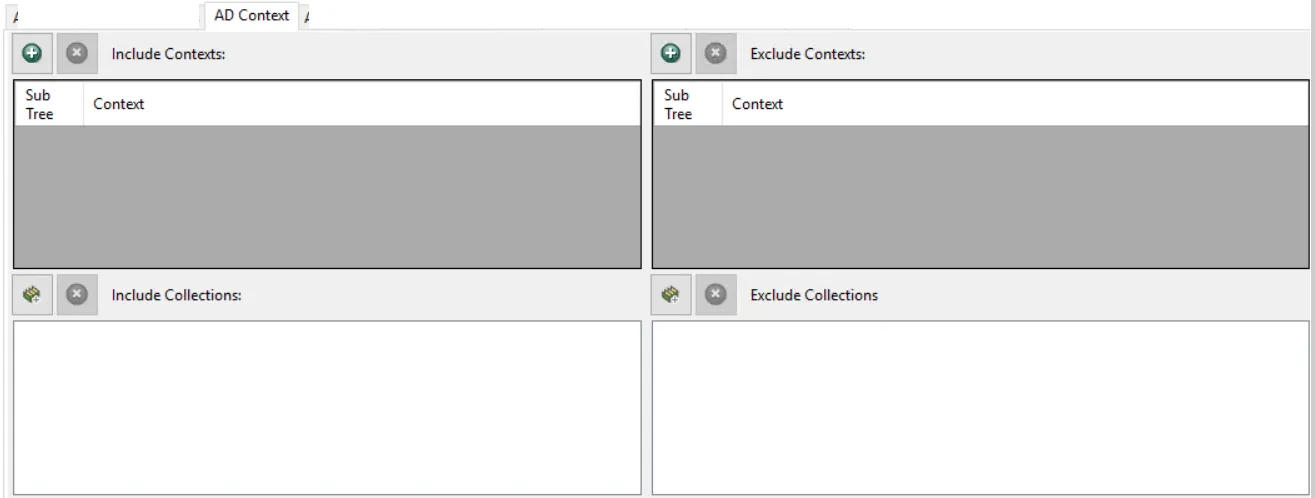
Use the buttons in the Include Contexts, Include Collections, Exclude Contexts, and Exclude Collections areas to edit the lists.
- The Context Add (+) button opens the Select Active Directory Contexts Window.
- The Collection button opens the List of Collections Window to the appropriate Collection category.
- The Remove (x) button deletes the selected items from that box.
Sub Tree

When you add contexts, a Sub-Tree checkbox displays. Check it to apply the filter to the parent and all child contexts. Uncheck it to apply the filter to the listed context only.
AD Classes Filter
Use the AD Classes filter to set the scope of the policy to only monitor specific classes within Active Directory or to exclude specific classes from monitoring.

Use the buttons in the Include and Exclude areas to edit the lists.
- The Add (+) buttons open the Class List Window.
- The Collection button opens the List of Collections Window to the appropriate Collection category.
- The Remove (x) button deletes the selected items from that box.
AD Attributes Filter
Use the AD Attributes filter to set the scope of the policy to only monitor specific Active Directory attributes or to exclude specific attributes from monitoring.
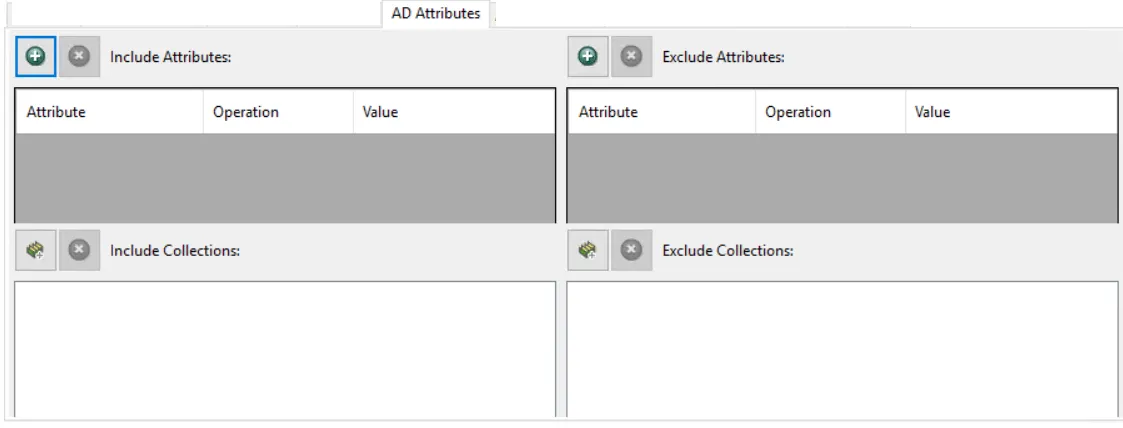
Use the buttons in the Include Attributes, Include Collections, Exclude Attributes, and Exclude Collections areas to edit the lists.
- The Attributes Add (+) button opens the Attribute List Window.
- The Collection button opens the List of Collections Window to the appropriate Collection category.
- The Remove (x) button deletes the selected items from that box.
Attribute, Operator, and Value
When you select an attribute, Threat Prevention adds it to the filter and displays a dropdown menu in the Operation column with Any Value selected. You can further scope the attributes to enable the policy to only capture events based on the new value. Use the Operation and Value columns of the Include Attributes and Exclude Attributes boxes to achieve this.
The Operation dropdown menu has the following options:
- Any Value – No scoping applied for this attribute
- (empty value) – Blank attribute values
- Equal – Attribute values that are identical to the Value field
- Not Equal – Attribute values that don't match the Value field
- Less Than – Attribute values below the numeric value or before the alphabetical value supplied in the Value field
- Greater Than – Attribute values above the numeric value or after the alphabetical value supplied in the Value field
- Contains – Attribute value includes the user supplied string (Threat Prevention treats numbers as strings) in the Value field
- Not Contain – Attribute values don't include the user supplied string (Threat Prevention treats numbers as strings) in the Value field
- Starts with – Attribute values start with the user supplied string in the Value field
Select an Operation and enter a value in the textbox. The value may include alphanumeric characters, string type, or dates. The filter supports only one value; don't specify multiple values for the attribute. Also the Value field isn't case sensitive.
When you select another attribute, a new row appears, where you can specify an operator and a value for that attribute. Threat Prevention treats each row as an “OR” statement. If any event matches any of the attribute filters, then the event data includes all attributes in the list.
You can't specify more than one value for an attribute and you can't select the same attribute twice. To use the same attribute again, you have to add the same event type again to the policy, select that event type and then select a previously used attribute to include in the Add Attributes filter.
When the userAccountControl attribute is included or excluded in the filter, selecting the Any Value dropdown opens the User Account Control Window with additional UAC flags to add to the filter.
AD Objects Filter
Use the AD Objects filter to set the scope of the policy to only monitor specific objects in Active Directory or to exclude specific objects from monitoring.

Use the buttons in the Include and Exclude areas to edit the lists.
- The Add (+) buttons open the Select Active Directory Objects Window.
- The Collection button opens the List of Collections Window to the appropriate Collection category.
- The Remove (x) button deletes the selected items from that box.
To enable a Dynamic Policy, use the Collection button to select the applicable Dynamic Collection. See the Dynamic Collections topic for additional information.
AD Perpetrator Filter
Use the AD Perpetrator filter for monitoring to set the scope of the policy to only monitor specific security principals committing changes or to exclude specific security principals committing changes from monitoring.
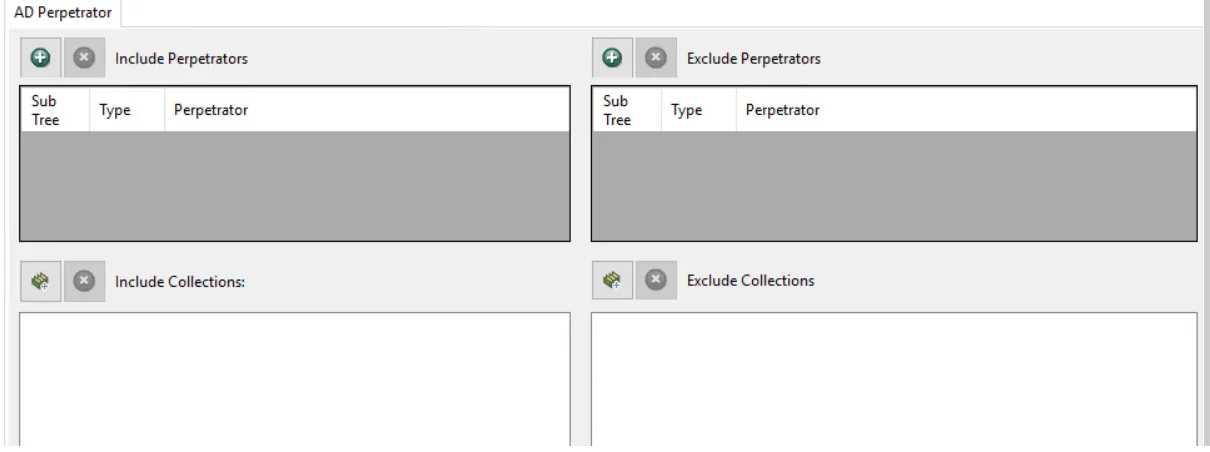
Use the buttons in the Include Perpetrators, Include Collections, Exclude Perpetrators, and Exclude Collections areas to edit the lists.
- The Perpetrators Add (+) button opens the Select Active Directory Perpetrators Window.
- The Collection button opens the List of Collections Window to the appropriate Collection category.
- The Remove (x) button deletes the selected items from that box.
To enable a Dynamic Policy, use the Collection button to select the applicable Dynamic Collection. See the Dynamic Collections topic for additional information.
Sub Tree
When you add contexts, a Sub-Tree checkbox displays. Check it to apply the filter to the parent and all child contexts. Uncheck it to apply the filter to the listed context only.
IP Addresses (from) Filter
Use the IP Addresses (from) filter to set the scope of the policy to specific IP addresses as originators of an event or to exclude specific IP addresses.

Use the buttons in the Include IP Addresses, Include Collections, Exclude IP Addresses, and Exclude Collections areas to edit the lists.
- The IP Addresses Add (+) button opens the Add IP Address Window.
- The Collection button opens the List of Collections Window to the appropriate Collection category.
- The Remove (x) button deletes the selected items from that box.
To enable a Dynamic Policy, use the Collection button to select the applicable Dynamic Collection. See the Dynamic Collections topic for additional information.
Hosts (from) Filter
Use the Hosts (from) filter for monitoring to set the scope of the policy to only monitor specific hosts as originators of an event or to exclude specific hosts from monitoring.

Use the buttons in the Include Hosts, Include Collections, Exclude Hosts, and Exclude Collections areas to edit the lists.
- The Hosts Add (+) button opens the Select Computer Window.
- The Collection button opens the List of Collections Window to the appropriate Collection category.
- The Remove (x) button deletes the selected items from that box.
To enable a Dynamic Policy, use the Collection button to select the applicable Dynamic Collection. See the Dynamic Collections topic for additional information.
Success Filter
Use the Success filter to set the policy to monitor only successful events, only failed events, or both.

Select the radio button for the monitoring filter you want:
- Success – Only monitors successful events
- Failure – Only monitors failed events
- Both Success and Failure – Monitors all events that are within the scope of the respective filters for the event type
Advanced Filter
Use the Advanced Filter to include or exclude attribute conditions for monitoring Active Directory changes.
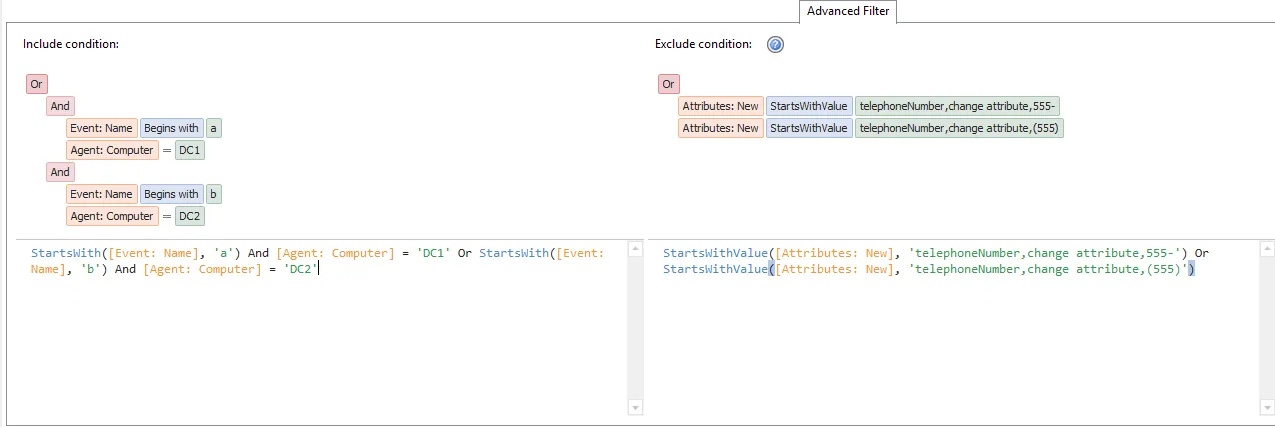
You can define a criteria (filter statements) to monitor event data based on event data values or event attribute values or both.
You can add filter statements to the Include condition and Exclude condition boxes. The filter uses pre-defined logical and comparison operators to create filter criteria for the scan. You can add conditions to a filter statement. Conditions can be singular or grouped by a logical operator.
In the Advanced Filter screenshot, the Exclude condition box displays singular conditions while the Include condition box displays conditions grouped by logical operators.
Logical Operator
The logical operator displays as left aligned red text. To change the logical operator, click it to open a menu with the following options:
- And
- Or
- Not And
- Not Or
Add icon (+)
To add a filter (condition) to the filter statement or to start a new group of filters, click the Add (+) icon. Then select:
- Add Condition – Adds a conditions to the filter statement
- Add Group – Adds a group with a conditions and a logical operator to the filter statement
A new row appears that displays an event data dropdown menu, a comparison operator, and a Value box.
Event Data Selection
The Event Data dropdown menu displays in orange. It contains a list of all the fields that can be part of an event. Click it to select an event name. Your selection appears in orange text in the box below.
The “Attributes: New” and “Attributes: Old” options are special cases, and the following descriptions cover them in detail.
Comparison Operator
The comparison operator dropdown menu displays in blue. To change it, click it to open a menu with options that associate with the selected event data field.
If you have selected the “Attributes: New” or “Attributes: Old” option in the Event Data dropdown menu, then only the following comparison operators are available:
- ContainsValue
- DoesNotContainValue
- EqualsValue
- StartsWithValue
- EndsWithValue
Your selected comparison operator appears in blue text in the box below.
Value
The value box displays in green. Click in it to enter a value, then press Enter. The value appears in green text in the box below.
The Value box only accepts a single string except when you select the “Attributes: New” or “Attributes: Old” option in the Event Data dropdown menu.
In case of “Attributes: New” and “Attributes: Old”, type three comma separated values (parameters) in the Value box in the following format:
%name%,%suboperation%,%value% (Don't put white space between the comma and the argument, unless white space is part of the argument.)
where:
- %name% – The attribute name, for example 'member' (case insensitive)
- %suboperation% – Attribute sub-operation, which can be Add Attribute, Add Value, Remove Attribute, Remove Value, or Change Attribute (case insensitive)
- %value% – The attribute value (case insensitive)
All the parameters are optional, and Threat Prevention evaluates them only if they are non-empty. This means that you can select attributes either only by %name% or %suboperation% or %value% or by combination of %name%/%suboperation%/%value%.
If you don't specify %value%, all the functions behave in the same way because they implement the same logic for %name% / %suboperation% comparison. The difference applies only when you specify %value%.
Following is how the comparison operator (displayed in blue) works with %value%:
- ContainsValue – matches if an attribute has any value containing %value%
- DoesNotContainValue – matches if an attribute doesn't have any value containing %value%
- EqualsValue – matches if an attribute has any value equal to %value%
- StartsWithValue – matches if an attribute has any value starting with %value%
- EndsWithValue – matches if an attribute has any value ending with %value%
Examples of how the comparison operator (displayed in blue) works with Value
| Comparison Operator | Value (%name%,%suboperation%,%value%) | Outcome |
|---|---|---|
| ContainsValue | description,Change Attribute,testdescription | Matches any attribute where:
|
| ContainsValue | ,Change Attribute,testdescription | Matches any attribute where:
|
| ContainsValue | description,,testdescription | Matches any attribute where:
|
| ContainsValue | ,,testdescription | Matches any attribute where:
|
| ContainsValue | description OR description, OR description,, | Matches any attribute where:
|
| ContainsValue | description,Change Attribute OR description,Change Attribute, | Matches any attribute where:
|
Example of a filter statement with "Attribute New"
Following is an example of a filter statement defined in the Include condition box with the "Attribute New" option.

[Attributes: New] [StartsWithValue] [telephoneNumber, change attribute, (555)]```

This filter statement would only generate an event if someone changes an object's telephoneNumber attribute and the new value starts with (555), rather than generating an event every time the telephone number changes.