Active Directory Lockdown Event Type
Based on policy rules, the Active Directory Lockdown event type can prevent a change in Active Directory. Every time the policy prevents a change, Threat Prevention generates an event with details about the prevented change.
The event filters for the Active Directory Lockdown event type are:
- AD Event
- AD Objects and Containers
- AD Classes and Attributes
- AD Perpetrator
- Hosts (from)
- User Account Control
- Rule Preview
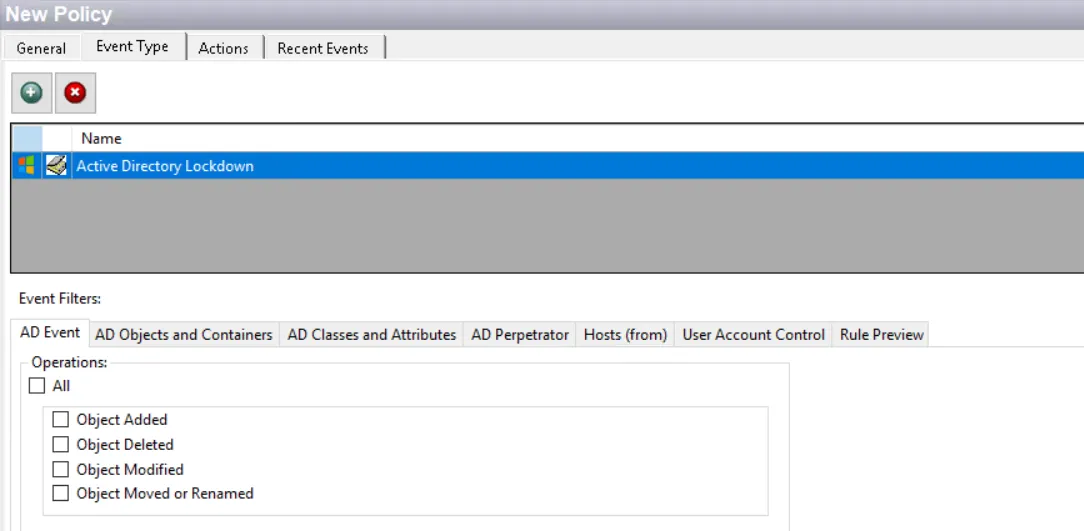
Each filter tab acts like an "AND" statement for the filter. Threat Prevention treats any filter tab left blank like an "ALL" for that filter set.
Lockdown/blocking policies with blank filters lock down or block everything.
AD Event Filter
Use the AD Event filter to select the Active Directory events the policy monitors or locks down.

Check the All box to monitor or lockdown all operations, or select specific operations:
- Object Added – The policy monitors for objects being added to Active Directory
- Object Deleted – The policy monitors for objects being deleted from Active Directory
- Object Modified – The policy monitors for Active Directory objects being modified
- Object Moved or Renamed – The policy monitors for Active Directory objects being moved or renamed
If you apply this filter to a Lockdown Event Type, the policy both monitors and locks down the objects based on the selection.
AD Objects and Containers Filter
Use the AD Objects and Containers filter to set the scope of the policy to lockdown changes to specific objects or containers within Active Directory or to exclude changes to specific objects or containers from lockdown.
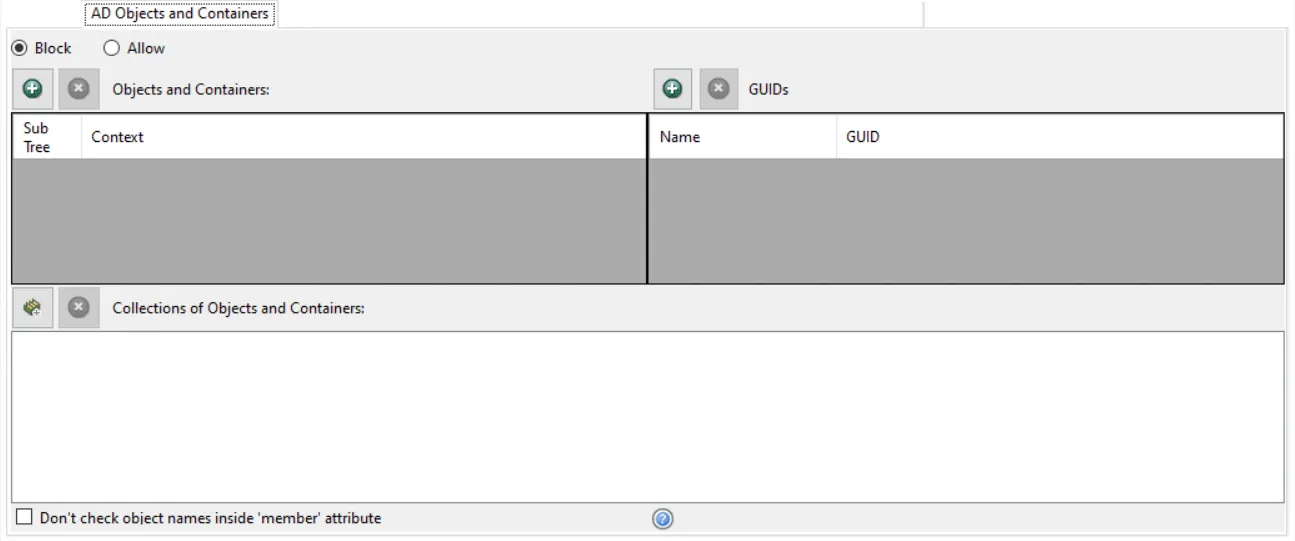
Select the Block or Allow option button and then edit the list.
Use the buttons in the Objects and Containers, Collections of Objects and Containers, and GUIDs areas to edit the lists.
- Objects and Containers area – The Add (+) button opens the Select Active Directory Contexts Window.
- Collection of Objects and Containers area – The Collection button opens the List of Collections Window to the appropriate Collection category.
- GUIDs area – The Add (+) button opens the Select Active Directory Contexts Window.
- The Remove (x) button deletes the selected items from that box.
To enable a Dynamic Policy, use the Collection button to select the applicable Dynamic Collection. See the Dynamic Collections topic for additional information.
Sub Tree

When you add contexts, a Sub-Tree checkbox displays. Check it to apply the filter to the parent and all child contexts. Uncheck it to apply the filter to the listed context only.
Don’t check object names inside ‘member’ attribute
This checkbox works with the Block option button. It controls the blocking behavior when the change is related to adding members to a group.
- If Unchecked – Blocks attempts to add a user (DN) listed in this filter to a group
- If Checked – Allows a user (DN) listed in this filter to be added to a group
AD Classes and Attributes Filter
Use the AD Classes And Attributes filter to set the scope of the policy to lockdown changes to specific Active Directory classes and/or attributes, or to exclude changes to specific classes and/or attributes from lockdown.

Select the Block or Allow option button and then edit the list.
Use the buttons in the Classes and Attributes areas to edit the lists.
- Classes area – The Add (+) buttons open the Class List Window.
- Attributes area – The Attributes Add (+) button opens the Attribute List Window.
- The Collection button opens the List of Collections Window to the appropriate Collection category.
- The Remove (x) button deletes the selected items from that box.
To enable a Dynamic Policy, use the Collection button to select the applicable Dynamic Collection. See the Dynamic Collections topic for additional information.
AD Perpetrator Filter
Use the AD Perpetrator filter for lockdown to set the scope of the policy to lockdown specific security principals committing changes or to exclude specific security principals committing changes from lockdown.

Select the Block or Allow option button and then edit the list.
For the Password Enforcement Event Type, selecting Allow means that this policy doesn't validate the new passwords for the accounts listed here. Selecting Block means that this policy validates the new passwords for the accounts listed here.
Use the buttons in the Perpetrators and Collections of Perpetrators areas to edit the lists.
- Perpetrators area – The Add (+) button opens the Select Active Directory Perpetrators Window.
- Collections of Perpetrators area - The Collection button opens the List of Collections Window to the appropriate Collection category.
- The Remove (x) button deletes the selected items from that box.
To enable a Dynamic Policy, use the Collection button to select the applicable Dynamic Collection. See the Dynamic Collections topic for additional information.
Hosts (from) Filter
Use the Hosts (from) filter for lockdown to set the scope of the policy to only lockdown specific hosts as originators of an event.

Select the Block or Allow option button and then edit the list.
- For the Password Enforcement Event Type, selecting Allow means that this policy doesn't validate the new passwords for the accounts listed here. Selecting Block means that this policy validates the new passwords for the accounts listed here.
- For the Authentication Lockdown Event Type, this filter blocks or only allows authentication from the identified hosts.
Use the buttons in the Include Hosts area to edit the list.
- The Hosts Add (+) button opens the Select Computer Window.
- The Remove (x) button deletes the selected items from that box.
User Account Control Filter
Use the User Account Control (UAC) filter to block specific UAC settings by the policy.
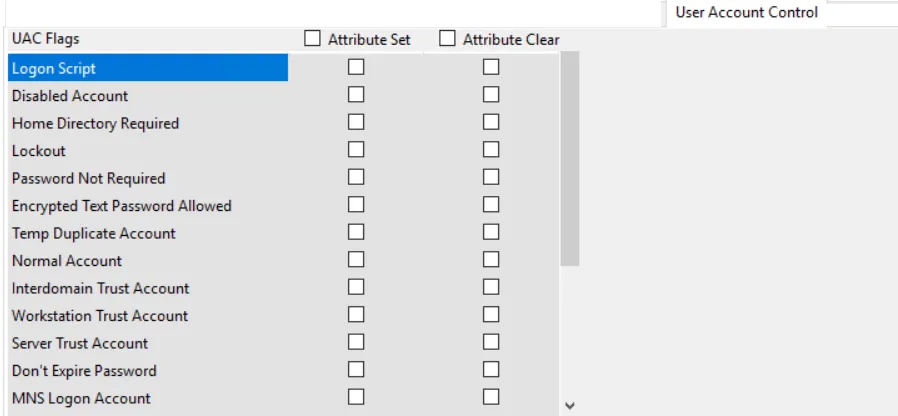
The User Account Control filter displays a list of UAC flags. Choose specific userAccountControl flags from the list using the Attribute Set and/or Attribute Clear checkboxes. If someone adds or removes an attribute in Active Directory, Threat Prevention blocks it based on the filter set.
Rule Preview Filter
The Rule Preview filter displays a summary of the selected filter options. You use this primarily for troubleshooting.
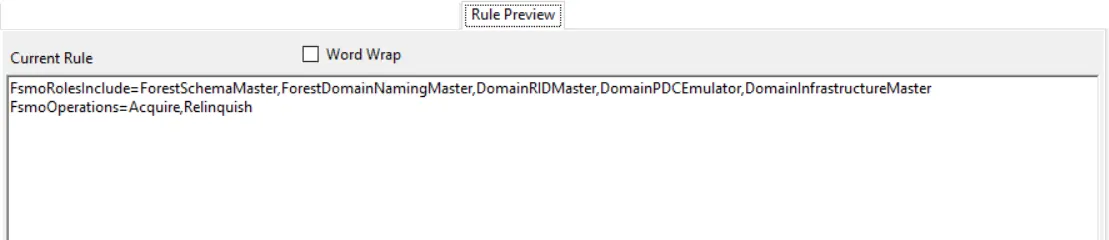
The text displayed represents the rules created based on the policy’s selected filters. Each row is a selected filter. Notice the Word Wrap checkox. If checked, a filter statement may cover multiple rows so that all of it is visible.