Authentication Monitoring Event Type
The Authentication Monitoring event type captures events according to policy filters for Kerberos, TGT, TGS, and/or NTLM authentication requests.
The event filters for the Authentication Monitoring event type are:
- Authentication Protocol
- Domains/Servers
- Success
- AD Perpetrator
- IP Addresses (from)
- IP Addresses (to)
- Hosts (from)
- Hosts (to)
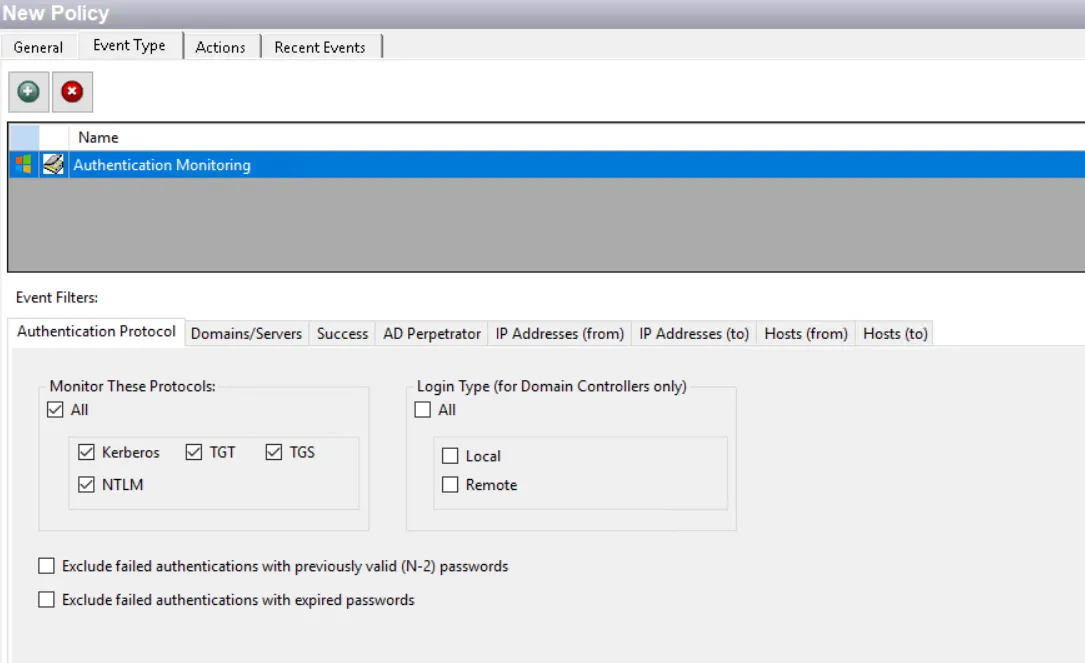
Each filter tab acts like an "AND" statement for the filter. Threat Prevention treats any filter tab left blank like an "ALL" for that filter set.
When you assign the Authentication Monitoring or Lockdown event type to a policy outside of the Analytic policies, Threat Prevention stores all collected authentication event data in the database rather than in memory as it does for the Analytic policies. However, it consolidates the authentication events that occur every minute, which can delay the reporting of an event by up to one minute.
Authentication Protocol Filter
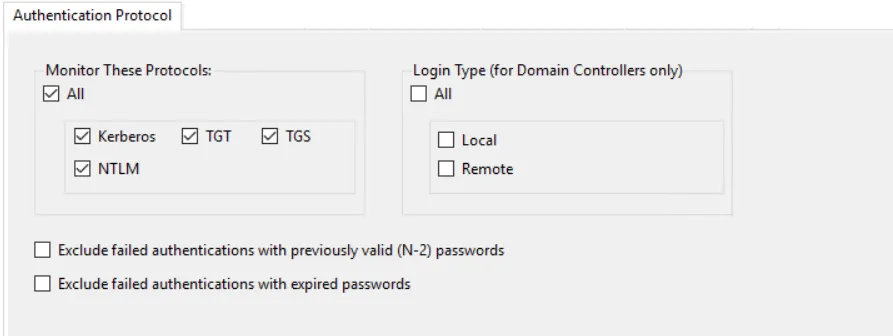
Use the Authentication Protocol filter for monitoring to set the scope of the policy to only monitor specific authentication event protocols or to exclude specific authentication event protocols from being monitored.
-
In the Monitor These Protocols section, check the All box to include all protocols or select specific protocols:
- Kerberos (TGT and/or TGS)
- NTLM
Saving all TGT and/or TGS authentication data bloats the Threat Prevention database. Configure policy filters and use Database Maintenance while monitoring these protocols to retain data for the necessary timeframe. See the Database Maintenance Window topic for additional information.
RECOMMENDED: Save only a few days' worth of TGT and TGS data at a time.
-
The Login Type options apply only to domain controllers. Use them to scope for All login types or only Local or Remote logins to the selected domain controllers.
-
The Exclude failed authentications with previously valid (N-2) passwords option, if enabled, allows the Authentication policy or Analytic policy to ignore failed authentications that failed due to use of a previously valid, but now expired, password.
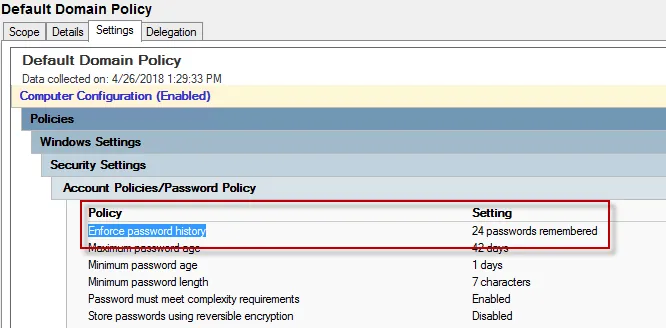
You must configure a GPO within the organization to Enforce password history with a setting of a minimum of 3 passwords remembered so that the Threat Prevention policy can exclude failed authentications for N-2. This policy is located within a GPO > Computer Configuration > Windows Settings > Security Settings > Account Policies > Password Policy (shown in the example GPO > Default DomainPolicy).
-
When enabled, the Exclude failed authentications with expired passwords option allows the Authentication or Analytic policy to ignore failed authentications with a newly expired password that the user hasn't reset yet. This functionality removes events that clutter the database.
Domains/Servers Filter
Use the Domains/Servers filter to set the scope of the policy to specific domains and/or servers or to exclude specific domains and/or servers.

Use the buttons in the Include and Exclude areas to edit the lists.
- The Add (+) buttons open the Select Domains and Servers Window.
- The Collection button opens the List of Collections Window to the appropriate Collection category.
- The Remove (x) button deletes the selected items from that box.
To enable a Dynamic Policy, use the Collection button to select the applicable Dynamic Collection. See the Dynamic Collections topic for additional information.
Success Filter
Use the Success filter to set the policy to monitor only successful events, only failed events, or both.

Select the radio button for the monitoring filter you want:
- Success – Only monitors successful events
- Failure – Only monitors failed events
- Both Success and Failure – Monitors all events that are within the scope of the respective filters for the event type
AD Perpetrator Filter
Use the AD Perpetrator filter for monitoring to set the scope of the policy to only monitor specific security principals committing changes or to exclude specific security principals committing changes from monitoring.
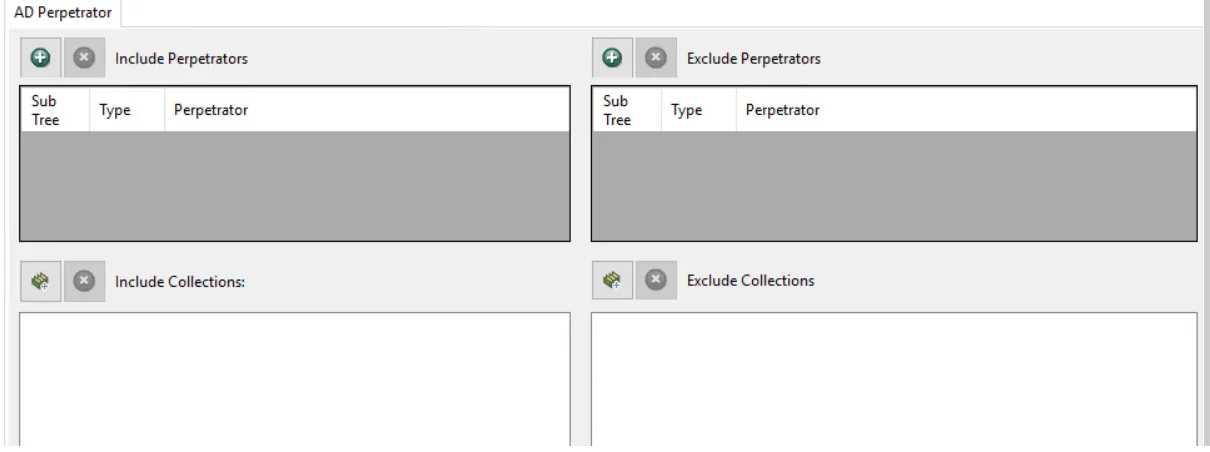
Use the buttons in the Include Perpetrators, Include Collections, Exclude Perpetrators, and Exclude Collections areas to edit the lists.
- The Perpetrators Add (+) button opens the Select Active Directory Perpetrators Window.
- The Collection button opens the List of Collections Window to the appropriate Collection category.
- The Remove (x) button deletes the selected items from that box.
To enable a Dynamic Policy, use the Collection button to select the applicable Dynamic Collection. See the Dynamic Collections topic for additional information.
Sub Tree

When you add contexts, a Sub-Tree checkbox displays. Check it to apply the filter to the parent and all child contexts. Uncheck it to apply the filter to the listed context only.
IP Addresses (from) Filter
Use the IP Addresses (from) filter to set the scope of the policy to specific IP addresses as originators of an event or to exclude specific IP addresses.

Use the buttons in the Include IP Addresses, Include Collections, Exclude IP Addresses, and Exclude Collections areas to edit the lists.
- The IP Addresses Add (+) button opens the Add IP Address Window.
- The Collection button opens the List of Collections Window to the appropriate Collection category.
- The Remove (x) button deletes the selected items from that box.
To enable a Dynamic Policy, use the Collection button to select the applicable Dynamic Collection. See the Dynamic Collections topic for additional information.
IP Addresses (to) Filter
Use the IP Addresses (to) filter to set the scope of the policy to specific IP addresses as target hosts of an event or to exclude specific IP addresses.

Use the buttons in the Include IP Addresses, Include Collections, Exclude IP Addresses, and Exclude Collections areas to edit the lists.
- The IP Addresses Add (+) button opens the Add IP Address Window.
- The Collection button opens the List of Collections Window to the appropriate Collection category.
- The Remove (x) button deletes the selected items from that box.
To enable a Dynamic Policy, use the Collection button to select the applicable Dynamic Collection. See the Dynamic Collections topic for additional information.
Hosts (from) Filter
Use the Hosts (from) filter for monitoring to set the scope of the policy to only monitor specific hosts as originators of an event or to exclude specific hosts from monitoring.

Use the buttons in the Include Hosts, Include Collections, Exclude Hosts, and Exclude Collections areas to edit the lists.
- The Hosts Add (+) button opens the Select Computer Window.
- The Collection button opens the List of Collections Window to the appropriate Collection category.
- The Remove (x) button deletes the selected items from that box.
To enable a Dynamic Policy, use the Collection button to select the applicable Dynamic Collection. See the Dynamic Collections topic for additional information.
Hosts (to) Filter
Use the Hosts (to) filter for monitoring the scope of the policy to only monitor specific hosts as target hosts of an event or to exclude specific hosts from monitoring.

Use the buttons in the Include Hosts, Include Collections, Exclude Hosts, and Exclude Collections areas to edit the lists.
- The Hosts Add (+) button opens the Select Computer Window.
- The Collection button opens the List of Collections Window to the appropriate Collection category.
- The Remove (x) button deletes the selected items from that box.
To enable a Dynamic Policy, use the Collection button to select the applicable Dynamic Collection. See the Dynamic Collections topic for additional information.