File System Changes Event Type
The File System Changes event type generates events for selected actions on selected files, such as create/read/write/delete/rename, attribute/permission changes, and share operations for NTFS/VSS.
The event filters for the File System Changes event type are:
- File System
- Paths
- Additional Agents
- AD Perpetrator
- Success
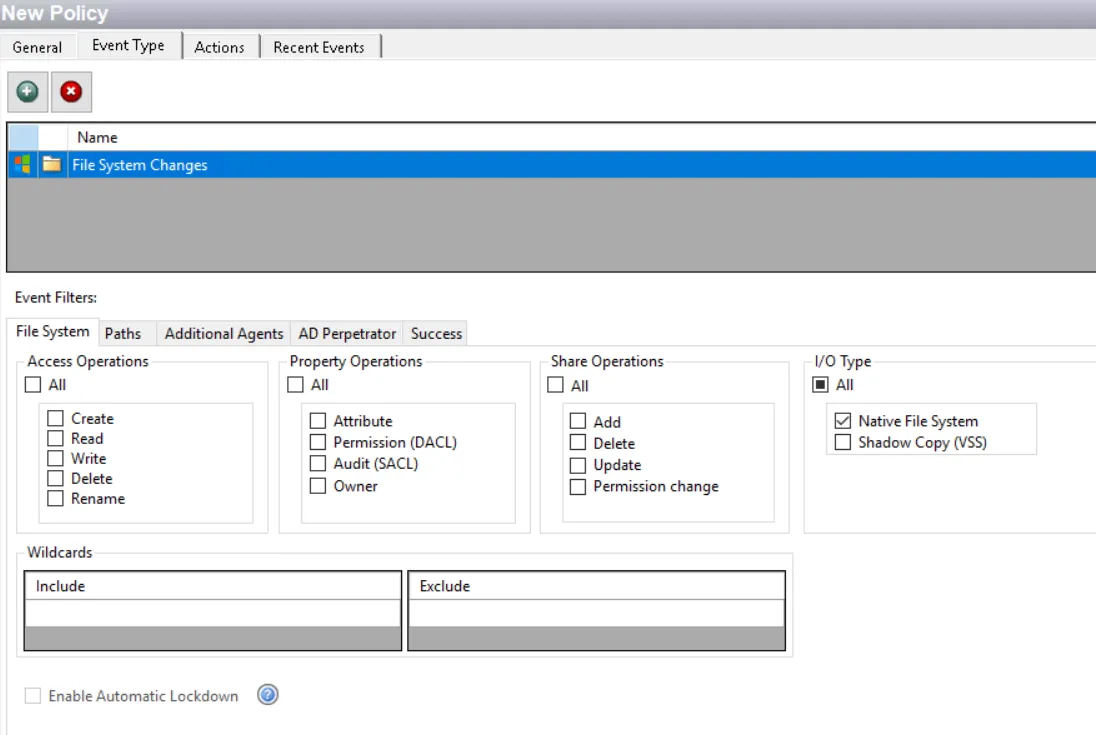
Each filter tab acts like an "AND" statement for the filter. Threat Prevention treats any filter tab left blank like an "ALL" for that filter set.
You must select the paths/collections to include or exclude on the Paths filter within the target file system. The policy monitors the path/collection from the Agent used to select it; the Agent appears in the parenthesis after the path/collection. Other Agents that you select on the Additional Agents filter can also monitor the path/collection.
Any files or folders you exclude must be a subset of a folder identified in the Include Paths section.
If you don't provide a path, an error message displays when you enable the policy: The policy must have at least one path defined.
Example:
-
Paths filter – Paths identified:
- C:\Documents and Settings (EXAMPLE\server1)
- C:\Users\All Users (EXAMPLE\server2)
This configuration in a policy results in the Agent on server1 monitoring only the C:\Documents and Settings folder and the Agent on server2 monitoring only the C:\Users\All Users folder.
-
Paths filter – Paths identified:
- C:\Documents and Settings (EXAMPLE\server1)
- C:\Users\All Users (EXAMPLE\server2)
-
Additional Agents filter – Agents selected:
- EXAMPLE\server1
- EXAMPLE\server3
By adding the Agents on server1 and server3 in the Additional Agents filter, both server1 and server3 monitor both folder paths, but server2 still only monitors the C:\Users\All Users folder.
Event data collected by the policies with this event type are also available for consumption by Netwrix Access Analyzer (formerly Enterprise Auditor) if the same enabled policy uses the File System Enterprise Auditor Event Type.
File System Filter
Use the File System filter for monitoring to select the types of file system events for the policy to monitor.
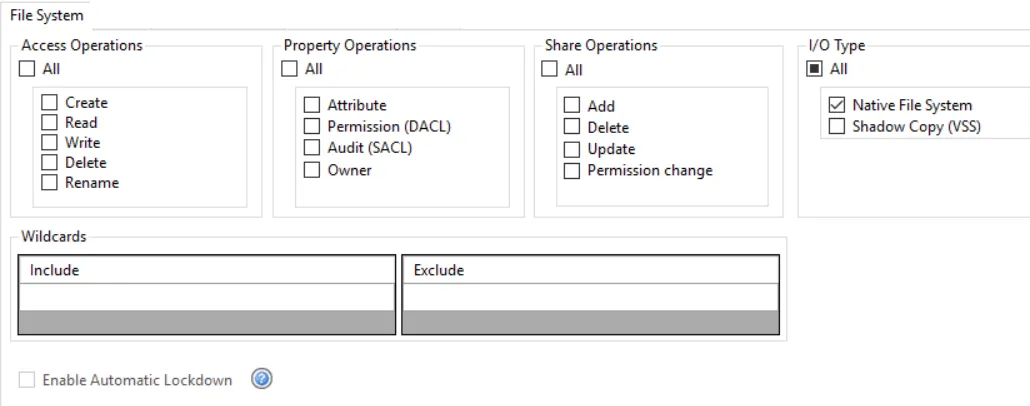
Access Operations area
In the Access Operations area, check the All box at the top to include all operations or select specific operations:
- Create
- Read
- Write
- Delete
- Rename
Property Operations area
In the Property Operations area, check the All box at the top to include all operations or select specific operations:
- Attribute
- Permission (DACL)
- Audit (SACL)
- Owner
Share Operations area
In the Share Operations area, check the All box at the top to include all operations or select specific operations:
- Add
- Delete
- Update
- Permission change
I/O Type area
In the I/O Type area, check the All box at the top to include all types or select specific types:
-
Native File System – For scoping to NTFS and NAS native activity
- Applies to all Access Operations
-
Shadow Copy (VSS) – For scoping to Shadow Copy (A.K.A. Volume Snapshot Service, Volume Shadow Copy Service, or VSS)
- Only applies to Read and Create Access Operations
Wildcards area
The Wildcards boxes are to scope the policy using an asterisk (*) or question mark (?) as the wildcard. The policy monitors files that match the wildcard in the include box and ignores files that match the wildcard in the exclude box.
Adding an include filter scopes the policy to monitor only matching files. Adding an exclude filter scopes the policy to monitor all files that don't match. If you apply both include and exclude filters to a single policy, the exclude filter takes precedence. If you leave the boxes blank, the policy monitors all files according to all the policy filter selections.
Enable Automatic Lockdown option
Adding a wildcard to the policy allows the policy to use the Enable Automatic Lockdown option. When you check this option, Threat Prevention locks down perpetrators of this policy, denying them access to the files and folders this policy monitors. When this option is checked, you can't add other event types to the policy. If you previously assigned other event types to the policy, the option is grayed-out.
If you enable the Enable Automatic Lockdown option, Threat Prevention adds the File System Lockdown Event Type to the policy when you save the configuration. Threat Prevention also adds the perpetrator of the monitored event to the File System Lockdown event type’s AD Perpetrator filter as a blocked security principal. To grant the perpetrator access to the files and folders this policy monitors, remove them from the blocked perpetrators list on the File System Lockdown event type’s AD Perpetrator filter and add the perpetrator to the Exclude Perpetrator’s list on the File System Changes event type’s AD Perpetrator filter.
Paths Filter
Use the Paths filter to set the scope of the policy to only monitor specific file system paths or to exclude specific file system paths from monitoring.

The Include Paths section defines the top level folder or individual files for monitoring. Use the Exclude Paths section to refine and remove any child items from monitoring. Any files or folders you exclude must be a subset of a folder identified in the Include Paths section. This is also where you add the NAS device paths.
Use the buttons in the Include Paths, Include Collections, Exclude Paths, and Exclude Collections areas to edit the lists.
- The Path Add (+) button opens the Select File System Objects Window.
- The Collection button opens the List of Collections Window to the appropriate Collection category.
- The Remove (x) button deletes the selected items from that box.
To enable a Dynamic Policy, use the Collection button to select the applicable Dynamic Collection. See the Dynamic Collections topic for additional information.
Sub Folder

When you add paths, a Sub-Folder checkbox displays. If checked, the filter applies to the parent and all child content (files and folders). If unchecked, the filter applies only to the listed folder and its first-level contents.
Additional Agents Filter
Use the Additional Agents filter to set the scope of the policy to specific Agents and/or domains.
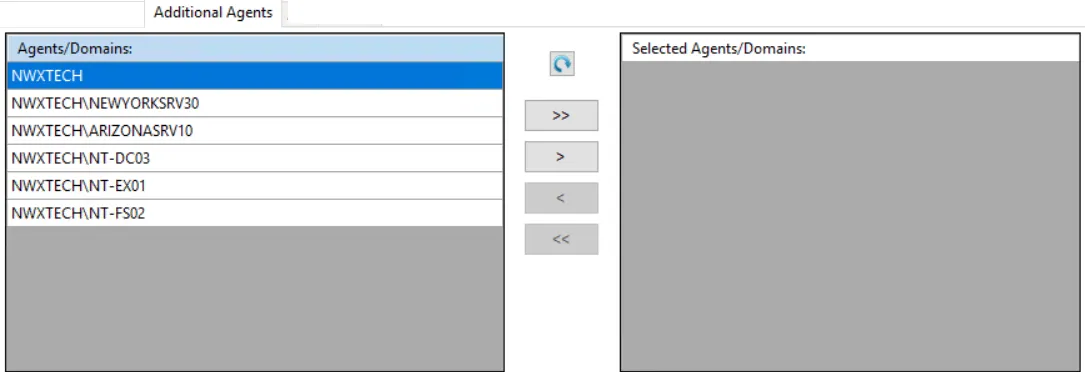
The Agents/Domains list on the left displays available Agents and domains. The Selected Agents/Domains list on the right displays Agents and domains included in the policy.
-
Use the Refresh button to update the lists.
-
Use the arrow buttons to move individual Agents and/or domains between the lists.
- The single arrow buttons will move the selected item to the other list.
- The double arrows will move all items to the other list.
There is no impact if a selected path doesn't exist on the server where an Agent resides.
When you add a domain to the Selected Agents\Domains list, the policy includes all Agents deployed in that domain. If you specify a domain, the policy also includes any Agent later installed in that domain.
AD Perpetrator Filter
Use the AD Perpetrator filter for monitoring to set the scope of the policy to only monitor specific security principals committing changes or to exclude specific security principals committing changes from monitoring.
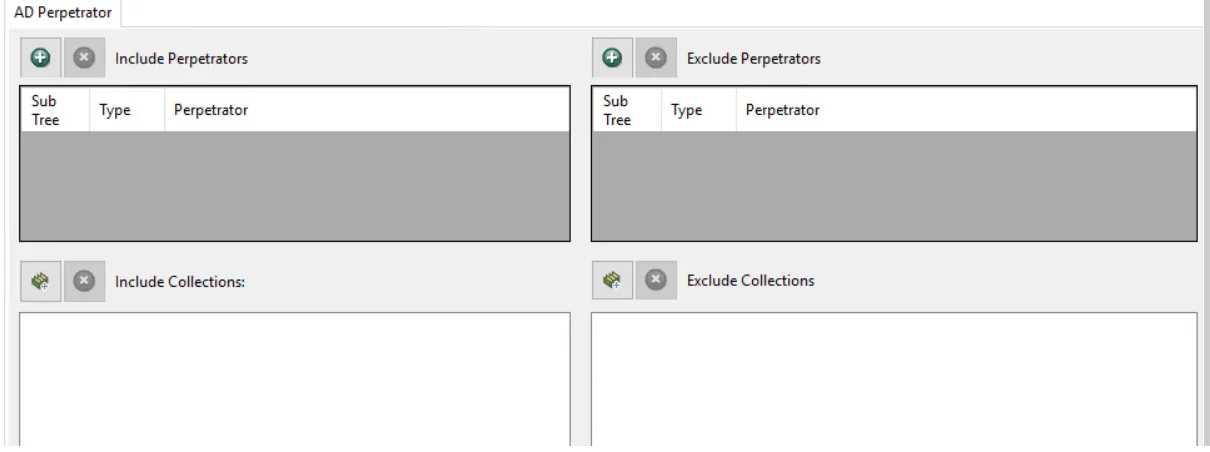
Use the buttons in the Include Perpetrators, Include Collections, Exclude Perpetrators, and Exclude Collections areas to edit the lists.
- The Perpetrators Add (+) button opens the Select Active Directory Perpetrators Window.
- The Collection button opens the List of Collections Window to the appropriate Collection category.
- The Remove (x) button deletes the selected items from that box.
To enable a Dynamic Policy, use the Collection button to select the applicable Dynamic Collection. See the Dynamic Collections topic for additional information.
Sub Tree

When you add contexts, a Sub-Tree checkbox displays. Check it to apply the filter to the parent and all child contexts. Uncheck it to apply the filter to the listed context only.
Success Filter
Use the Success filter to set the policy to monitor only successful events, only failed events, or both.

Select the radio button for the monitoring filter you want:
- Success – Only monitors successful events
- Failure – Only monitors failed events
- Both Success and Failure – Monitors all events that are within the scope of the respective filters for the event type