File System Lockdown Event Type
Based on policy rules, the File System Lockdown event type can prevent file activity on selected files, such as create/read/write/delete/rename or security descriptor changes done via NTFS or VSS access. Threat Prevention generates an event for each blocked activity.
The event filters for the File System Lockdown event type are:
- File System
- Additional Agents
- AD Perpetrator
- Rule Preview
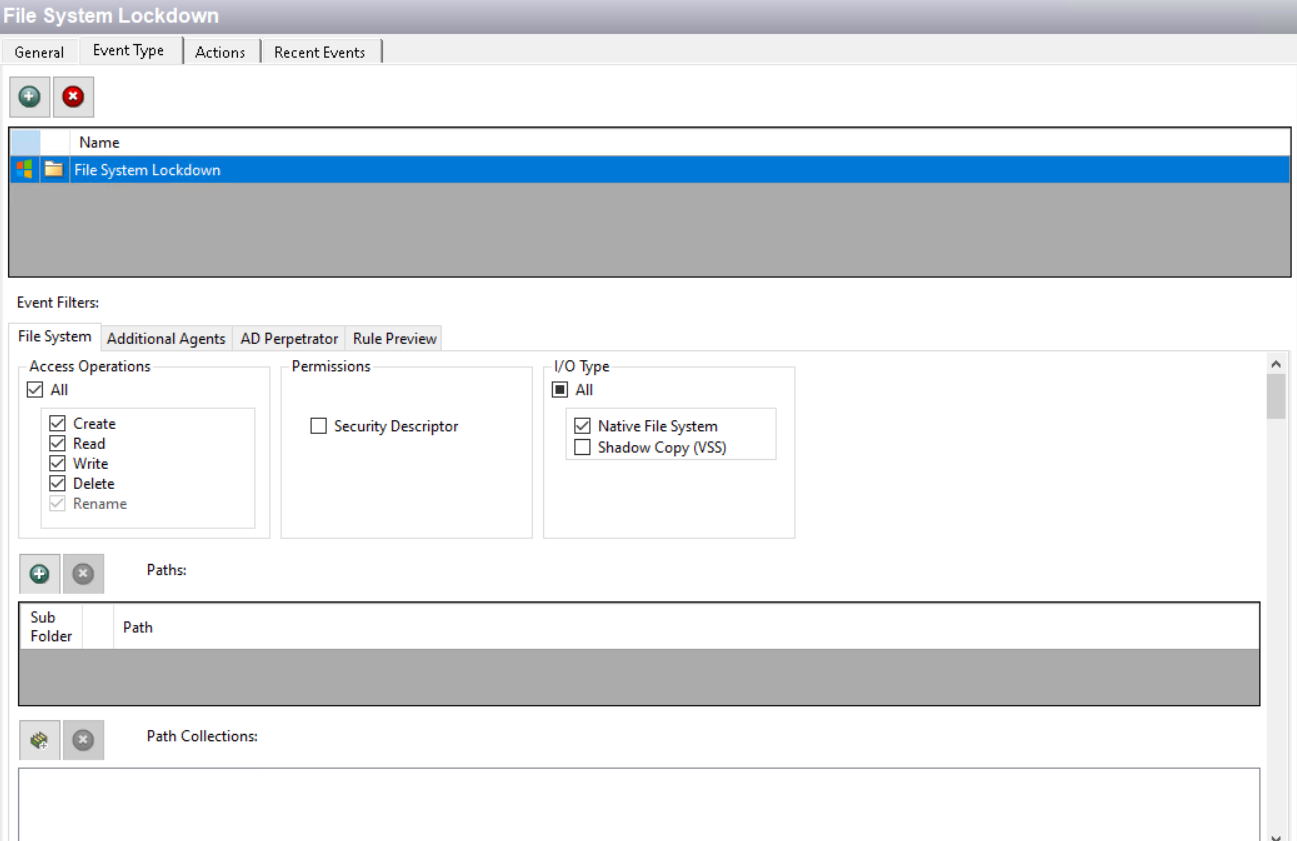
Each filter tab acts like an "AND" statement for the filter. Threat Prevention treats any filter tab left blank like an "ALL" for that filter set.
Lockdown/blocking policies with blank filters lock down or block everything.
Select the paths/collections to lock down on the File System filter. The policy locks down the path/collection from the SI Agent you used to select it for the filter, which appears in the parenthesis after the path/collection. Other SI Agents can also lock down the path/collection when you select them on the Additional Agents filter.
If you don't provide a path, an error message displays when you enable the analytic policy: The policy must have at least one path to monitor defined.
Example:
-
File System filter – Paths identified:
- C:\Documents and Settings (EXAMPLE\server1)
- C:\Users\All Users (EXAMPLE\server2)
This configuration in a policy results in the SI Agent on server1 locking down only C:\Documents and Settings folder and the SI Agent on server2 locking down only C:\Users\All Users folder.
-
File System filter – Paths identified:
- C:\Documents and Settings (EXAMPLE\server1)
- C:\Users\All Users (EXAMPLE\server2)
-
Additional Agents filter – Agents selected:
- EXAMPLE\server1
- EXAMPLE\server3
By adding the SI Agents on server1 and server3 in the Additional Agents filter, then server1 and server3 lockdown both folder paths, but server2 will only lockdown the C:\Users\All Users folder.
Event data collected by the policies with this event type are also available for consumption by Netwrix Access Analyzer (formerly Enterprise Auditor) if the same enabled policy uses the File System Enterprise Auditor Event Type.
File System Filter
Use the File System filter for lockdown to select the types of file system events for the policy to lock down. It is also where you scope the policy to lock down only specific file system paths or to exclude specific file system paths from lockdown.

Access Operations area
In the Access Operations area, check the All box at the top to include all operations or select specific operations:
- Create
- Read
- Write
- Delete
- Rename
Permissions area
In the Permissions area, select the following option to block changes to the ACL or DACL:
- Security Descriptor
I/O Type area
In the I/O Type area, check the All box at the top to include all types or select specific types:
-
Native File System – For scoping to NTFS and NAS native activity
- Applies to all Access Operations
-
Shadow Copy (VSS) – For scoping to Shadow Copy (A.K.A. Volume Snapshot Service, Volume Shadow Copy Service, or VSS)
- Only applies to Read and Create Access Operations
Paths and Path Collections areas
The Paths section defines the top level folder or individual files for lockdown. Use the buttons in the Paths and Path Collections areas to edit the lists.
- The Path Add (+) button opens the Select File System Objects Window.
- The Collection button opens the List of Collections Window to the appropriate Collection category.
- The Remove (x) button deletes the selected items from that box.
To enable a Dynamic Policy, use the Collection button to select the applicable Dynamic Collection. See the Dynamic Collections topic for additional information.
Sub Folder

When you add paths, a Sub-Folder checkbox displays. If checked, the filter applies to the parent and all child content (files and folders). If unchecked, the filter applies only to the listed folder and its first-level contents.
Additional Agents Filter
Use the Additional Agents filter to set the scope of the policy to specific Agents and/or domains.
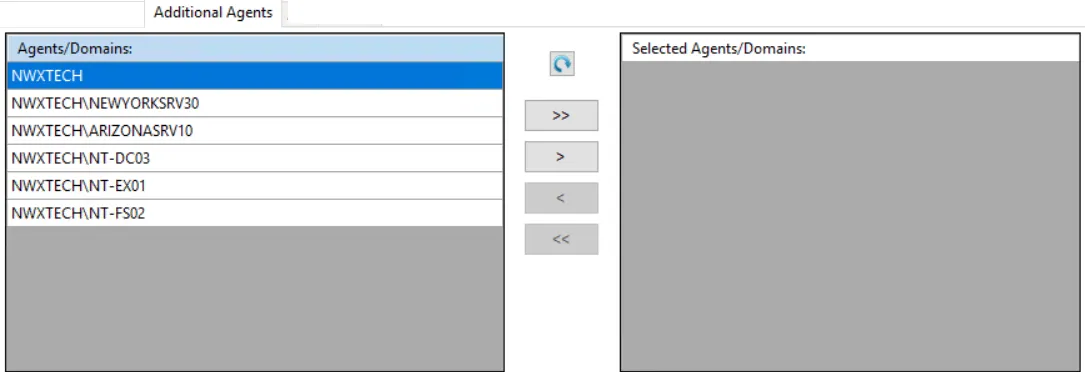
The Agents/Domains list on the left displays available Agents and domains. The Selected Agents/Domains list on the right displays Agents and domains included in the policy.
-
Use the Refresh button to update the lists.
-
Use the arrow buttons to move individual Agents and/or domains between the lists.
- The single arrow buttons will move the selected item to the other list.
- The double arrows will move all items to the other list.
There is no impact if a selected path doesn't exist on the server where an Agent resides.
When you add a domain to the Selected Agents\Domains list, the policy includes all Agents deployed in that domain. If you specify a domain, the policy also includes any Agent later installed in that domain.
AD Perpetrator Filter
Use the AD Perpetrator filter for lockdown to set the scope of the policy to lockdown specific security principals committing changes or to exclude specific security principals committing changes from lockdown.

Select the Block or Allow option button and then edit the list.
For the Password Enforcement Event Type, selecting Allow means that this policy doesn't validate the new passwords for the accounts listed here. Selecting Block means that this policy validates the new passwords for the accounts listed here.
Use the buttons in the Perpetrators and Collections of Perpetrators areas to edit the lists.
- Perpetrators area – The Add (+) button opens the Select Active Directory Perpetrators Window.
- Collections of Perpetrators area - The Collection button opens the List of Collections Window to the appropriate Collection category.
- The Remove (x) button deletes the selected items from that box.
To enable a Dynamic Policy, use the Collection button to select the applicable Dynamic Collection. See the Dynamic Collections topic for additional information.
Rule Preview Filter
The Rule Preview filter displays a summary of the selected filter options. You use this primarily for troubleshooting.
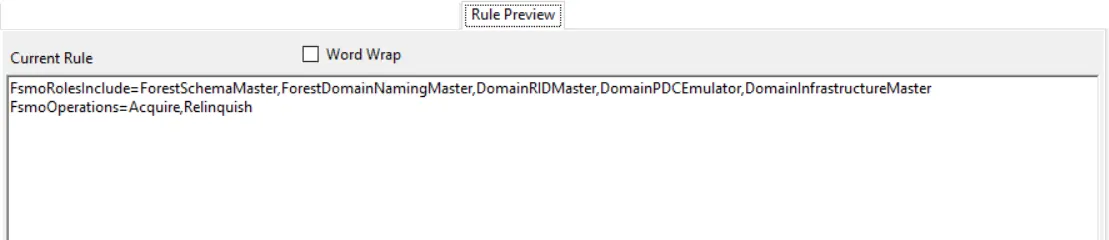
The text displayed represents the rules created based on the policy’s selected filters. Each row is a selected filter. Notice the Word Wrap checkox. If checked, a filter statement may cover multiple rows so that all of it is visible.