LDAP Bind Monitoring Event Type
The LDAP Bind Monitoring event type monitors all connections established with LDAP, including the users who connected with LDAP. While the LDAP Monitoring Event Type creates events when LDAP queries run, LDAP Bind Monitoring creates events when a client establishes a connection with LDAP.
The event filters for the LDAP Bind Monitoring event type are:
- Bind Protocol
- Domains/Servers
- Success
- AD Perpetrator
- IP Addresses (from)
- Hosts (from)
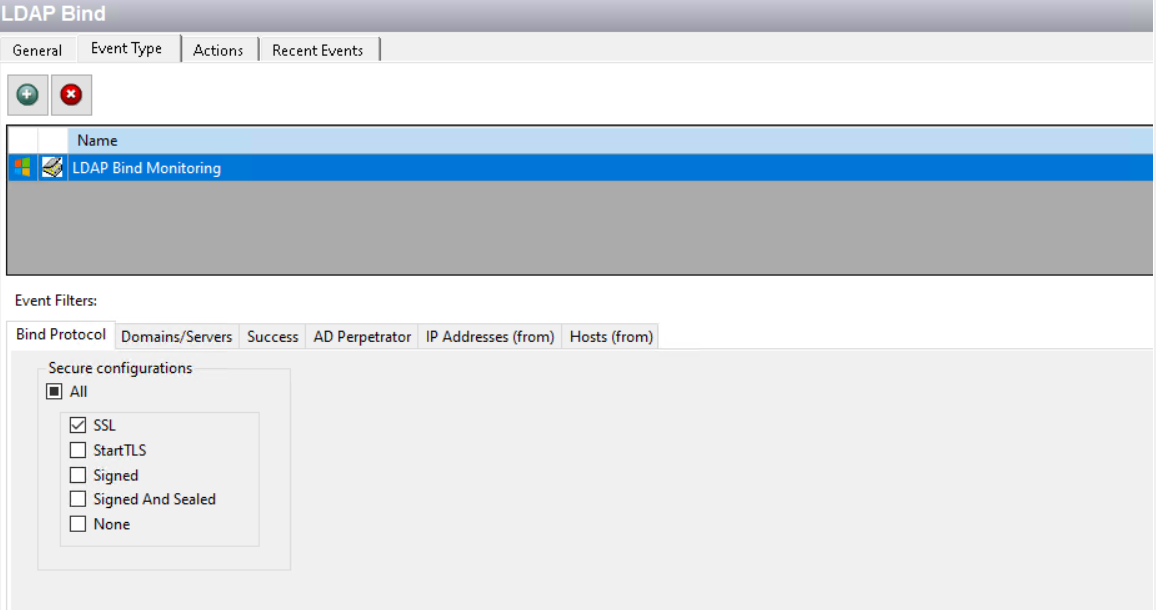
Each filter tab acts like an "AND" statement for the filter. Threat Prevention treats any filter tab left blank like an "ALL" for that filter set.
You can use this event type in a policy only by itself or with another LDAP event type. This means that:
- If you select this event type, all other event types will be grayed out except the LDAP event types
- If you select an event type other than LDAP, this event type will be grayed out
Bind Protocol Filter
The Bind Protocol filter determines whether Threat Prevention captures events for an LDAP bind operation, based on the security protocol the bind operation used.

Select All to report on any LDAP bind that used any protocol.
You can also limit Threat Prevention to capture LDAP bind events only when a bind operation uses one of the selected protocols.
- SSL
- StartTLS
- Signed
- Signed and Sealed
- None – To capture events for an LDAP bind operation that didn't use any of the secure protocols
Domains/Servers Filter
Use the Domains/Servers filter to set the scope of the policy to specific domains and/or servers or to exclude specific domains and/or servers.

Use the buttons in the Include and Exclude areas to edit the lists.
- The Add (+) buttons open the Select Domains and Servers Window.
- The Collection button opens the List of Collections Window to the appropriate Collection category.
- The Remove (x) button deletes the selected items from that box.
To enable a Dynamic Policy, use the Collection button to select the applicable Dynamic Collection. See the Dynamic Collections topic for additional information.
Success Filter
Use the Success filter to set the policy to monitor only successful events, only failed events, or both.

Select the radio button for the monitoring filter you want:
- Success – Only monitors successful events
- Failure – Only monitors failed events
- Both Success and Failure – Monitors all events that are within the scope of the respective filters for the event type
AD Perpetrator Filter
Use the AD Perpetrator filter for monitoring to set the scope of the policy to only monitor specific security principals committing changes or to exclude specific security principals committing changes from monitoring.
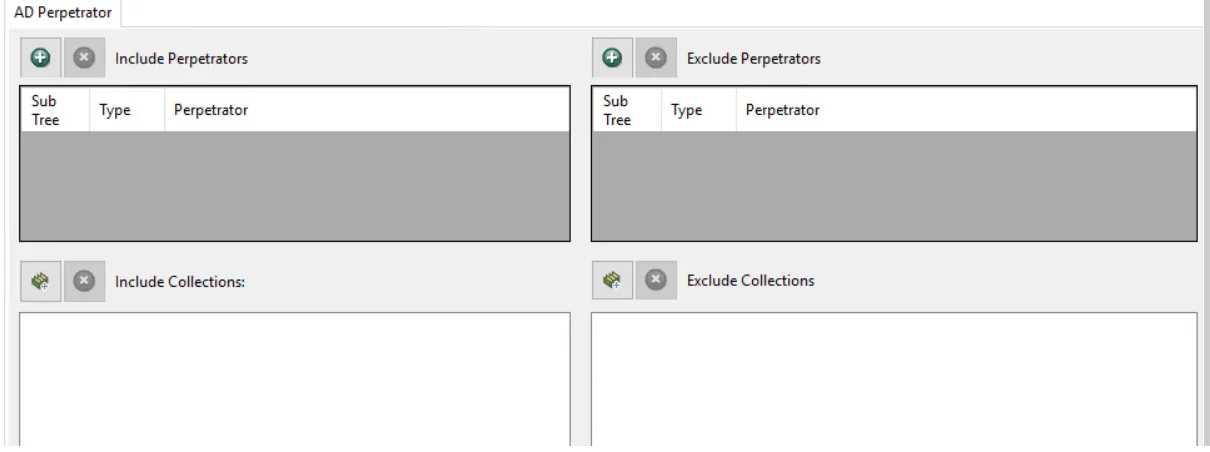
Use the buttons in the Include Perpetrators, Include Collections, Exclude Perpetrators, and Exclude Collections areas to edit the lists.
- The Perpetrators Add (+) button opens the Select Active Directory Perpetrators Window.
- The Collection button opens the List of Collections Window to the appropriate Collection category.
- The Remove (x) button deletes the selected items from that box.
To enable a Dynamic Policy, use the Collection button to select the applicable Dynamic Collection. See the Dynamic Collections topic for additional information.
Sub Tree

When you add contexts, a Sub-Tree checkbox displays. Check it to apply the filter to the parent and all child contexts. Uncheck it to apply the filter to the listed context only.
IP Addresses (from) Filter
Use the IP Addresses (from) filter to set the scope of the policy to specific IP addresses as originators of an event or to exclude specific IP addresses.

Use the buttons in the Include IP Addresses, Include Collections, Exclude IP Addresses, and Exclude Collections areas to edit the lists.
- The IP Addresses Add (+) button opens the Add IP Address Window.
- The Collection button opens the List of Collections Window to the appropriate Collection category.
- The Remove (x) button deletes the selected items from that box.
To enable a Dynamic Policy, use the Collection button to select the applicable Dynamic Collection. See the Dynamic Collections topic for additional information.
Hosts (from) Filter
Use the Hosts (from) filter for monitoring to set the scope of the policy to only monitor specific hosts as originators of an event or to exclude specific hosts from monitoring.

Use the buttons in the Include Hosts, Include Collections, Exclude Hosts, and Exclude Collections areas to edit the lists.
- The Hosts Add (+) button opens the Select Computer Window.
- The Collection button opens the List of Collections Window to the appropriate Collection category.
- The Remove (x) button deletes the selected items from that box.
To enable a Dynamic Policy, use the Collection button to select the applicable Dynamic Collection. See the Dynamic Collections topic for additional information.