LDAP Lockdown Event Type
The LDAP Lockdown event type can prevent execution of LDAP queries that meet policy filters/rules. Be careful as overly broad rules can ‘break’ the environment. Threat Prevention generates an event with details for each blocked LDAP query.
The event filters for the LDAP Monitoring event type are:
- LDAP
- Domains/Servers
- AD Perpetrator – For LDAP Search operations only
- LDAP Query
- Hosts (from)
- Rule Preview
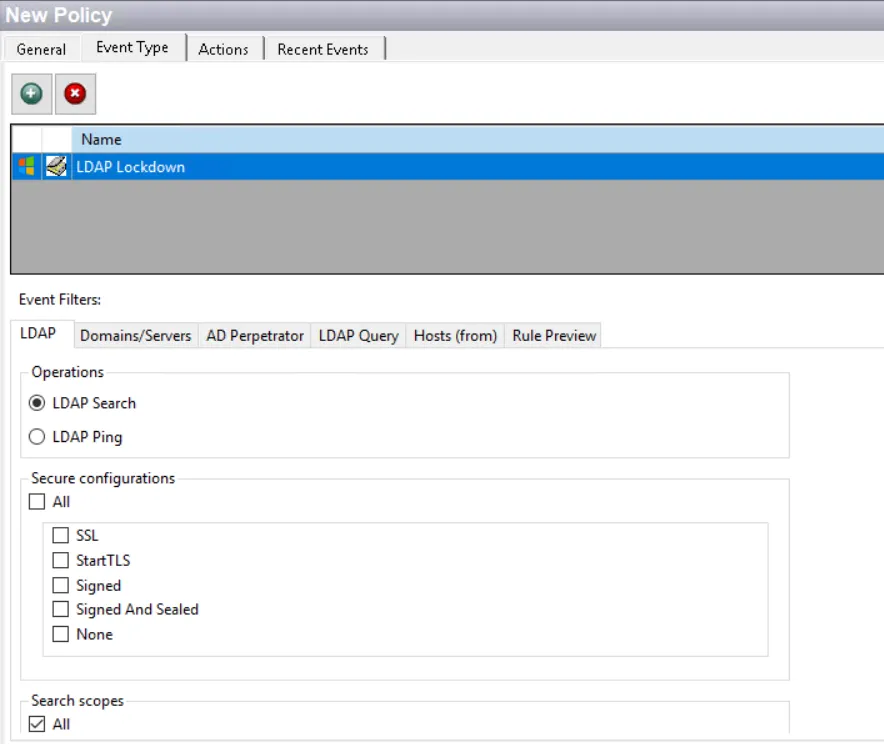
Each filter tab acts like an "AND" statement for the filter. Threat Prevention treats any filter tab left blank like an "ALL" for that filter set.
Lockdown/blocking policies with blank filters lock down or block everything.
You can use this event type in a policy only by itself or with another LDAP event type. This means that:
- If you select this event type, all other event types will be grayed out except the LDAP event types
- If you select an event type other than LDAP, this event type will be grayed out
LDAP Filter
Use the LDAP filter to set the scope of the policy to include one or more communication security types.

The operation selected affects what options are available on this filter and what other filters are available for the event type:
-
LDAP Search – Use the LDAP Search operation to search for and identify activity that doesn't conform to your security configurations
- This option displays additional filters for Secure configurations and Search scopes. See the LDAP Search Operations Use Case topic for additional information.
-
LDAP Ping – LDAP Ping is a Microsoft Active Directory specific Lightweight Directory Access Protocol (LDAP) or Connection-less Lightweight Directory Access Protocol (CLDAP) search that returns information about whether services are live on a domain controller
- See the LDAP Ping Operations Use Case topic for additional information.
When you select LDAP Ping, the Secure Configurations and Search scopes sections don't display.
Domains/Servers Filter
Use the Domains/Servers filter to set the scope of the policy to specific domains and/or servers or to exclude specific domains and/or servers.

Use the buttons in the Include and Exclude areas to edit the lists.
- The Add (+) buttons open the Select Domains and Servers Window.
- The Collection button opens the List of Collections Window to the appropriate Collection category.
- The Remove (x) button deletes the selected items from that box.
To enable a Dynamic Policy, use the Collection button to select the applicable Dynamic Collection. See the Dynamic Collections topic for additional information.
AD Perpetrator Filter
Use the AD Perpetrator filter for lockdown to set the scope of the policy to lockdown specific security principals committing changes or to exclude specific security principals committing changes from lockdown.

Select the Block or Allow option button and then edit the list.
For the Password Enforcement Event Type, selecting Allow means that this policy doesn't validate the new passwords for the accounts listed here. Selecting Block means that this policy validates the new passwords for the accounts listed here.
Use the buttons in the Perpetrators and Collections of Perpetrators areas to edit the lists.
- Perpetrators area – The Add (+) button opens the Select Active Directory Perpetrators Window.
- Collections of Perpetrators area - The Collection button opens the List of Collections Window to the appropriate Collection category.
- The Remove (x) button deletes the selected items from that box.
To enable a Dynamic Policy, use the Collection button to select the applicable Dynamic Collection. See the Dynamic Collections topic for additional information.
LDAP Query Filter
Use the LDAP Query filter for lockdown to set the scope of the policy to lockdown specific LDAP queries or to exclude specific queries from lockdown.

Select the Block or Allow option button and then edit the list.
- Allow – From the list of strings you specify in the LDAP Queries area, if a candidate LDAP query contains at least one as a substring, the query runs
- Block – From the list of strings you specify in the LDAP Queries area, if a candidate LDAP query contains at least one as a substring, the policy blocks the query
Fully understand the blocking rule summary in the Rule Preview filter so you know the scope of what the policy blocks. Blocking more than the intended queries adversely impacts the LDAP environment.
Enter a query in the LDAP Queries box. You can enter a string in the textbox. Alternatively, use the buttons in the respective sections.
- The Add (+) buttons open the Select Active Directory Objects Window.
- The Remove (x) button deletes the selected items from that box.
Hosts (from) Filter
Use the Hosts (from) filter for lockdown to set the scope of the policy to only lockdown specific hosts as originators of an event.

Select the Block or Allow option button and then edit the list.
- For the Password Enforcement Event Type, selecting Allow means that this policy doesn't validate the new passwords for the accounts listed here. Selecting Block means that this policy validates the new passwords for the accounts listed here.
- For the Authentication Lockdown Event Type, this filter blocks or only allows authentication from the identified hosts.
Use the buttons in the Include Hosts area to edit the list.
- The Hosts Add (+) button opens the Select Computer Window.
- The Remove (x) button deletes the selected items from that box.
Rule Preview Filter
The Rule Preview filter displays a summary of the selected filter options. You use this primarily for troubleshooting.
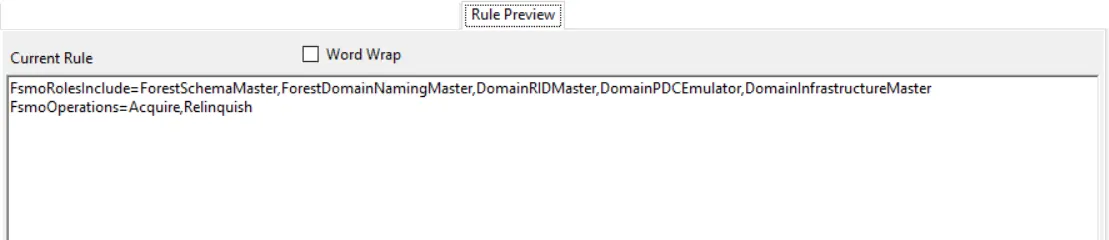
The text displayed represents the rules created based on the policy’s selected filters. Each row is a selected filter. Notice the Word Wrap checkox. If checked, a filter statement may cover multiple rows so that all of it is visible.