Process Guardian – Monitor Event Type
Based on policy rules, the Process Guardian – Monitor event type generates an event when a process not in the ‘white list’ attempts to access the target process. Access options include Write, Read, Create Thread, Suspend/Resume, Terminate, and Create Process.
The event filters for the Process Guardian – Monitor event type are:
- AD Perpetrator
- Domains/Servers
- Target Processes
- Requesting Processes
- Open Process Flags
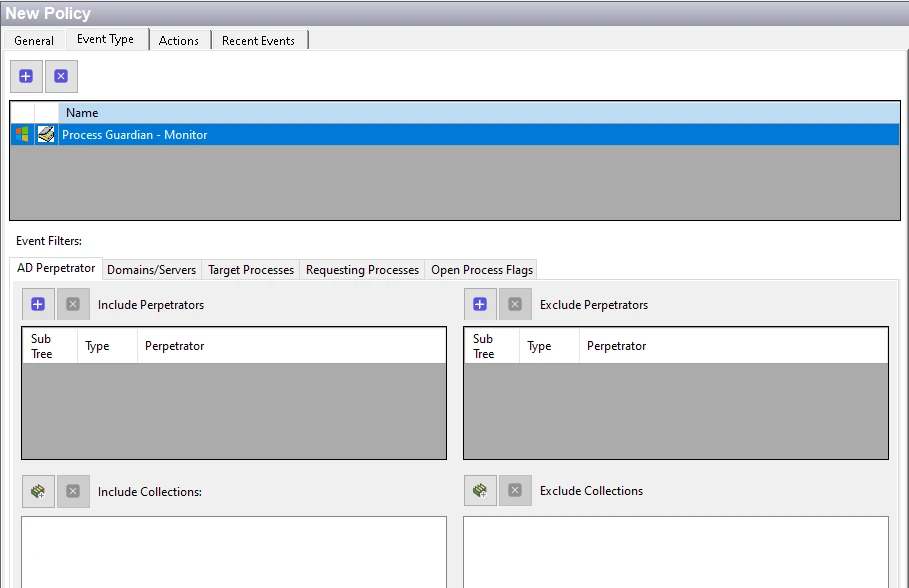
Each filter tab acts like an "AND" statement for the filter. Threat Prevention treats any filter tab left blank like an "ALL" for that filter set.
AD Perpetrator Filter
Use the AD Perpetrator filter for monitoring to set the scope of the policy to only monitor specific security principals committing changes or to exclude specific security principals committing changes from monitoring.
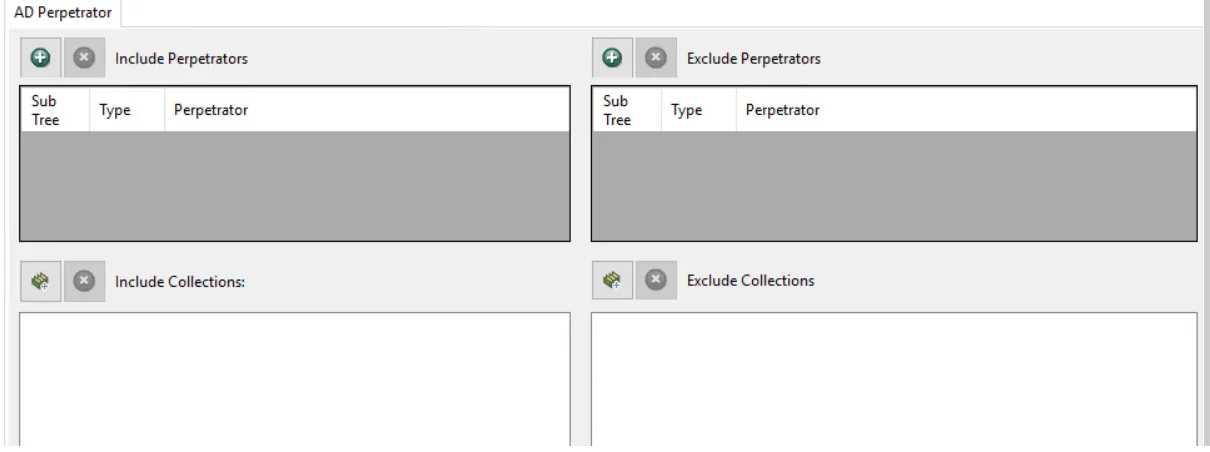
Use the buttons in the Include Perpetrators, Include Collections, Exclude Perpetrators, and Exclude Collections areas to edit the lists.
- The Perpetrators Add (+) button opens the Select Active Directory Perpetrators Window.
- The Collection button opens the List of Collections Window to the appropriate Collection category.
- The Remove (x) button deletes the selected items from that box.
To enable a Dynamic Policy, use the Collection button to select the applicable Dynamic Collection. See the Dynamic Collections topic for additional information.
Sub Tree

When you add contexts, a Sub-Tree checkbox displays. Check it to apply the filter to the parent and all child contexts. Uncheck it to apply the filter to the listed context only.
Domains/Servers Filter
Use the Domains/Servers filter to set the scope of the policy to specific domains and/or servers or to exclude specific domains and/or servers.

Use the buttons in the Include and Exclude areas to edit the lists.
- The Add (+) buttons open the Select Domains and Servers Window.
- The Collection button opens the List of Collections Window to the appropriate Collection category.
- The Remove (x) button deletes the selected items from that box.
To enable a Dynamic Policy, use the Collection button to select the applicable Dynamic Collection. See the Dynamic Collections topic for additional information.
Target Processes Filter
Use the Target Processes filter to set the scope of the policy to monitor Lsass process or any other process.

- Select Lsass for moitoring Lsass process access.
- Select Custom Process for moitoring any other process access.
For the Custom Process option enter the process name in the textbox. Use the buttons in the process list area to edit the list.
- The Process Add (+) button adds a textbox to the list to add an additional process.
- The Remove (x) button deletes the selected items from that box.
Requesting Processes Filter
Use the Requesting Processes filter to set the scope of the policy to only monitor specific processes or exclude specific processes from monitoring.
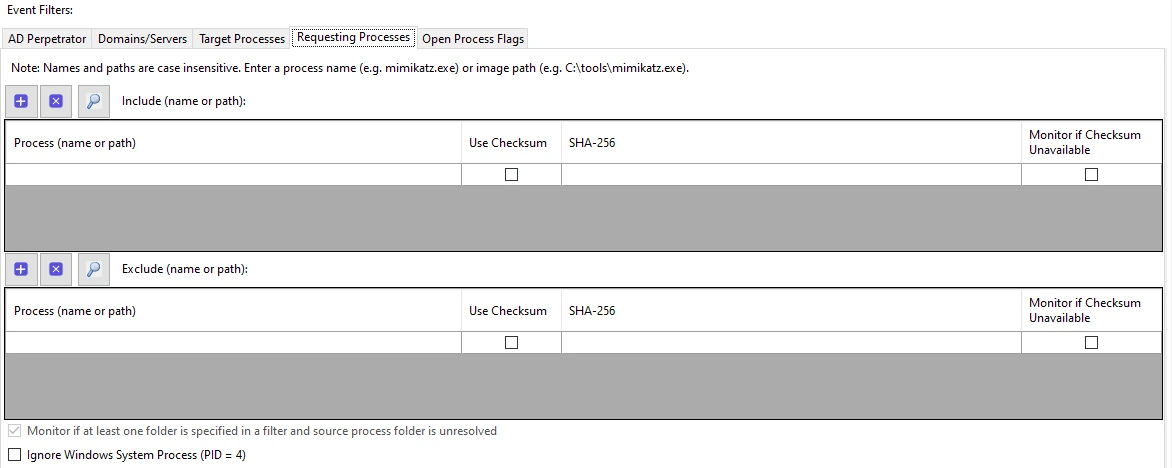
Add an entry to the Include (name or path) grid or the Exclude (name or path) grid. Use the buttons above each grid to edit it.
- The Add (+) button adds a row to the grid.
- The Remove (x) button deletes the selected row from the grid.
- The Lookup button finds a running process and fills in its details.
In a production environment, only exclude processes using the Exclude area. While there is an option to include processes, Netwrix doesn't recommend it in a policy that is monitoring a production environment. Adding a process in the Include area limits the policy to only monitoring that process. The policy wouldn't monitor unknown malicious processes. In a sandbox environment, the Include option can be useful for testing/capturing the LSASS activity for specific processes to see what access they are requesting.
Image Path and Checksum Filtering
A process name is a label that any user with write access to a folder can change. A malicious tool
renamed to svchost.exe matches an entry written against the name svchost.exe. To identify the
requesting process by something the caller doesn't control, enter its full image path instead of its
name, add the checksum of the process image, or do both.
Process (name or path) – Enter either a process name, such as mimikatz.exe, or a full image
path, such as C:\tools\mimikatz.exe. Names and paths are case insensitive. An entry written as a
path matches only a process that runs from that location, so a renamed tool elsewhere on disk no
longer matches it.
Use Checksum and SHA-256 – Check Use Checksum for an entry and enter the approved SHA-256 hash in the SHA-256 column. The entry then matches only when the file the process runs from hashes to the approved value, so a file placed at an approved path is still rejected unless its contents match.
Writing an entry as a path narrows the ways a process can be impersonated, but a malicious file written into that folder still matches. Add a checksum to the entry to close that gap.
The hash of an executable changes every time it's patched or upgraded. Refresh the approved hashes for an entry after every update to the tool it covers. Until you refresh the hashes, Threat Prevention treats the entry according to the Monitor if Checksum Unavailable option.
Threat Prevention resolves the path and computes the checksum ahead of the request, so neither check delays the request itself. Neither is available for a process the Agent hasn't seen yet, and a path is never available for the Windows System process, which runs from kernel memory and has no file on disk. The following options set what happens in those cases.
| Option | Default | Description |
|---|---|---|
| Monitor if Checksum Unavailable | Cleared | Set per entry, in the grid next to the hash. Generates an event when the entry uses a checksum and no hash is available for the requesting process. |
| Monitor if at least one folder is specified in a filter and source process folder is unresolved | Checked | Generates an event when an entry specifies a path and the path of the requesting process can't be resolved |
| Ignore Windows System Process (PID = 4) | Cleared | Excludes the Windows System process from the policy. Threat Prevention reads the process ID from the operating system rather than from the caller, so a process that claims to be the System process doesn't match this exclusion. |
Leave Monitor if at least one folder is specified in a filter and source process folder is unresolved checked unless there's a specific reason to change it. Unchecking it means activity that can't be identified goes unrecorded.
Run these filters in a monitoring policy before you rely on them in a blocking policy. Compare the events the policy generates with the ones it generated on process names alone, so you know which requests a path or a hash excludes.
Kernel Stack Attribute
The Windows System process, which runs as process ID 4, opens handles to LSASS as part of normal
operating system activity. It has no file on disk, so its Image Path attribute reports the name
System and nothing more. That value is the same whether the request came from the operating system
or from a driver claiming to be part of it.
For every request that arrives from the System process, Threat Prevention records the call stack of the requesting thread, resolved to module names and offsets, in a separate Kernel Stack event attribute. Read the Kernel Stack attribute rather than the Image Path attribute when the question is what made a System-process request.
Treat a frame that resolves to no loaded driver, and reports a raw address instead of a module name, as a finding worth investigating.
Policy rules don't evaluate the Kernel Stack attribute. Threat Prevention records it on the event for review after the fact.
Open Process Flags Filter
Use the Open Process Flags filter to set the scope of the policy for requested handles that would maliciously impact the target process.
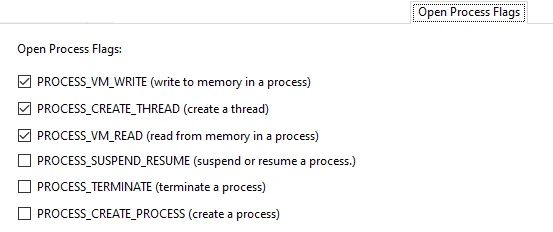
Check the box to select the process flags to monitor. This triggers an event if the request for an target process handle contains one or more of the selected process flags.
- PROCESS_VM_WRITE – Select this checkbox to write to memory in a process
- PROCESS_CREATE_THREAD – Select this checkbox to create a thread
- PROCESS_VM_READ – Select this checkbox to report if the calling process, such as an application,
wants to read process memory
- A typical use case for this is the creation of an LSASS dump file, since creating a dump file of the process requires read rights.
- Uncheck this checkbox to not generate an event if the calling process, such as an application, requests LSASS memory read access.
- PROCESS_SUSPEND_RESUME – Select this checkbox to suspend or resume a process
- PROCESS_TERMINATE – Select this checkbox to terminate a process
- PROCESS_CREATE_PROCESS – Select this checkbox to create a process, for example by cloning an existing one.