Process Guardian – Protect Event Type
Based on policy rules, the Process – Protect event type can prevent processes not ‘white listed’ from accessing LSASS or any other custom process by preventing the Write, Read, Create Thread, Suspend/Resume, Terminate, and/or Create Process operations. Threat Prevention generates an event for each prevented access attempt with details about the process and the attempted versus actual access allowed.
The event filters for the Process Guardian – Protect event type are:
- AD Perpetrator
- Domains/Servers
- Target Processes
- Requesting Processes
- Open Process Flags
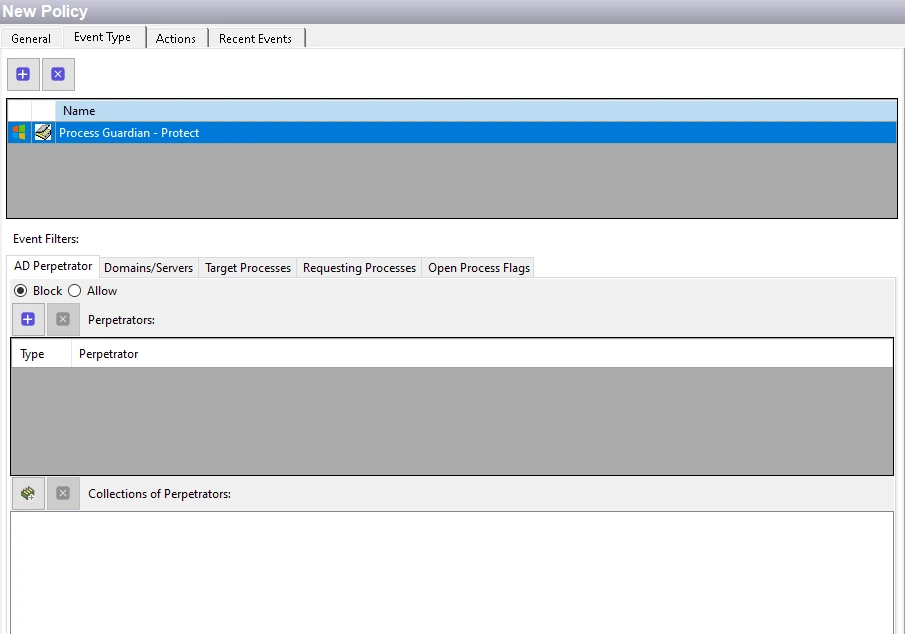
Each filter tab acts like an "AND" statement for the filter. Threat Prevention treats any filter tab left blank like an "ALL" for that filter set.
Lockdown/blocking policies with blank filters lock down or block everything.
AD Perpetrator Filter
Use the AD Perpetrator filter for lockdown to set the scope of the policy to lockdown specific security principals committing changes or to exclude specific security principals committing changes from lockdown.

Select the Block or Allow option button and then edit the list.
Use the buttons in the Perpetrators and Collections of Perpetrators areas to edit the lists.
- Perpetrators area – The Add (+) button opens the Select Active Directory Perpetrators Window.
- Collections of Perpetrators area - The Collection button opens the List of Collections Window to the appropriate Collection category.
- The Remove (x) button deletes the selected items from that box.
To enable a Dynamic Policy, use the Collection button to select the applicable Dynamic Collection. See the Dynamic Collections topic for additional information.
Domains/Servers Filter
Use the Domains/Servers filter to set the scope of the policy to specific domains and/or servers or to exclude specific domains and/or servers.

Use the buttons in the Include and Exclude areas to edit the lists.
- The Add (+) buttons open the Select Domains and Servers Window.
- The Collection button opens the List of Collections Window to the appropriate Collection category.
- The Remove (x) button deletes the selected items from that box.
To enable a Dynamic Policy, use the Collection button to select the applicable Dynamic Collection. See the Dynamic Collections topic for additional information.
Target Processes Filter
Use the Target Processes filter to set the scope of the policy to lockdown access to the Lsass process or any other process.

- Select Lsass to lockdow Lsass process access.
- Select Custom Process to lockdown any other process access.
For the Custom Process option enter the process name in the textbox. Use the buttons in the process list area to edit the list.
- The Process Add (+) button adds a textbox to the list to add an additional process.
- The Remove (x) button deletes the selected items from that box.
Requesting Processes Filter
Use the Requesting Processes filter to set the scope of the policy to only lockdown specific processes or exclude specific processes from lockdown.
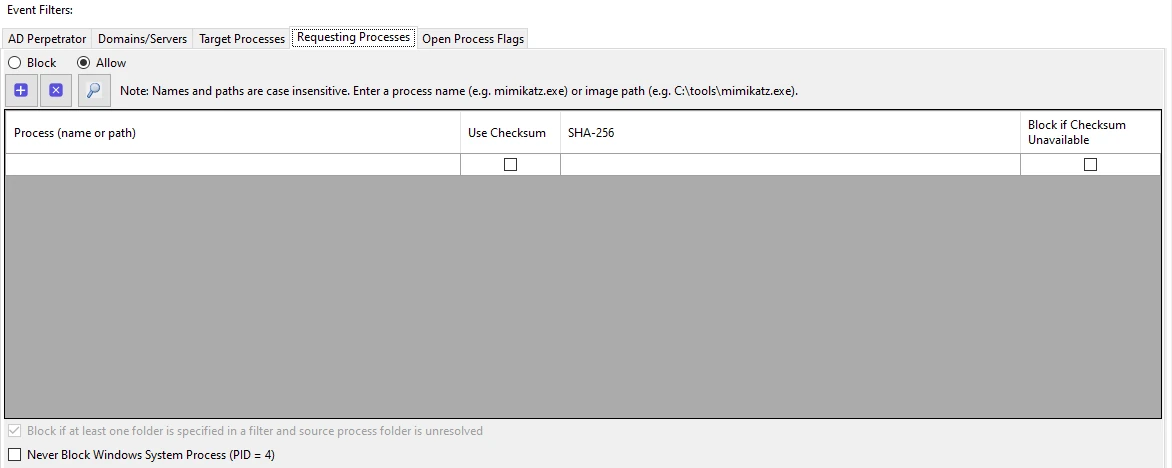
Select the Block or Allow option button and then edit the list.
Add an entry to the process grid. Use the buttons above the grid to edit it.
- The Add (+) button adds a row to the grid.
- The Remove (x) button deletes the selected row from the grid.
- The Lookup button finds a running process and fills in its details.
- While you can select to Block processes, Netwrix doesn't recommend it for locking down target processes. Adding a process block filter will limit the policy to only block that requesting process. The policy wouldn't block unknown malicious processes.
- While you can select to Allow processes, an attacker could rename a malicious process to match an “allowed” process. Therefore, the policy wouldn't block the malicious process.
Image Path and Checksum Filtering
A process name is a label that any user with write access to a folder can change, so an allow entry written against a name alone also matches a malicious tool renamed to that name. To identify the requesting process by something the caller doesn't control, enter its full image path instead of its name, add the checksum of the process image, or do both.
Process (name or path) – Enter either a process name, such as mimikatz.exe, or a full image
path, such as C:\tools\mimikatz.exe. Names and paths are case insensitive. An entry written as a
path matches only a process that runs from that location, so a renamed tool elsewhere on disk no
longer matches it.
Use Checksum and SHA-256 – Check Use Checksum for an entry and enter the approved SHA-256 hash in the SHA-256 column. The entry then matches only when the file the process runs from hashes to the approved value, so a file placed at an approved path is still rejected unless its contents match.
Writing an entry as a path narrows the ways a process can be impersonated, but a malicious file written into that folder still matches. Add a checksum to the entry to close that gap.
The hash of an executable changes every time it's patched or upgraded. Refresh the approved hashes for an entry after every update to the tool it covers. Until you refresh the hashes, Threat Prevention treats the entry according to the Block if Checksum Unavailable option.
Threat Prevention resolves the path and computes the checksum ahead of the request, so neither check delays the blocking decision. Neither is available for a process the Agent hasn't seen yet, and a path is never available for the Windows System process, which runs from kernel memory and has no file on disk. The following options set what happens in those cases.
| Option | Default | Description |
|---|---|---|
| Block if Checksum Unavailable | Cleared | Set per entry, in the grid next to the hash. Blocks the request when the entry uses a checksum and no hash is available for the requesting process. |
| Block if at least one folder is specified in a filter and source process folder is unresolved | Checked | Blocks the request when an entry specifies a path and the path of the requesting process can't be resolved |
Unchecking either option allows a request that Threat Prevention can't identify. Before changing them, run the same filters in a Process Guardian – Monitor policy to find out which requests reach them. See the Process Guardian – Monitor Event Type topic for additional information.
Never Block Windows System Process (PID = 4)
The Windows System process, which runs as process ID 4, opens handles to LSASS as part of normal operating system activity, such as managing security tokens and enforcing access control. Blocking it disrupts the operating system.
Check Never Block Windows System Process (PID = 4), below the process grid on this tab, to exclude that process from the policy. Threat Prevention reads the process ID from the operating system rather than from the caller, so a process that claims to be the System process doesn't match this exclusion.
A driver, however, genuinely runs as process ID 4, which is how Windows drivers work. The process ID
alone therefore doesn't separate an operating system component from a driver that shouldn't be
making the request. For every request that arrives from the System process, Threat Prevention
records the call stack of the requesting thread in a Kernel Stack event attribute, resolved to
module names and offsets. Review that attribute rather than the Image Path attribute, which
reports the name System for any System-process request. Treat a frame that resolves to no loaded
driver, and reports a raw address instead of a module name, as a finding worth investigating.
Policy rules don't evaluate the Kernel Stack attribute. Threat Prevention records it on the event for review after the fact.
Open Process Flags Filter
Use the Open Process Flags filter to set the scope of the policy for requested handles that would maliciously impact target process.
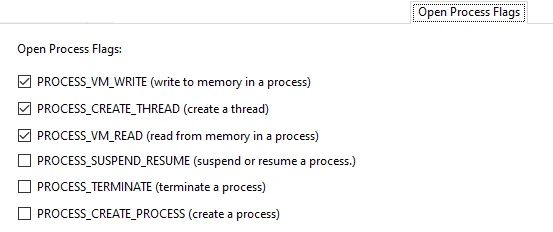
Check the box to select the process flags to remove from the target process handle that Threat Prevention returns to the requesting process.
- PROCESS_VM_WRITE – Select this checkbox to write to memory in a process
- PROCESS_CREATE_THREAD – Select this checkbox to create a thread
- PROCESS_VM_READ – Select this checkbox to report if the calling process, such as an application,
wants to read process memory
- Among other things, this would prevent the creation of an Process memory dump file by Task Manager or other processes.
- PROCESS_SUSPEND_RESUME – Select this checkbox to suspend or resume a process
- PROCESS_TERMINATE – Select this checkbox to terminate a process
- PROCESS_CREATE_PROCESS – Select this checkbox to create a process, for example by cloning an existing one.
Process Guardian Protect doesn't fully block an operation like other lockdown policies. It allows the handle request to complete, but removes the specified flags from the returned handle.