First Launch
When you install the Netwrix Threat Manager Reporting Module, the following icon appears on the desktop, which opens the Netwrix Threat Manager Reporting Module console:

Step 1 – Double-click the Netwrix Threat Manager Dashboard icon to open the console for the first time.

There is a built-in ADMIN account used for the initial configuration steps and granting user access. The User Name is "admin". You will set the password and optionally enable MFA for this account during first launch. To set up this account:
Step 2 – Specify a password in the New Password and Confirm Password fields. It must meet the following minimum requirements:
- At least one uppercase letter
- At least one lowercase letter
- At least one number
- At least one special character (symbol)
- Have a minimum length of 10 characters
Step 3 – By default, MFA is enabled. Toggle this option off or on as desired. If you set the Enable MFA option to ON, the application provides an internally-generated one-time password (OTP) option for the Administrator account. If you set the Enable MFA option to OFF, you need only a username and password to sign in.
Step 4 – Click Set Password.
You have now set the built-in ADMIN account password.
If you set the Enable MFA option to OFF, you need no additional configuration and the Netwrix Threat Manager Reporting Module Console opens. See the Set Up the Threat Manager Reporting Module topic for initial configuration information.
If you set the Enable MFA option to ON, you must register an MFA authenticator. Proceed to the Configure MFA for the Bultin Administrator Account topic.
Configure MFA for the Bultin Administrator Account
If MFA is enabled for the buildtin Administrator account during first launch, use the following steps to configure MFA for the account.
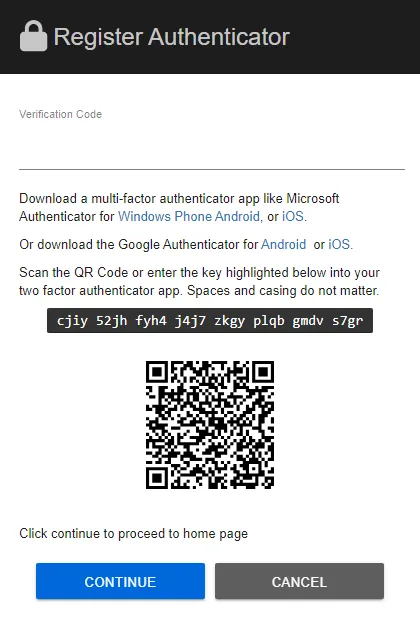
Step 1 – Register the MFA authenticator. The Register Authenticator prompt provides instructions to configure multi-factor authentication with an external or third-party application.
Step 2 – After you register successfully with an authenticator, enter the verification code and click Continue.
Step 3 – The application presents a list of recovery codes to restore access if you lose access to the authenticator application or device. Save this list of codes for account recovery, if needed.
Step 4 – Click Continue.
After you configure MFA for this account, the Netwrix Threat Manager Reporting Module console opens. See the Set Up the Threat Manager Reporting Module topic for the next steps.