Folder Settings Page
Use the Folder Settings page within the Integrations interface to designate the Investigation exports folder location. Additionally, you can provide a shared folder for subscription purposes.
Use the gear icon in the upper right corner of the console to open the Configuration menu. Then select Integrations to open the Integrations interface.
Click Folder Settings in the navigation pane.
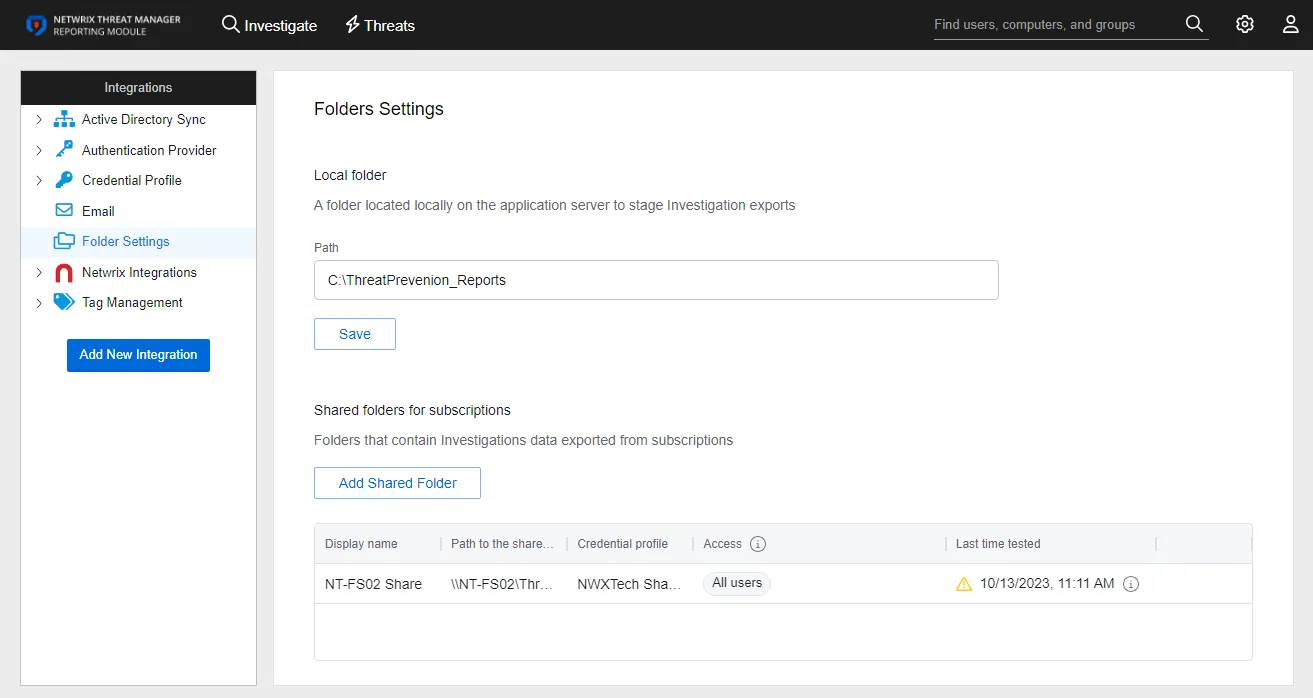
By default, the application places Investigation exports in the Downloads folder of the logged in user, on the machine where that user is accessing the application. When you designate a Local Folder path, the application also stores all Investigation exports in the specified folder on the application server.
When you add shared folders, they appear in a table at the bottom of the page.

The Shared Folders table has the following columns:
- Display Name – The name of the shared folder as displayed in the application
- Path to the Shared folder – The path to the shared folder where the application stores subscription reports
- Credential Profile – Name of the Credential Profile
- Access – The users that can save their subscription exports to the shared folder
- Last Time tested – Date timestamp when the application last tested the shared folder to ensure correct configuration
Additional Options
When you hover over a row within the Shared Folders table, three additional options appear:

- Refresh Arrow – Tests the shared folder configuration
- Edit – Opens the Add New Shared Folder window to edit the configured settings
- Trash – Deletes the shared folder, which prevents the application from using it
Designate a Local Folder
To designate a local folder for Investigation exports:
Step 1 – Use the gear icon in the upper right corner of the console to open the Configuration menu. Then select Integrations to open the Integrations interface.
Step 2 – On the Integrations interface, click Folder Settings in the navigation pane.
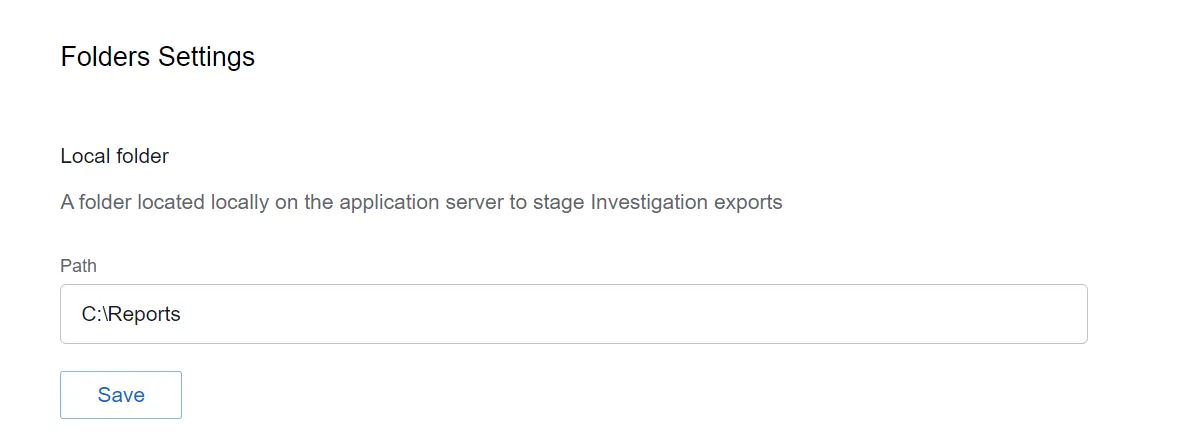
Step 3 – In the Path field, enter a valid folder path on the server where the application is installed. For example, C:\Reports.
Step 4 – The Save button is enabled when you modify any settings. Click it to commit the changes before leaving the page.
The application now saves Investigation exports to the designated local folder on the application server.
Add a Shared Folder
Before adding a shared folder, you must first configure a Credential Profile with Write access to the shared folder. See the Credential Profile Page topic for creating a profile.
You can specify a shared folder for exporting investigations data from subscriptions through the Integrations menu. To add a shared folder:
Step 1 – Use the gear icon in the upper right corner of the console to open the Configuration menu. Then select Integrations to open the Integrations interface.
Step 2 – On the Integrations interface, click Folder Settings in the navigation pane.
Step 3 – Click Add Shared Folder. The Add New Shared Folder window opens.
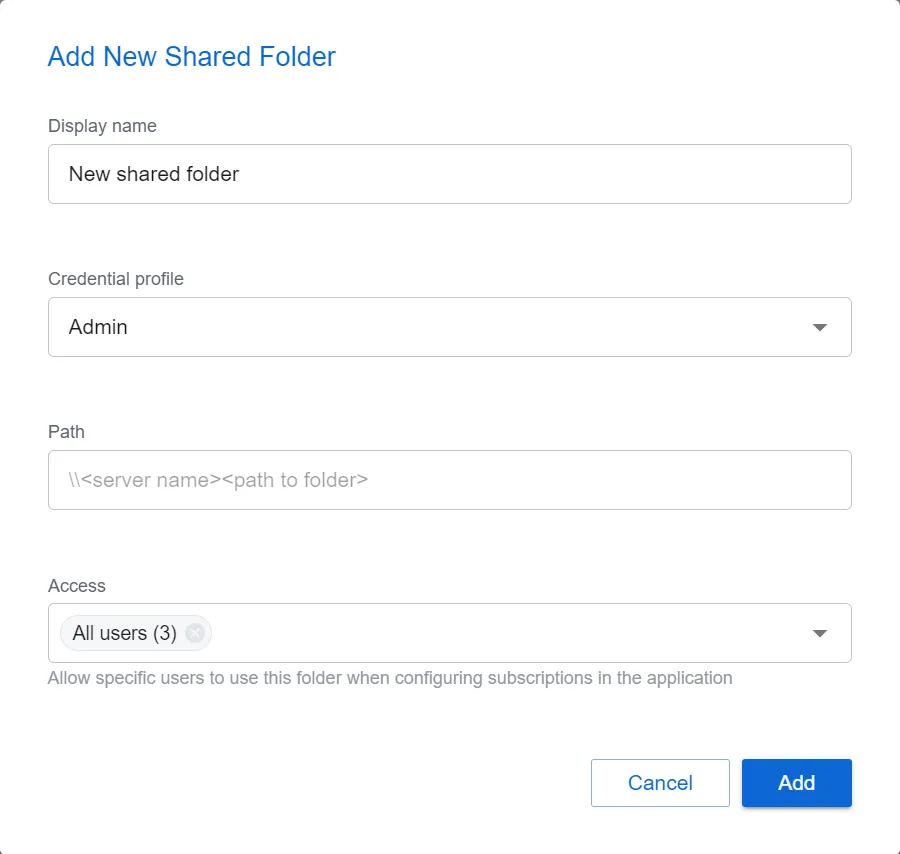
Step 4 – Enter the following information:
- Display Name – Enter a name of the shared folder as displayed in the application
- Credential Profile – Select the Credential Profile by name from the dropdown menu. This was pre-created in the Credential Profiles page.
- Path – Enter a valid share path with the \[SERVER NAME][PATH TO SHARED FOLDER] format. For example, \NT-FS02\Subscriptions.
- Access – Allow specific users to access the folder when configuring subscriptions in the application. By default, this is set to All users. To limit access, select users from the dropdown menu. Only users granted application access through the System Settings > User Access page will be available in the dropdown.
Step 5 – Click Add. The Add New Shared Folder window closes.
You have now configured the specified shared folder for subscription exports.