LSASS Process Terminated
To collect real-time activity data, the Agent hooks into (intercepts) specific Microsoft APIs in the LSASS process. Note the following:
- Occasionally Microsoft issues KBs (hot-fixes) that alter the LSASS components. Most of these hot-fixes don't alter the number or type of parameters passed into the APIs, or the returned values the Agent monitors, and therefore don't impact operation of the Agent.
- Infrequently Microsoft issues a KB that changes one of these APIs in a way that can result in interfering with the Agent instrumentation. This in turn can result in an exception which causes the LSASS process to terminate. Historically, Microsoft releases an update causing this type of exception less than once a year. When it does occur, such a conflict typically manifests within a minute of boot up, often before Windows initializes the GINA that allows interactive login. When the Windows operating system (OS) detects such a situation, it initiates a reboot of the OS. The end result can be an OS reboot loop, which you resolve by either applying a ‘counter’ patch from Netwrix to adapt to the Microsoft change or by setting the Threat Prevention Agent service from its default ‘automatic start’ to ‘disabled’ or ‘manual start’ so that the Threat Prevention hooks don't deploy on the next reboot.
The Agent can detect if the LSASS process has terminated. If the Agent observes an LSASS termination within the first five minutes from last reboot, it assumes this situation is the cause and takes the following two actions well before the OS shuts down for the first time:
- First, it sends an alert to the Enterprise Manager, “LSASS shutdown detected”
- Second, it sets itself to “manual start” so that the Agent instrumentation doesn't load on reboot
While this does result in a suspension of further Threat Prevention event monitoring and/or blocking on the affected domain controller, it ensures the domain controller continues to operate normally. After you deploy the counter patch that Netwrix provides, you can restart the Agent from the Administration Console. In this case, the console first checks whether the Agent is set to ‘manual start’ mode. If yes, it sets the Agent service back to ‘automatic start’ mode and restarts it, restoring normal operation.
Register a primary and a secondary technical contact for your orgaization with Netwrix throughout the lifetime of Threat Prevention usage. Netwrix will issue notifications to these registered technical contacts related to Microsoft-issued KBs affecting LSASS and the counter patch (if one is needed). Contact the organization’s Netwrix Sales Representative or Netwrix Support to ensure that you have registered these contacts.
Before Microsoft releases a KB that alters the LSASS components in a manner that causes a conflict with the Agent, Netwrix will first send a notification informing the registered technical contacts of the release along with detailed instructions on how to obtain and apply the relevant Agent counter patch. Netwrix typically makes counter patches available via these notifications 24 hours or more before Microsoft issues the incompatible KB.
Since this requires the Threat Prevention administrator to take action, there is an Operations alert specific to this event.
Enable the LSASS process terminated alert under Operations on the System Alerting Window.
You can enable a safe mode for the Agent, which prevents the Agent's Active Directory monitoring module from loading if the Agent detects any LSASS change. See the Agent Safe Mode topic for additional information.
Enable the 'LSASS Process Terminated' Email Alert
To enable email notifications for the LSASS process terminated alert under Operations:
These steps require the Threat Prevention administrator user role. They also assume that you have configured the SMTP host information and enabled email alerts. See the Configure SMTP Host Information topic for additional information
Step 1 – Click Configuration > Alerts on the menu to open the System Alerting Window.
Step 2 – On the Email tab, click Configure.
Step 3 – Create a Message Profile for the LSASS notification with the recipients you want to notify when the LSASS process terminates. See the Create Message Profiles topic for additional information.
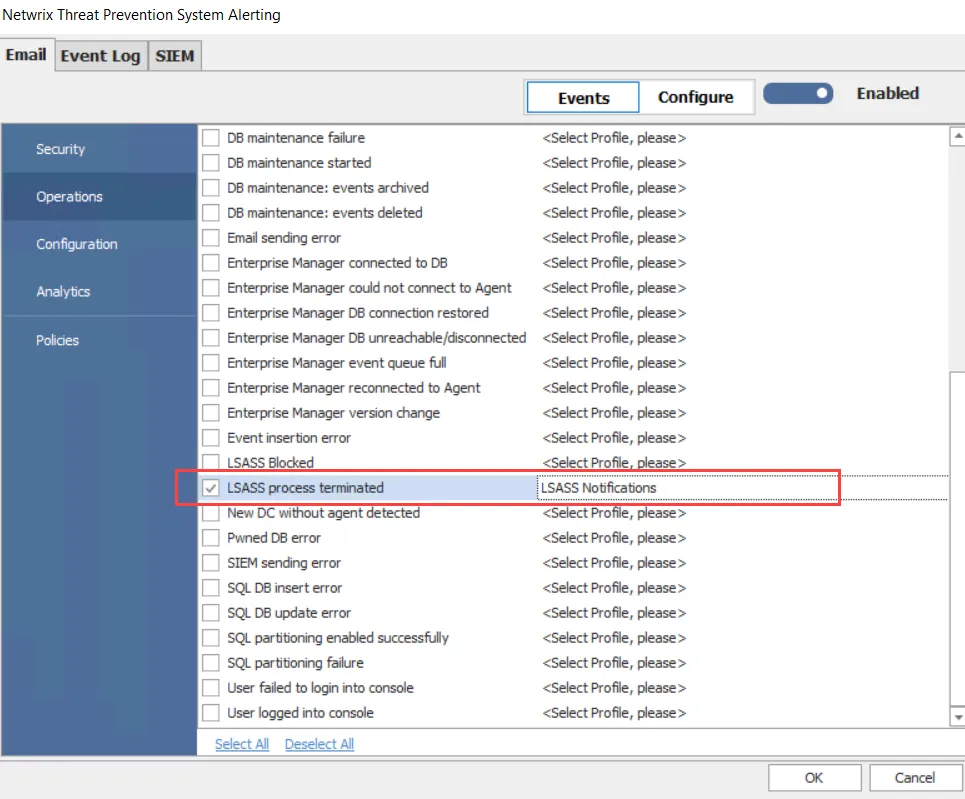
Step 4 – On the Email tab, click Events, and then click Operations in the left pane. Check the LSASS process terminated event alert and select the Message Profile you created in Step 3 from the dropdown menu. See the Email Tab topic for additional information.
Step 5 – Ensure that the email alerts are enabled, as indicated by the Enabled toggle button, and click OK.
When the LSASS process terminated event alert triggers, Threat Prevention sends an email notification to the assigned (step 3) recipients.
Check the Hooks on a Domain Controller
Another security product that hooks the same LSASS APIs as the Agent can cause failed hooks or an unstable LSASS process. To list every hook present in LSASS and identify the ones that don't belong to Threat Prevention, use the LSASS hook scan tool. See the LSASS Hook Scan Tool topic for additional information.